
Where Is Mouse Button 4 and How Do You Use It for Gaming and Productivity?
Mouse Button 4 (MB4) is typically the side button located on the thumb side of a mouse, specifically the one positioned closest to your wrist (the "rear" button). In standard Windows and browser configurations, it functions as the "Back" button. Technically known as XBUTTON1 , it is natively supported by the Human Interface Device (HID) protocol, meaning it works without special drivers in most modern operating systems.
What Exactly Is Mouse Button 4?
In the world of computer peripherals, the standard mouse has evolved far beyond the simple two-button-and-scroll-wheel design. Today, the "5-button mouse" is the baseline for gaming and professional productivity. Mouse Button 4, often abbreviated as MB4, represents a specific input signal recognized by your operating system.
According to the Human Interface Device (HID) standards , Windows natively recognizes five distinct mouse signals: Left Click, Right Click, Middle Click (Scroll Wheel), XButton1, and XButton2. MB4 is the technical designation for XButton1 . Because this is a standardized protocol, you do not usually need proprietary software like Razer Synapse or Logitech G Hub for the button to perform its default task: navigating backward in web browsers or file explorers.
It is important to distinguish MB4 from its neighbor, Mouse Button 5 (MB5). While MB4 is the "Back" button (rear), MB5 is the "Forward" button (front). Together, they allow for rapid navigation through web pages and folders without moving the cursor to the top of the screen.
How to Find Mouse Button 4 on Different Types of Mice
While the internal logic for MB4 is consistent, the physical placement varies significantly depending on the ergonomic design of your device. Identifying it correctly is the first step toward effective remapping.
Standard Gaming Mice
On popular models like the Razer DeathAdder or Logitech G502, MB4 is almost always found on the left side of the mouse (for right-handed users). It is the button that sits directly under the pad of your thumb, specifically the one toward the back of the mouse. Manufacturers often design this button with a slightly different texture or a larger surface area to make it easier to distinguish from MB5 by touch alone.
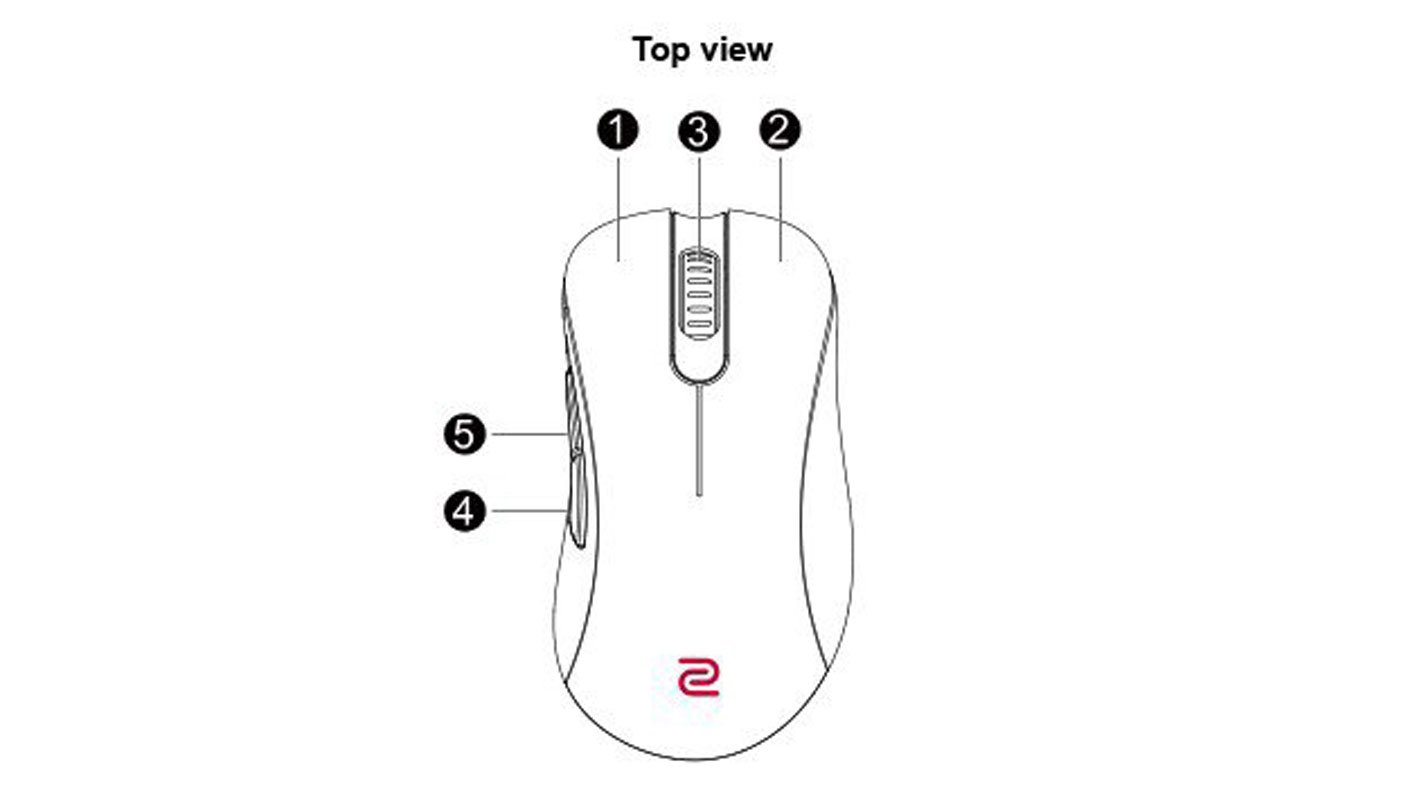
Image source: ZOWIE - BenQ
Vertical Ergonomic Mice
Vertical mice, such as those from CSL or Logitech’s MX Vertical series, rotate the hand 90 degrees to reduce wrist strain. On these devices, the "side" buttons are often stacked vertically. In this configuration, the "Down" button usually maps to the "Back" function (MB4), while the "Up" button maps to "Forward" (MB5). This orientation can be confusing for new users, but the OS still treats the signal as XButton1.
MMO Mice with 12-Button Grids
Mice designed for Massive Multiplayer Online (MMO) games, like the Corsair Scimitar or Razer Naga, feature a grid of 12 buttons. By default, these buttons are usually mapped to the number row (1 through 0, -, and =). However, the software often allows you to designate one of these—typically the "4" or "1" key—to act as the native MB4 signal if you prefer the standard "Back" functionality.
Why Your Browser Goes Back When You Use Discord Push-to-Talk
One of the most common frustrations for gamers is the "Discord-Browser Conflict." Many users find that MB4 is a highly convenient choice for a Push-to-Talk (PTT) key because the thumb is naturally resting near it. However, because MB4 is natively the "Back" button, pressing it to speak while you have a web browser open in the background will cause that browser to navigate away from your current page.
This happens because the OS sends the XButton1 signal to the active window (Discord) and the background window (Chrome/Edge) simultaneously if the input isn't "consumed" correctly. According to community discussions on Razer Insider , the most effective fix is to remap the physical button to a key that has no native function in Windows.
The Function Key Workaround
The secret to conflict-free remapping is using the "extended" function keys, F13 through F24. These keys exist in the Windows API but are not present on standard keyboards. By mapping MB4 to F13 in your mouse software, you can then set Discord's PTT to F13. Since no browser recognizes F13 as a "Back" command, the conflict is resolved instantly.
How to Remap Mouse Button 4 for Gaming and Apps
If you want to use MB4 for something other than going "Back," you have several options ranging from manufacturer-specific suites to universal open-source tools.
Using Manufacturer Software
Most premium mice come with dedicated software that allows for deep customization:
- Logitech G Hub: Allows you to create "Assignments." You can map MB4 to complex macros, system commands (like Mute), or specific keystrokes.
- Razer Synapse: Features "Hypershift," which allows MB4 to act as a modifier key, effectively doubling the number of buttons on your mouse when held down.
- Corsair iCUE: Useful for managing the 5-button limit by allowing you to emulate keyboard strokes directly on the mouse hardware.
Universal Software Solutions
If you have a generic mouse or prefer not to use heavy manufacturer software, these tools are among the top choices:
- X-Mouse Button Control (XMBC)
- A lightweight, highly effective tool for Windows that allows you to change the behavior of MB4 on a per-application basis. You can make it "Back" in Chrome but "Enter" in Excel.
- AutoHotkey (AHK)
- A powerful scripting language for Windows. It allows for the most complex remapping possible, such as making MB4 perform different actions based on how long you hold it.
XButton1::Send, ^c
; AutoHotkey Script to map MB4 to a "Shift+Click" for CAD panning
XButton1::Send, {Shift Down}{LButton Down}
XButton1 Up::Send, {LButton Up}{Shift Up}
What to Do When Mouse Button 4 Stops Working in Windows 11
A significant number of users have reported that their side buttons suddenly stop responding after a Windows 11 update. This is often due to a conflict between the manufacturer's driver and the Windows "Generic HID" stack. According to Microsoft Learn troubleshooting threads , the solution is often to force Windows to use its own native driver.
Step-by-Step Driver Fix
- Right-click the Start button and select Device Manager .
- Expand the Mice and other pointing devices section.
- Right-click your mouse (it may show as "HID-compliant mouse" or a brand name) and select Update driver .
- Choose Browse my computer for drivers .
- Select Let me pick from a list of available drivers on my computer .
- Select the generic HID-compliant mouse option and click Next.
- Restart your computer and test the button.
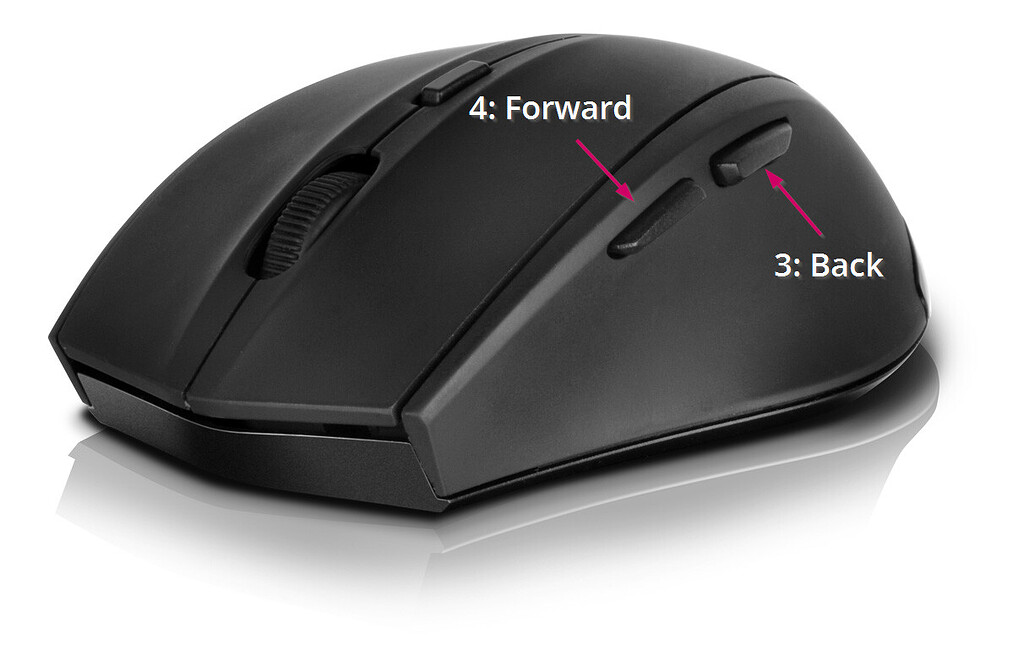
Image source: JUCE Forum
Fixing Mouse Button 4 Issues on Linux and Wayland
For Linux users, especially those on modern distributions using the Wayland display protocol, side buttons can be notoriously finicky. Kernel updates can sometimes "reset" how HID devices are handled, causing MB4 to lose its mapping.
The most robust solution for Linux is a tool called
input-remapper
. It provides a graphical interface to intercept the raw input from the kernel and remap it to any key or macro. This is particularly useful for high-polling rate gaming mice that might otherwise require complex
hwdb
or
udev
rules to function correctly.
Advanced Productivity Hacks for Mouse Button 4
While gaming is the most common use case, MB4 is a top-tier tool for professional workflows. Offloading repetitive keyboard tasks to your mouse thumb can significantly reduce ergonomic strain.
| Industry | Recommended MB4 Mapping | Benefit |
|---|---|---|
| CAD / 3D Modeling | Orbit / Pan (Shift + Middle Click) | Allows for one-handed navigation of 3D space. |
| Video Editing | Ripple Delete / Split Clip | Speeds up the "rough cut" phase of editing. |
| Software Coding | Go to Definition (F12) | Navigate large codebases without touching the keyboard. |
| General Office | Enter / Paste | Reduces hand movement during data entry. |
Frequently Asked Questions
Which button is Mouse 4 in Minecraft?
In Minecraft, Mouse 4 is typically the rear side button. Many players bind this to "Sprint" or "Pick Block" to free up their left hand for movement. If it doesn't register in the game settings, ensure your mouse software isn't overriding the button with a different command.
Can I use Mouse 4 if my mouse only has 3 buttons?
No, Mouse 4 requires a physical fourth switch. While you can use software to emulate the "Back" function on a different key, you cannot create a "Mouse 4" signal without the hardware supporting the XButton1 protocol. If you need more buttons, upgrading to a 5-button mouse is a highly recommended first step.
What is the key code for Mouse Button 4?
Natively, the virtual key code for Mouse Button 4 is
0x05
(VK_XBUTTON1). In scripting languages like AutoHotkey, it is referred to as
XButton1
. In browser events, it is often identified as button code 3 (where 0 is left, 1 is middle, and 2 is right).
Why does my Mouse 4 button lower my DPI?
You are likely pressing a "Sniper" or "DPI Shift" button rather than a standard MB4. Many gaming mice include this as a third side button. You can usually change this behavior in the manufacturer's software to act as a standard MB4/Back button instead.
Is Mouse Button 4 the same as the Scroll Wheel click?
No. The Scroll Wheel click is Mouse Button 3 (MB3). Mouse Button 4 and Mouse Button 5 are almost always located on the side of the mouse, intended for thumb use.
Key Takeaways for Mastering Mouse Button 4
Understanding and optimizing your mouse buttons can transform your digital workflow from a series of clicks into a streamlined experience.
- Identify the location: MB4 is almost always the rear-most thumb button on the side of your mouse.
- Know the default: Its native function is "Back" in browsers and Windows Explorer, technically called XButton1.
- Fix Discord conflicts: Remap MB4 to an unused function key (F13–F24) to prevent browser navigation while talking.
- Troubleshoot Windows 11: If the button stops working, force the "HID-compliant mouse" driver in Device Manager.
- Leverage AHK: Use AutoHotkey for advanced macros that manufacturer software might not support.
- Check your hardware: If a button doesn't register in a mouse tester, it may be a physical switch failure rather than a software bug.
To get started, try downloading a simple mouse tester tool to confirm your OS is receiving the XButton1 signal before you begin complex remapping.
-
Topic: How does a fourth mouse button work? : r/AskProgramminghttps://www.reddit.com/r/AskProgramming/comments/1bjpi4u/how_does_a_fourth_mouse_button_work/
-
Topic: [SOLVED] - Mouse 4 button specifically not workinghttps://forums.tomshardware.com/threads/mouse-4-button-specifically-not-working.3712963/
-
Topic: DeathAdder V2 Mouse 4 & 5https://insider.razer.com/mice-and-surfaces-9/deathadder-v2-mouse-4-5-34085

How to Fix a Windows 11 Cursor That Changes to a Hand but Won't Open Links
Fix the Windows 11 hand icon paradox and Cursor AI link bugs. Resolve 24H2 cursor invisibility and broken URL protocols with our expert guide.


How to Maximize Any Window Using Windows Keyboard Shortcuts
Learn every Windows shortcut to maximize windows, handle Windows 11 snap layouts, and fix stuck apps using keyboard commands and PowerToys.


How to Pin a Website to Your Taskbar in Windows and Mac
Learn to pin websites to your taskbar in Windows 11, 10, and Mac. Fix missing pin options and use the Firefox workaround for faster access.