
How to Maximize Any Window Using Windows Keyboard Shortcuts
To maximize the window you are currently using, press Windows Key + Up Arrow . If the window is currently minimized, you may need to press this combination twice. For a menu-based approach that works even when the Windows key is disabled, press Alt + Space followed by X .
The Quickest Way to Maximize Your Active Window
Navigating the Windows interface efficiently often requires moving beyond the mouse. The most common method to expand a window to fill the entire screen is the system-level shortcut involving the arrow keys. This functionality has remained consistent across several generations of the operating system, making it a reliable tool for productivity.
The Primary Command: Windows Key + Up Arrow
According to Microsoft Official Documentation , the Windows Key + Up Arrow is the standard command for maximizing the active window. This shortcut is context-aware, meaning its behavior changes based on the current state of the window:
- If the window is "Restored" (partial screen): Pressing the shortcut once will maximize it.
- If the window is Minimized: You must first select the window (via Alt+Tab), then press the shortcut. The first press usually restores it to its previous size, and the second press maximizes it.
- If the window is Snapped: If the window is currently taking up half the screen (Left or Right snap), the Up Arrow will expand it to fill the full screen.
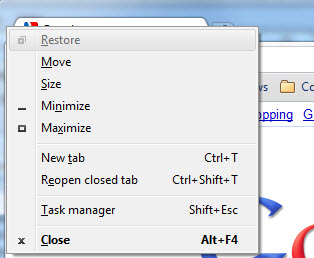
Image source: Gigaisland
The Reverse Action: Restoring and Minimizing
To reverse a maximization, the Windows Key + Down Arrow serves as the logical counterpart. As noted by NMU Technology Support , this command follows a specific hierarchy. If a window is maximized, the first press "restores" it to a smaller, floating window. A second press of the same combination will then minimize the window to the taskbar. This two-step process prevents accidental minimization when you simply wanted to resize the window.
How to Maximize Windows Using the Legacy Alt and Space Menu
While the Windows key shortcuts are widely used, they are not the only way to control window states. A legacy method exists that dates back to the earliest versions of Windows, providing a text-based menu for window management. This method is widely regarded as a top choice for users who prefer menu navigation or those using specialized hardware where the Windows key might be absent or disabled.
The "Pro" Sequence: Alt + Space + X
The "System Menu" can be accessed by pressing Alt + Spacebar . This small menu appears in the top-left corner of the active window (or the top-right in some modern apps). Once the menu is visible, you can see various options with underlined letters. Pressing X immediately triggers the Maximize command.
Accessibility Benefits and Reliability
This method offers significant advantages for accessibility. For users relying on screen readers like NVDA or JAWS, the Alt + Space menu provides a clear, verbal confirmation of the window's state. Unlike the visual animation of the Windows key shortcut, the menu explicitly lists "Maximize" as an option, which is only selectable if the window isn't already maximized. Furthermore, Microsoft Learn discussions highlight that this method is exceptionally reliable for "stuck" windows that may not respond to standard arrow-key commands due to software overlays or gaming modes.
Can You Maximize All Windows at Once?
A common point of confusion among power users is whether a single command exists to force every open application into a maximized state. While Windows provides robust tools for bulk minimization, the "Maximize All" functionality is more nuanced than many expect.
The "Maximize All" Nuance
Technically, there is no native, single-press shortcut that forces every disparate window on your desktop to maximize simultaneously regardless of their previous state. However, there is a way to restore windows that were minimized as a group. If you use Windows Key + M to minimize everything and show the desktop, you can use Windows Key + Shift + M to bring them all back to their previous states.
Comparison of Bulk Window Commands
| Shortcut | Action | Best For |
|---|---|---|
| Win + Up | Maximize Active Window | Single-task focus and speed. |
| Win + M | Minimize All Windows | Clearing the workspace quickly. |
| Win + Shift + M | Restore All Minimized | Recovering your workspace after Win + M. |
| Win + D | Show Desktop Toggle | Quickly checking files on the desktop. |
As demonstrated in community tutorials , mastering the relationship between Win+M and Win+Shift+M is a significant step forward in managing complex multi-window workflows.
Managing Windows 11 Snap Layouts Without the Mouse
Windows 11 introduced "Snap Layouts," a visual tool that appears when you hover over the maximize button. While helpful for mouse users, this feature can sometimes interfere with keyboard-driven workflows, particularly when using the Win + Up Arrow command.
The Snap Layout Conflict
In some versions of Windows 11, pressing the maximize shortcut may trigger a "Snap Flyout" instead of a clean maximization. This occurs because the OS is trying to suggest zones for the window. Many users in the Reddit community have noted that this adds a layer of UI friction that wasn't present in Windows 10. To bypass this and achieve a "clean" maximize, the Alt + Space + X method is often preferred as it ignores the Snap UI entirely.
Disabling Snap Interference
If you find that the new multitasking features hinder your speed, you can adjust them in the system settings. This allows the maximize shortcut to function more traditionally. Navigate to Settings > System > Multitasking and look for the "Snap windows" section. Here, you can toggle off "Show snap layouts when I hover over the window's maximize button" or "Show snap layouts that the window can be part of when I drag it." Disabling these options often restores the snappy, immediate feel of the maximize shortcut.
How to Force a Window to Maximize When It Is Stuck
Occasionally, an application may become "stuck" in a windowed mode or open off-screen, refusing to respond to standard maximize commands. This is a frequent issue reported in specialized software communities, such as the Lightburn Forum , where windows may fail to remember their last known state.
The "Shift + Close" Memory Trick
Windows attempts to remember the size and position of a window when it is closed. If an app consistently opens in a small window, try this:
- Maximize the window using the mouse or Win + Up .
- Hold the Shift key on your keyboard.
- Click the X (Close) button in the top-right corner while continuing to hold Shift.
Shortcut Properties Hack
For applications that are particularly stubborn, you can modify the shortcut itself to ensure it always launches in a maximized state. This is a highly impactful fix for legacy software.
- Right-click the application's shortcut on your desktop or taskbar.
- Select Properties .
- Go to the Shortcut tab.
- Find the Run: dropdown menu.
- Change "Normal window" to Maximized .
- Click Apply and OK.
Advanced Window Management with Microsoft PowerToys
For users who find the native Windows shortcuts limiting, Microsoft PowerToys offers a suite of utilities that significantly improve window management. PowerToys is widely regarded as one of the strongest additions to a power user's toolkit, providing features that go far beyond the standard OS capabilities.
Introduction to FancyZones
FancyZones allows you to create complex window layouts that act like "custom maximize" zones. Instead of a window taking up the whole screen, you can define a zone that takes up, for example, the center 80% of the screen. By holding Shift while dragging a window (or using custom shortcuts), you can "maximize" a window into these specific zones. This is a major improvement for users with ultra-wide monitors who find a full-screen maximize to be too expansive for single tasks.
Remapping the Maximize Function
The Keyboard Manager utility within PowerToys allows you to remap any key to the maximize function. If you find the Win + Up combination cumbersome, you could remap a single, unused key (like F9 or a dedicated macro key) to execute the maximize command. This level of customization sets a high standard for workflow optimization, allowing the OS to adapt to the user's physical comfort rather than the other way around.
Multi-Monitor Shortcuts for Power Users
In a multi-monitor setup, maximizing a window is only half the battle. You often need to move windows between screens while maintaining their maximized state. Standard IT documentation, including guides from NMU IT , suggests several combinations for these scenarios.
Moving While Maximized
If a window is maximized on Monitor A, you can move it to the same position on Monitor B by pressing Windows Key + Shift + Left/Right Arrow . The window will "jump" to the next screen and remain maximized. This is a top-tier time-saver for professionals who manage multiple dashboards or reference materials across several displays.
The Vertical Span Shortcut
A lesser-known but remarkably useful shortcut is Windows Key + Shift + Up Arrow . This does not maximize the window in the traditional sense; instead, it stretches the window to the top and bottom of the screen while maintaining its current width. This is particularly useful for reading long documents or code files where you want maximum vertical real estate without losing sight of background applications on the sides of your screen.
Frequently Asked Questions
The most common reason is a loss of "focus." If you have recently clicked on the taskbar or a background notification, the window you intend to maximize may no longer be the active one. Click once anywhere inside the window to give it focus, then try the shortcut again. Additionally, some "Game Modes" on keyboards or within software (like Razer Synapse) may disable the Windows key to prevent accidental interruptions during gameplay.
While both make a window larger, they serve different purposes. Windows + Up maximizes the window but keeps the taskbar and the window's title bar (with the close/minimize buttons) visible. F11 triggers "Full Screen" or "Immersive" mode, which hides the taskbar, address bar, and all window borders. F11 is typically used in web browsers and media players for a distraction-free experience.
Some dialog boxes or older applications are designed with a fixed size and lack a maximize button. In these cases, you can try the Alt + Space shortcut. If the "Maximize" option in that menu is greyed out, the application developer has explicitly disabled resizing for that specific window. However, tools like PowerToys can sometimes override these limitations through "FancyZones."
There is no native "Maximize All" key in Windows. The closest equivalent is Win + Shift + M , which restores windows that were previously minimized using Win + M . If you need to maximize every window regardless of their state, you would likely need a third-party automation tool like AutoHotkey to script a loop that identifies all open windows and sends the maximize command to each.
Yes, but the key mapping changes. On a Mac keyboard connected to a Windows PC, the Command (⌘) key typically functions as the Windows Key. Therefore, you would press Command + Up Arrow to maximize. If you are using Windows through virtualization software like Parallels on a Mac, you may need to check the software settings to ensure keyboard shortcuts are being passed through to the guest OS correctly.
Key Takeaways for Window Management
- Use Win + Up Arrow as your primary, high-speed command for maximizing any active window.
- Master Alt + Space + X for a reliable, menu-based alternative that works when the Windows key is disabled.
- Leverage Win + Shift + M to quickly restore a workspace that was bulk-minimized.
- Disable Snap Layouts in Windows 11 settings if you find the visual flyouts interfere with your keyboard workflow.
- Apply the Shift + Close trick to force stubborn applications to remember their maximized state upon relaunch.
- Install Microsoft PowerToys to create custom zones and remap shortcuts for a more personalized experience.
- Utilize Win + Shift + Arrows to move maximized windows across multiple monitors without losing their size.
Start by practicing the Alt + Space sequence today to ensure you have a reliable backup method for those moments when your standard shortcuts fail to respond.
-
Topic: Shortcut to maximize Windows (11) window, without snap?https://www.reddit.com/r/Windows11/comments/1gni460/shortcut_to_maximize_windows_11_window_without/
-
Topic: Keyboard shortcuts in Windowshttps://support.microsoft.com/en-us/windows/keyboard-shortcuts-in-windows-dcc61a57-8ff0-cffe-9796-cb9706c75eec
-
Topic: Useful Keyboard Shortcuts | Technology Support Serviceshttps://it.nmu.edu/docs/useful-keyboard-shortcuts

How to Pin a Website to Your Taskbar in Windows and Mac
Learn to pin websites to your taskbar in Windows 11, 10, and Mac. Fix missing pin options and use the Firefox workaround for faster access.


How to Fix a Windows 11 Cursor That Changes to a Hand but Won't Open Links
Fix the Windows 11 hand icon paradox and Cursor AI link bugs. Resolve 24H2 cursor invisibility and broken URL protocols with our expert guide.


How to Fix a Screen That Is Stuck Zoomed In on Any Device
Screen stuck zoomed in? Reset Windows, Mac, and mobile displays with these keyboard shortcuts and accessibility setting fixes for 2026.