
How to Pin a Website to Your Taskbar in Windows and Mac
In an era where the average professional toggles between digital tools and browser tabs roughly 1,200 times per day, "tab chaos" is more than a minor annoyance—it is a significant drain on cognitive resources. Research suggests that these brief mental shifts, known as context switching, can cost as much as 40% of your productive time . According to data from Atera , streamlining your workflow by pinning frequently used sites can save up to four hours of reorientation time every week.
Whether you are managing a project in Trello, monitoring real-time analytics, or keeping a communication hub like Slack open, having these sites accessible directly from your taskbar or dock transforms them from mere web pages into standalone applications. This guide provides a deep dive into the most effective methods for Windows 10, Windows 11, and macOS, including technical workarounds for browsers like Firefox that lack native pinning support.
Using Microsoft Edge for Native Taskbar Pinning
Microsoft Edge stands out as a top choice for users seeking the most seamless integration with the Windows environment. Because Edge is built on the same Chromium engine as Chrome but optimized specifically for Windows, it offers a direct, one-click pinning tool that bypasses the need to create desktop shortcuts manually.
This native integration is particularly useful for users who want to keep their desktop clean while maintaining rapid access to their most critical web tools. By pinning a site through Edge, the operating system treats the shortcut with higher priority, often resulting in faster launch times compared to standard browser bookmarks.
Step-by-Step Edge Pinning
- 1 Launch Microsoft Edge and navigate to the website you wish to pin.
- 2 Click the three-dot menu (...) located in the upper-right corner of the browser window.
- 3 Hover over More tools .
- 4 Select Pin to taskbar from the sub-menu.
- 5 A dialog box will appear; confirm the name of the shortcut and click Pin .
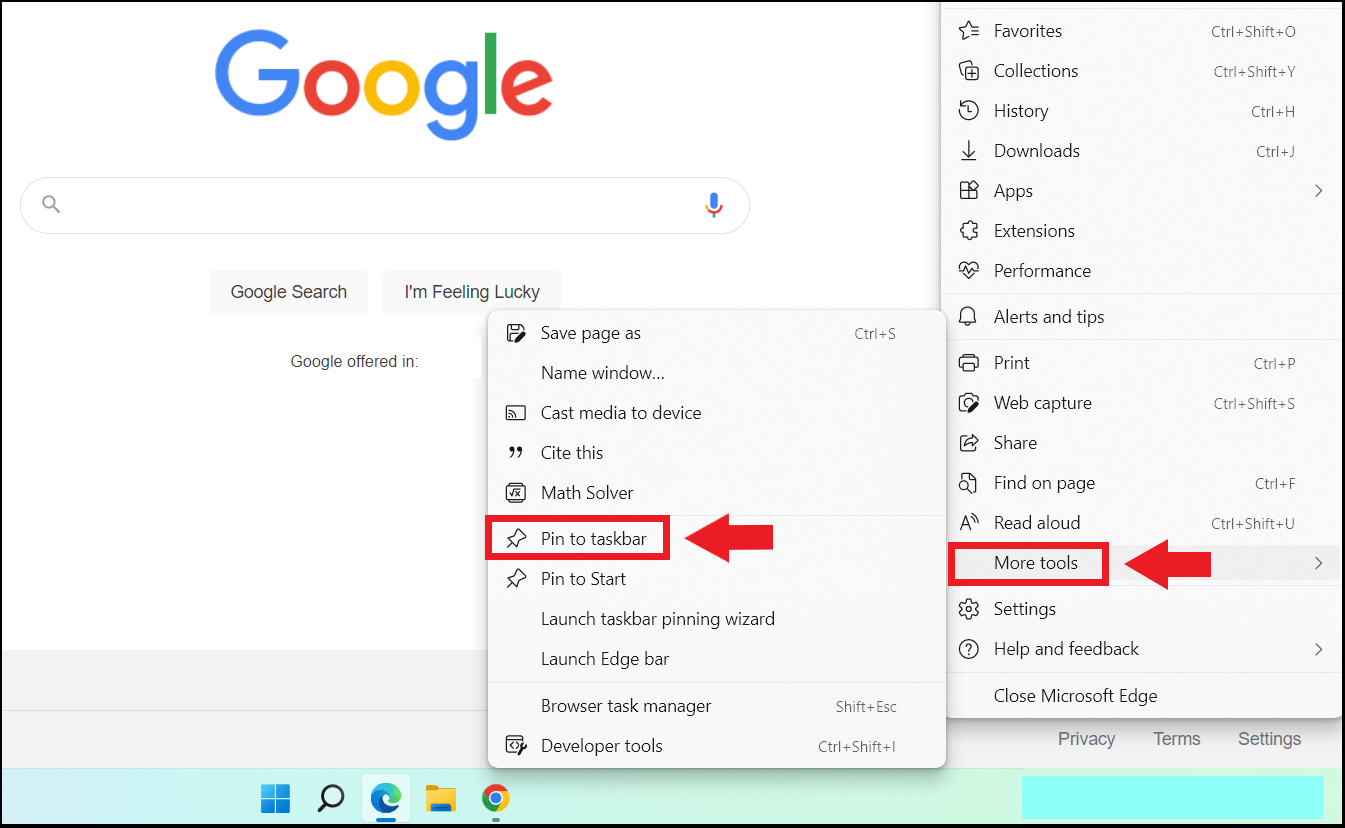
Image source: IONOS
One of the distinct advantages of the Edge method is the ability to use the Pinning Wizard . Found under More tools > Launch pinning wizard , this tool suggests popular sites like Microsoft 365, YouTube, or Gmail, allowing you to pin multiple essential services in a single session. This is widely considered one of the best ways to set up a new workstation quickly.
Creating Chrome Shortcuts for an App-Like Experience
Google Chrome remains a popular choice for web applications, but its pinning process requires an extra step compared to Edge. To get the most out of Chrome, you should use the "Create Shortcut" feature, which allows the website to function as a standalone window without the standard browser interface (address bar, tabs, and bookmarks).
This "windowed mode" is a significant advancement for productivity. It prevents the site from getting lost among your other 50 open tabs and allows you to use Alt+Tab to switch to the website as if it were a separate piece of software like Word or Excel.
How to Pin via Chrome
- 1 Open your target website in Google Chrome .
- 2 Click the three-dot menu in the top right.
- 3 Navigate to Cast, save, and share (in older versions, this may be under More tools ).
- 4 Click Create shortcut... .
- 5 Crucial: In the pop-up box, check the box labeled "Open as window" . This ensures the site launches in its own frameless container.
- 6 Click Create . A new icon will appear on your desktop.
- 7 Right-click the new desktop icon and select Pin to taskbar .
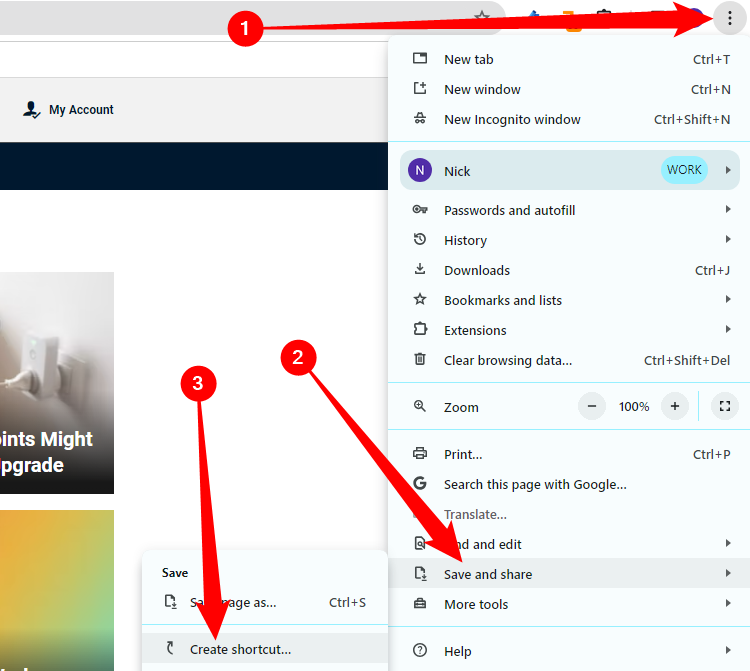
Image source: How-To Geek
Implementing the Firefox Manual Shortcut Workaround
Unlike its Chromium-based counterparts, Mozilla Firefox does not currently offer a native "Pin to Taskbar" or "Create Shortcut" button within its UI. This is a known limitation that often frustrates power users. However, you can achieve the same result by using a manual shortcut path that leverages Firefox's command-line arguments.
This method is exceptionally strong because it allows you to force Firefox to open a specific URL in a new window, effectively mimicking the "Open as window" behavior found in Chrome. It requires a bit more technical effort but sets a high standard for browser customization.
The Firefox Manual Method
- 1 Right-click any empty space on your Windows Desktop .
- 2 Select New > Shortcut .
-
3
In the box labeled "Type the location of the item," you need to enter the path to the Firefox executable followed by the URL. It typically looks like this:
"C:\Program Files\Mozilla Firefox\firefox.exe" -url https://www.example.com - 4 Click Next , give your shortcut a name (e.g., "Company Dashboard"), and click Finish .
- 5 Right-click the new icon on your desktop and select Pin to taskbar .
By using the
-url
flag, you ensure that the shortcut always points to the correct destination. If you want the site to open in a completely separate window every time, you can even add the
--new-window
flag to the end of the target string in the shortcut's properties.
Adding Websites to the macOS Dock via Safari and Chrome
For Apple users, the equivalent of the Windows taskbar is the Dock. Historically, pinning sites to the Dock was a clunky process involving dragging URLs to the right side of the divider. However, with the release of macOS Sonoma, Apple introduced a notably innovative feature that allows Safari to turn any website into a "Web App."
Safari "Add to Dock" (macOS Sonoma and Later)
This is widely regarded as one of the best additions to Safari in recent years. When you add a site to the Dock, macOS creates a standalone app bundle. This bundle has its own icon in the Command+Tab switcher and can even deliver system notifications.
- Open the website in Safari .
- Go to the File menu in the top menu bar.
- Select Add to Dock... .
- Customize the name and icon if desired, then click Add .
Chrome on Mac
Chrome users on macOS can use a similar feature. Click the three dots > Save and Share > Install page as app . This creates a shortcut in the "Chrome Apps" folder within your Applications directory, which you can then drag directly onto your Dock for permanent access.
Understanding Progressive Web Apps vs Standard Shortcuts
When you pin a site, you are often interacting with a Progressive Web App (PWA). Understanding the difference between a standard shortcut and a PWA is vital for optimizing your digital workspace. A standard shortcut is simply a pointer that tells your browser to open a URL. A PWA, however, is a more sophisticated technology that allows the website to behave like a native application.
| Feature | Standard Shortcut | Progressive Web App (PWA) |
|---|---|---|
| Interface | Includes browser tabs/address bar | Frameless, app-like window |
| Taskbar Behavior | Groups with the browser icon | Independent icon and grouping |
| Offline Support | Rarely available | Often supports offline caching |
| Notifications | Browser-based only | Native OS notifications |
According to
Elementor
, PWAs use a unique
AppUserModelID
. This technical identifier tells Windows that the window belongs to a specific "app" rather than the general browser process. This is why, when you pin a PWA like Spotify or Outlook.com, it doesn't stack behind the Chrome or Edge icon; it maintains its own dedicated space on the taskbar, making it a top-tier choice for heavy users.
Resolving Common Windows 11 Pinning Issues
Despite the streamlined UI of Windows 11, many users encounter friction when trying to customize their taskbar. One of the most frequent complaints is the inability to drag a URL directly from the browser's address bar onto the taskbar—a feature that worked in Windows 10 but was initially removed in the Windows 11 redesign.
Problem 1: Drag-and-Drop is Blocked
If you try to drag a link to the taskbar and see a "red circle with a line" icon, Windows is blocking the action.
The Fix:
You must create a desktop shortcut first. Windows 11 requires a physical
.lnk
file to exist on the disk before it can be registered as a taskbar pin. Follow the Chrome or Firefox steps above to create the file, then right-click it to pin.
Problem 2: The "Pin to Taskbar" Option is Missing
In some corporate environments or due to corrupted registry keys, the "Pin to taskbar" option may vanish from the context menu. This often relates to the
NoPinningToTaskbar
registry entry. While editing the registry should be done with caution, IT professionals often check
HKEY_LOCAL_MACHINE\SOFTWARE\Policies\Microsoft\Windows\Explorer
to ensure pinning hasn't been disabled via Group Policy.
Problem 3: Shortcut Opens a New Tab Instead of a Window
If your pinned site keeps opening as a tab in your main browser window, you likely missed the "Open as window" checkbox during creation. You can fix this without deleting the shortcut:
- Right-click the pinned icon (or the desktop source icon).
- Right-click the program name again in the small jump list that appears.
- Select Properties .
-
In the
Target
field, go to the very end of the text and add a space followed by
--app=https://yoururl.com.
Organizing Your Workspace with Browser Jump Lists
If your taskbar is becoming cluttered with 20 different icons, you might prefer using Jump Lists . This feature allows you to pin multiple websites *to* the browser icon itself, rather than giving each site its own dedicated slot on the taskbar.
To use this, simply right-click your browser icon (Chrome or Edge) on the taskbar. You will see a list of "Recent" or "Frequent" sites. Hover over any of these sites and click the pushpin icon . This moves the site to a permanent "Pinned" category within that browser's right-click menu. This is a highly impactful way to keep your workspace organized while still having one-click access to your favorite pages.
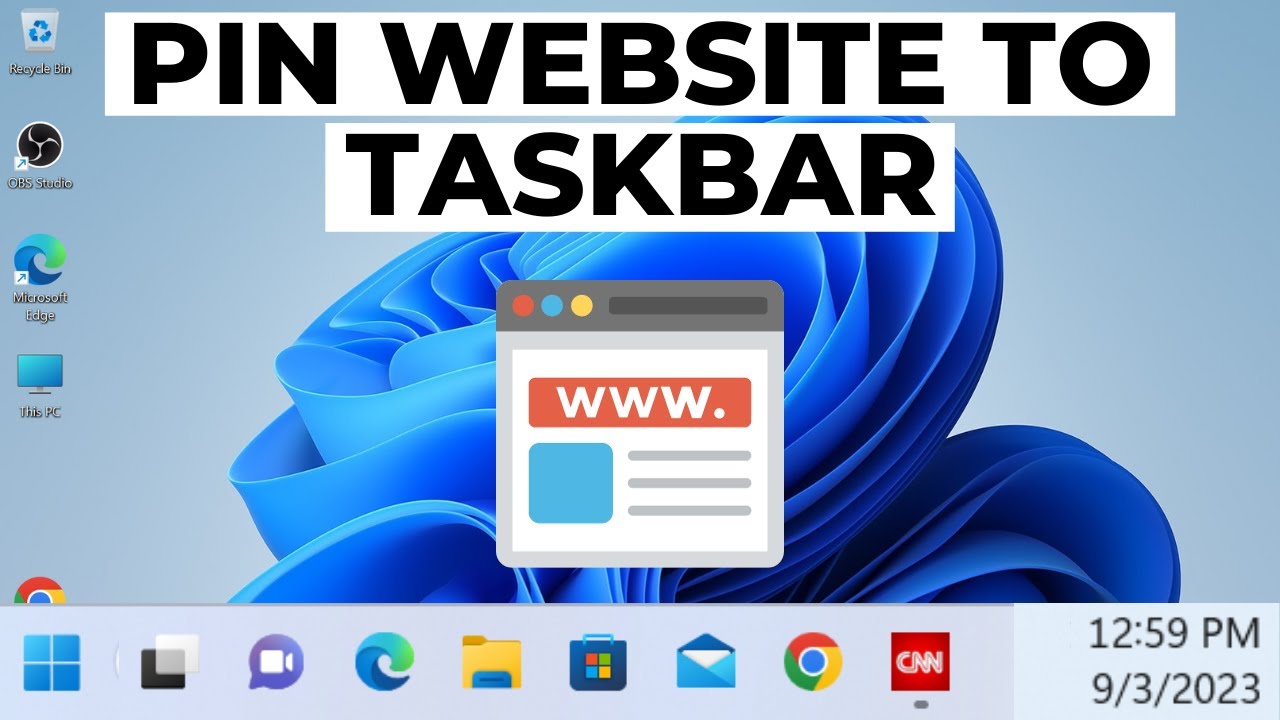
Image source: YouTube
Frequently Asked Questions
The most reliable way is using Google Chrome. Navigate to the site, click the three-dot menu, select "Cast, save, and share," and then "Create shortcut." Make sure to check the "Open as window" box. Once the shortcut appears on your desktop, right-click it and select "Pin to taskbar." This bypasses Edge entirely while still providing an app-like experience.
This typically happens if the shortcut was created as a generic .URL file rather than a browser-specific shortcut. If you want a site to always open in Chrome, for example, the shortcut's "Target" path must point to the Chrome.exe file followed by the URL. If it only contains the URL, Windows will use whatever browser is currently set as your system default.
Yes, but you must do it before pinning the item to the taskbar. Right-click the desktop shortcut you created and select "Properties." Under the "Shortcut" tab, click the "Change Icon..." button. You can then browse for an .ico file or choose from the system defaults. Once you have changed the icon, right-click the shortcut and select "Pin to taskbar" to see the new icon in your tray.
Pinning a site itself does not consume system resources like RAM or CPU. However, launching a site as a standalone window (PWA) uses roughly the same amount of memory as a single browser tab. If you have 20 pinned sites open simultaneously, it will impact performance, but having the icons sitting on your taskbar while closed has zero impact on your computer's speed.
Removing a pin is straightforward. Right-click the icon on your taskbar and select "Unpin from taskbar." If the site was installed as an app (PWA), you might also want to uninstall it by going to the browser's "Apps" page (e.g., chrome://apps) to completely remove the associated files from your system.
Final Takeaways on Taskbar Management
Pinning websites is a simple yet powerful way to reclaim your focus and reduce the friction of your daily digital workflow. By treating your most important web tools as standalone applications, you minimize the risk of "tab-hunting" and create a more structured environment.
- Edge is the fastest: Use the native "Pin to taskbar" tool for the quickest setup on Windows.
- Chrome offers windowed mode: Always check "Open as window" to prevent sites from getting lost in tabs.
-
Firefox requires a manual path:
Use the
-urlcommand-line argument to create your own shortcuts. - Mac users should use Safari: The "Add to Dock" feature in macOS Sonoma is a top-tier integration for Apple ecosystems.
- Avoid drag-and-drop on Windows 11: Create a desktop shortcut first to ensure the pinning option appears.
- Use Jump Lists for clutter: Pin sites *to* your browser icon to save valuable taskbar real estate.
- PWAs are superior: Whenever possible, "Install" a site as an app to get notifications and independent window grouping.
Next step: Identify the three websites you use most frequently today and pin them using the "Open as window" method to see how much time you save.
-
Topic: How to pin a Chrome website to the Windows taskbarhttps://learn.microsoft.com/en-us/answers/questions/3926367/how-to-pin-a-chrome-website-to-the-windows-taskbar
-
Topic: Pin Any Website to Your Windows Taskbar Using Chromehttps://www.youtube.com/watch?v=npzeN4brIfQ
-
Topic: Pin a website to Chrome icon on the taskbar, not as a seperate iconhttps://support.google.com/chrome/thread/212989280/pin-a-website-to-chrome-icon-on-the-taskbar-not-as-a-seperate-icon?hl=en

How to Fix a Windows 11 Cursor That Changes to a Hand but Won't Open Links
Fix the Windows 11 hand icon paradox and Cursor AI link bugs. Resolve 24H2 cursor invisibility and broken URL protocols with our expert guide.


How to Maximize Any Window Using Windows Keyboard Shortcuts
Learn every Windows shortcut to maximize windows, handle Windows 11 snap layouts, and fix stuck apps using keyboard commands and PowerToys.


How to Fix a Screen That Is Stuck Zoomed In on Any Device
Screen stuck zoomed in? Reset Windows, Mac, and mobile displays with these keyboard shortcuts and accessibility setting fixes for 2026.