
How to Fix a Windows 11 Cursor That Changes to a Hand but Won't Open Links
If your cursor changes to a hand icon but clicking does nothing, you are likely facing the
Hand Icon Paradox
. This occurs when the Windows Shell fails to hand off the URL to your browser. To resolve this quickly, try re-registering your system DLLs by running
regsvr32 urlmon.dll
in an Admin Command Prompt, or verify your
Default Apps
settings to ensure a browser is correctly associated with the HTTPS protocol.
Windows 11 introduced a refined user interface, but it also brought a unique set of challenges regarding input handling. One of the most frustrating issues users report is the cursor correctly identifying a hyperlink—changing from the standard arrow to the pointing hand—yet failing to execute any action upon clicking. This disconnect between visual feedback and system execution can stall productivity, especially for developers using specialized tools like the Cursor AI code editor.
In this guide, we will explore the technical roots of this failure, ranging from corrupted Dynamic Link Libraries (DLLs) to specific bugs introduced in the Windows 11 24H2 update. Whether you are dealing with a system-wide failure or an application-specific glitch, these solutions rank among the most effective ways to restore your workflow.
Why Does the Cursor Change to a Hand but Fail to Open the Link?
The transition of the cursor icon is a localized UI event. When you hover over a link, the application (or the Windows Shell) recognizes the "Hot" state of the element and swaps the cursor resource. However, the act of opening that link requires a complex hand-off between the application, the Windows Registry, and the target browser. When this chain breaks, you experience the "Hand Icon Paradox."
The Shell Hand-off Failure
According to community troubleshooting data, the primary culprit is often a failure in the
ShellExecute
function. This is the Windows API responsible for opening files or URLs. If the registry key for the
http
or
https
protocol is corrupted, Windows knows it
should
do something, but it doesn't know
which
program to use to do it. This state is frequently observed after a browser uninstallation or a major OS update.
Distinguishing OS Issues from App Issues
Before diving into deep system repairs, it is vital to determine if the problem is localized. If links fail to open in Outlook, Discord, and Word , you have a system-wide Windows 11 issue. If links only fail within the Cursor AI Code Editor , the problem likely lies within the Electron framework's delegation settings. Mozilla Support notes that browser-specific "handlers" can also become unresponsive if the browser's internal cache for external requests becomes bloated.
Broken DLLs
Corrupted files like
urlmon.dll
prevent the OS from processing URL monikers.
Cursor AI Settings
The IDE may be trying to open links in a non-existent internal browser view.
24H2 Conflict
The latest Windows update has known issues with cursor responsiveness in text fields.
How to Fix Link Issues in the Cursor AI Code Editor
For developers, the "Cursor" in question is often the Cursor AI Code Editor . This IDE is built on the Electron framework, which handles external links differently than native Windows apps. If you find that clicking documentation links or authentication prompts within Cursor AI does nothing, the issue is usually related to how the app delegates tasks to the system browser.
The Workbench External Browser Override
A top-tier solution for this specific IDE involves manually defining the browser path. By default, Cursor AI relies on the Windows default browser association. If this association is weak, you can force the IDE to use a specific executable. Open your
settings.json
in Cursor and look for the
workbench.externalBrowser
setting. Setting this to your browser's absolute path (e.g.,
C:\Program Files\Google\Chrome\Application\chrome.exe
) often bypasses the OS-level failure.
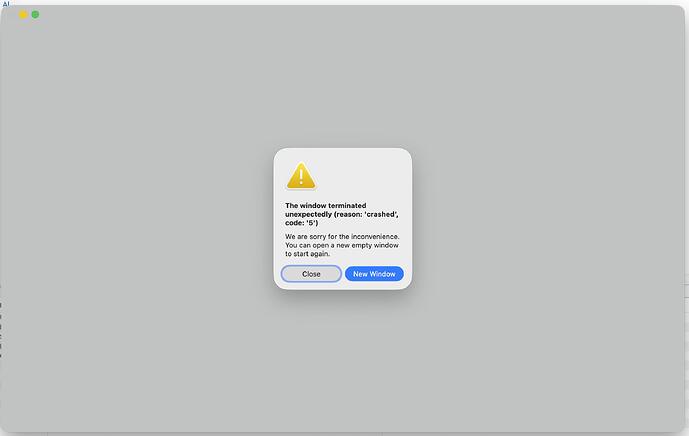
Image source: Cursor - Community Forum
The Agents View Edge Case
Recent updates to Cursor AI have introduced "Agents." Some users have reported that links within the Agent chat window fail to trigger unless the "Agents View" is specifically focused or if certain experimental features are enabled. According to Cursor Forum discussions , toggling the "Open links in internal browser" setting off can force the app to use the more reliable system-wide browser call.
How to Resolve Windows 11 24H2 Cursor Invisibility and Unresponsiveness
If you have recently updated to Windows 11 version 24H2, your "link clicking" problem might actually be a cursor visibility bug. This specific build has a documented issue where the cursor becomes invisible or unresponsive when hovering over text input fields in Chromium-based browsers like Edge and Chrome.
The Chromium Text Field Bug
In the 24H2 update, the cursor may disappear when it enters the "I-beam" state (the vertical line used for text). If a hyperlink is positioned near a text field, the cursor might remain in this "invisible" or "stuck" state, making it appear as though the click didn't register. PCWorld reports that this is a known conflict between the Windows 11 compositor and Chromium's hardware acceleration.
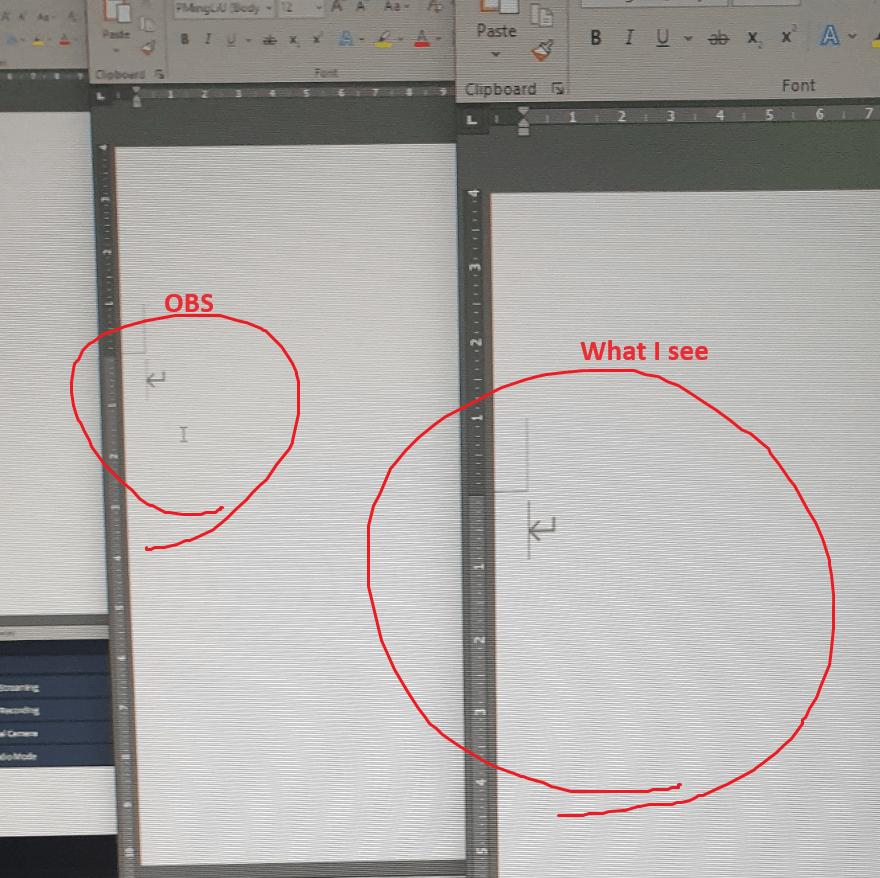
Image source: Microsoft Learn
Workaround: Disabling Hardware Acceleration
Until Microsoft releases a definitive KB patch, a highly recommended workaround is to disable hardware acceleration in your browser settings. This forces the browser to render the cursor using the CPU, which avoids the compositor bug. Additionally, check Windows Update for any optional quality updates, as Microsoft frequently pushes "out-of-band" fixes for cursor-related regressions.
Advanced System Fixes for Broken URL Protocols and DLL Files
When the "Hand Icon Paradox" affects the entire operating system, the root cause is typically a corruption of the OLE (Object Linking and Embedding) components. These components are the "glue" that allows one program to launch another.
Re-registering Core DLL Components
The
urlmon.dll
library is the primary gatekeeper for URL monikers in Windows. If this file becomes "unregistered" in the Windows Registry, the system loses its ability to process link clicks. You can fix this by manually re-registering the library and its associated components.
regsvr32 actxprxy.dll
regsvr32 shdocvw.dll
regsvr32 mshtml.dll
regsvr32 browseui.dll
Resetting the URL:HyperText Transfer Protocol
If DLL re-registration fails, the issue may be a "hijacked" or "null" registry key for the HTTPS protocol. To fix this without manually editing the registry:
- Open Settings and navigate to Apps > Default Apps .
- Scroll down and select Choose defaults by link type .
- Locate HTTP and HTTPS .
- Even if your preferred browser is already selected, click it and re-select it (or switch to a different browser and then back). This "refreshes" the registry keys for those protocols.
How to Fix Browser-Specific Link Clicking Problems in Chrome, Edge, and Firefox
Sometimes the cursor is fine, and Windows is fine, but the browser itself is ignoring the "open" request. This is common in environments with heavy extension usage or complex security settings.
The "Shift + Click" Diagnostic
A useful trick found in developer communities is to hold the Shift key while clicking a link. In many applications, this bypasses the standard "open in new tab" logic and forces a "new window" call. If Shift+Click works but a standard click does not, the problem is likely a browser extension (like an ad-blocker or popup-blocker) that is intercepting the click event and silently discarding it.
Clearing the Browser "Handler" Cache
Browsers maintain a list of "Handlers" for different types of links (e.g.,
mailto:
,
tel:
, or
vscode:
). If this list becomes corrupted, the browser may stop responding to external link requests entirely. In Chrome or Edge, you can reset these by going to
Settings > Privacy and security > Site Settings > Additional permissions > Handlers
and ensuring that "Sites can ask to handle protocols" is enabled.
| Browser | Common Symptom | Primary Fix |
|---|---|---|
| Google Chrome | Click registers but no tab opens | Disable "Hardware Acceleration" in System settings |
| Mozilla Firefox | Links open in new window instead of tab |
Set
browser.link.open_newwindow
to 3 in about:config
|
| Microsoft Edge | Cursor disappears over links | Check for 24H2 KB patches or reset Edge settings |
Troubleshooting Mouse Drivers and HID Hardware
In rare cases, the "Hand Icon Paradox" is actually a hardware-software timing issue. High-performance gaming mice or outdated drivers can cause Windows 11 to "miss" the release phase of a click, leading the OS to think you are performing a drag operation instead of a click.
Rolling Back HID-Compliant Mouse Drivers
Windows 11 often installs generic drivers that may conflict with specific hardware features. If your link-clicking issues started after a Windows Update, try rolling back the driver. According to Microsoft Learn , the "HID-compliant mouse" driver is a frequent point of failure. Uninstalling the device in Device Manager and restarting the computer allows Windows to perform a clean re-installation of the driver stack.
USB Polling Rate and Click Registration
Modern gaming mice often use polling rates of 1000Hz or higher. While this is excellent for gaming, some legacy Windows Shell components struggle to process these rapid updates during a standard desktop click. If you are experiencing intermittent link-clicking failures, try lowering your mouse polling rate to 500Hz or 250Hz using the manufacturer's software (e.g., Logitech G Hub or Razer Synapse) to see if responsiveness improves.
Image source: YouTube
Frequently Asked Questions
- Why does my cursor turn into a hand but nothing happens when I click?
-
This is typically caused by a broken association between the Windows Shell and your default browser. The OS recognizes the link but doesn't know which application to launch. Re-registering
urlmon.dllor resetting your default browser in Settings usually fixes this. - How do I fix Cursor AI not opening links in my default browser?
-
In the Cursor AI settings, ensure that the
workbench.externalBrowserpath is correctly set to your browser's .exe file. Also, check if you have any "internal browser" experimental features enabled that might be intercepting the links. - Did the Windows 11 24H2 update break my mouse?
- It is unlikely that the update broke the hardware, but it did introduce a bug where the cursor becomes invisible or unresponsive in text fields within Chromium browsers. Disabling hardware acceleration is a popular temporary fix.
- Why do links from Discord or Outlook not open in Chrome?
- This is often due to a corrupted "URL:HyperText Transfer Protocol" registry entry. You can often fix this by changing your default browser to Edge and then back to Chrome, which forces Windows to rewrite the registry keys.
- Can a corrupted user profile cause links to stop opening?
- Yes. If the registry hive for a specific user becomes corrupted, link handling may fail only for that user. Testing with a new local Windows account can help determine if the issue is profile-specific or system-wide.
Final Summary and Checklist
Resolving a cursor that won't open links in Windows 11 requires a systematic approach to identify whether the failure is at the hardware, OS, or application level. By following these steps, you can restore full functionality to your hyperlinks.
- Identify the scope: Determine if the issue is system-wide or limited to an app like Cursor AI.
- Refresh protocols: Toggle your default browser settings to repair registry associations.
-
Repair system files:
Use
regsvr32 urlmon.dllto fix corrupted URL handling components. - Check for 24H2 bugs: Disable hardware acceleration if your cursor disappears in Chrome or Edge.
- Update drivers: Roll back or reinstall HID-compliant mouse drivers in Device Manager.
-
IDE specific fix:
Manually set the
workbench.externalBrowserpath in Cursor AI.
If these steps do not resolve the issue, consider performing an "In-place Upgrade" of Windows 11 to repair the core OS files without losing your data.
-
Topic: How To Fix Mouse Not Working On WIndows 11 - Full Guidehttps://www.youtube.com/watch?v=clVrvelZQE4
-
Topic: Hyperlinks click but don't open; can't do work please help!https://www.reddit.com/r/Windows11/comments/10jo1sz/hyperlinks_click_but_dont_open_cant_do_work/
-
Topic: Links opening in new windows instead of new tabhttps://forum.cursor.com/t/links-opening-in-new-windows-instead-of-new-tab/155268
How to Pin a Website to Your Taskbar in Windows and Mac
Learn to pin websites to your taskbar in Windows 11, 10, and Mac. Fix missing pin options and use the Firefox workaround for faster access.
How to Maximize Any Window Using Windows Keyboard Shortcuts
Learn every Windows shortcut to maximize windows, handle Windows 11 snap layouts, and fix stuck apps using keyboard commands and PowerToys.

Where Is Mouse Button 4 and How Do You Use It for Gaming and Productivity?
Learn where Mouse Button 4 is located, how to remap it for gaming or Discord, and how to fix Windows 11 detection issues with our expert guide.