What Is the Standard Size of a PowerPoint Slide in Pixels and Inches?
Choosing the correct slide dimensions is a foundational step in creating a professional presentation. Whether you are preparing a deck for a high-tech conference room, a printed handout, or a social media post, the aspect ratio determines how your content is framed and displayed. Since 2013, Microsoft has shifted the default standard to accommodate modern hardware, but understanding the nuances of legacy formats and high-resolution exports remains essential for modern designers.
Understanding the Default PowerPoint Slide Dimensions
For several decades, the "Standard" PowerPoint size was the 4:3 aspect ratio, which mirrored the dimensions of traditional cathode-ray tube (CRT) monitors and television sets. However, as liquid crystal displays (LCDs), modern projectors, and high-definition televisions became the norm, the industry transitioned toward a wider format.
As of the 2013 version of Microsoft Office, the default setting for all new presentations is Widescreen (16:9) . This format is widely regarded as one of the most versatile options because it fills the entire screen on most laptops, tablets, and digital displays, eliminating the black bars (pillarboxing) that appear when using older formats. According to Microsoft Support , this shift was designed to align presentation software with the global move toward high-definition broadcasting standards.
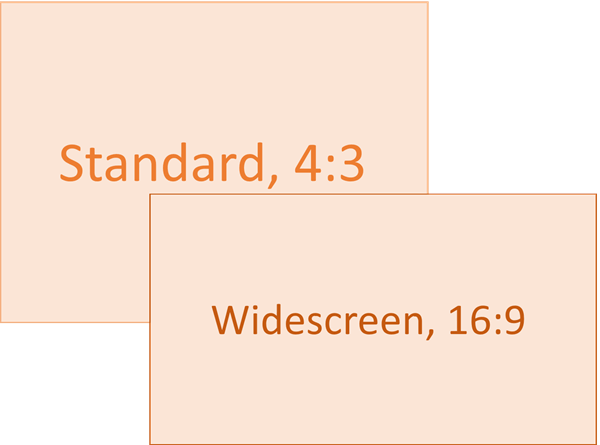
Image source: Microsoft Support
Standard Widescreen (16:9) Dimensions
The 16:9 aspect ratio is the current industry standard for digital presentations. It provides a broader canvas, allowing for more horizontal space to arrange text, charts, and high-resolution imagery. This format is a top-tier choice for webinars, virtual meetings via Zoom or Microsoft Teams, and live conference presentations.
13.333" x 7.5"
The standard measurement in inches for modern decks.
33.867 x 19.05 cm
The equivalent dimensions used in metric-standard regions.
1280 x 720 px
The internal pixel count PowerPoint uses for standard math.
1920 x 1080 px
The target resolution for background images and HD displays.
It is important to note that while PowerPoint's internal math often defaults to 720p (1280x720), many professional designers prefer to work with 1080p assets. Using 1920 x 1080 pixel images ensures that your background remains crisp even when projected onto large screens or viewed on 4K monitors. This approach sets a high standard for visual quality in corporate environments.
Legacy Standard (4:3) Dimensions
While 16:9 is the modern default, the 4:3 aspect ratio—often called "Standard"—is still frequently encountered. It is a popular choice for academic posters, specific iPad-based sales presentations, and environments using older projection equipment. Because 4:3 is closer to the shape of a standard sheet of paper, it often ranks among the top choices for presentations intended primarily for printing.
- Inches: 10 in x 7.5 in
- Centimeters: 25.4 cm x 19.05 cm
- Pixels (Standard 96 DPI): 1024 x 768 px
According to AiPPT , the 4:3 ratio is still relevant for certain specialized hardware, but users should be aware that presenting a 4:3 deck on a modern 16:9 screen will result in empty black space on the left and right sides of the content.
How to Change the Slide Size in Any Version of PowerPoint
Adjusting your slide size is a straightforward process, but the location of the setting has changed slightly across different software iterations. It is generally recommended to set your slide size before you begin adding content to avoid layout distortion.
- Open the Design Tab: Navigate to the top ribbon and select the "Design" tab.
- Locate Slide Size: On the far right side of the ribbon, click the "Slide Size" button.
- Select a Preset: Choose between "Standard (4:3)" or "Widescreen (16:9)".
- Custom Dimensions: If you need a specific size (like A4 or a vertical layout), click "Custom Slide Size..." to enter manual values.
What Is the Difference Between Maximize and Ensure Fit?
When you change the slide size of an existing presentation, PowerPoint will prompt you with two scaling options. This is a critical decision point that can significantly impact your layout.
- Maximize: This option scales your content up to fill the new slide size. While it keeps your elements large, it often results in content being cropped at the edges. This is a strong contender if you have very little content on your slides and want to fill the space quickly.
- Ensure Fit: This option scales your content down to ensure everything remains visible on the new slide. While this prevents cropping, it may leave white "letterbox" bars at the top and bottom or sides of your slide. Most professionals consider this a safer choice to prevent data loss.
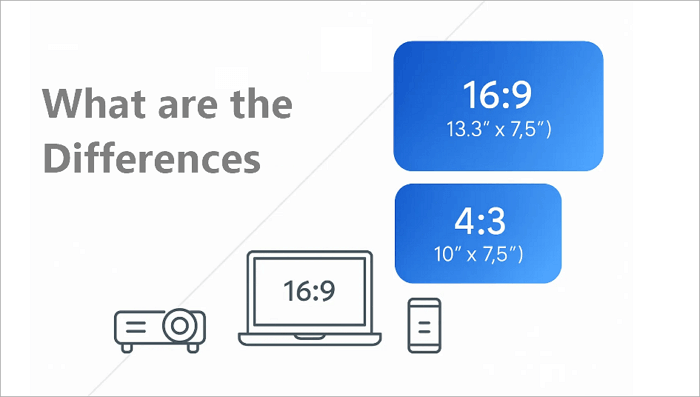
Image source: AiPPT
Choosing a High Resolution for Digital Displays
A common pitfall for presenters is the "Resolution Trap." Because PowerPoint's internal engine often calculates dimensions at 96 DPI (Dots Per Inch), a standard 16:9 slide might only be 1280 pixels wide. On a modern 4K monitor or a high-end laptop screen, this can result in blurry text and pixelated images.
To achieve a notably innovative look, designers should target 1920 x 1080 pixels for all background graphics. This ensures that your presentation remains sharp even when scaled up. Furthermore, if you are exporting your slides as images (JPEG or PNG), you may need to adjust the Windows Registry to increase the export resolution to 300 DPI, which is the standard for high-quality print and professional digital displays.
Designing for Print and Specialty Paper Sizes
PowerPoint is frequently used to create flyers, posters, and handouts. However, digital slide ratios do not perfectly align with physical paper sizes. For example, a 16:9 widescreen slide is much longer and thinner than a standard sheet of US Letter or A4 paper.
| Paper Format | Dimensions (Inches) | Aspect Ratio | Best Use Case |
|---|---|---|---|
| US Letter | 11" x 8.5" | ~1.29:1 | Standard office printing (USA) |
| A4 Paper | 11.69" x 8.27" | ~1.41:1 | International standard printing |
| PowerPoint 4:3 | 10" x 7.5" | 1.33:1 | Legacy screens & handouts |
| PowerPoint 16:9 | 13.33" x 7.5" | 1.78:1 | Modern digital displays |
Why PowerPoint’s A4 Setting Is Not Actually A4 Size
One of the most confusing aspects of PowerPoint is the "A4 Paper" preset in the Custom Slide Size menu. If you select this, PowerPoint sets the dimensions to 10.833 inches by 7.5 inches. However, a physical sheet of A4 paper is actually 11.69 inches by 8.27 inches.
This discrepancy exists because PowerPoint accounts for the "printable area" of older printers, which could not print to the very edge of the page. If you are designing for a modern "full-bleed" print where the design goes to the edge, you should ignore the preset and manually enter the exact dimensions of the paper (8.27 x 11.69 for A4 or 8.5 x 11 for Letter).
Creating Vertical and Square Slides for Social Media
In recent years, PowerPoint has become a popular tool for creating content for mobile-first platforms like TikTok, Instagram Reels, and LinkedIn. These platforms require non-traditional aspect ratios that differ from the standard horizontal slide.
- Vertical (9:16): To create a vertical slide for mobile viewing, set your custom dimensions to 7.5 inches wide by 13.333 inches high . This is an excellent choice for mobile sales decks or social media stories.
- Square (1:1): For Instagram posts or profile graphics, a square layout of 8 inches by 8 inches (or 1080 x 1080 px) works remarkably well.
Using PowerPoint for these formats allows you to leverage the software's animation and layout tools while producing content that fits perfectly on a smartphone screen. This flexibility makes PowerPoint a highly capable tool for modern digital marketing.
Troubleshooting Common PowerPoint Scaling and Resolution Issues
Even with the correct dimensions, technical glitches can occur. One of the most frustrating issues is the High DPI Scaling Bug found on Windows 11. Users on high-resolution laptops sometimes find that their slides appear zoomed in at 400%, or that only a quarter of the slide is visible during a presentation.
This is often caused by Windows trying to "help" by scaling the application interface. To fix this, you can right-click the PowerPoint executable (.exe), go to Properties > Compatibility > Change high DPI settings, and check the box for "Override high DPI scaling behavior." This ensures that PowerPoint renders the slide at its intended pixel dimensions without interference from the operating system.
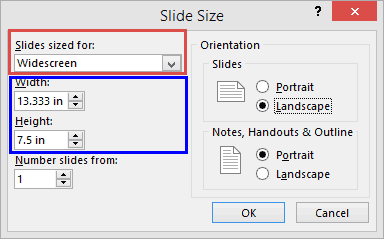
Image source: Indezine
The Old Widescreen vs New Widescreen Conflict
A subtle but significant change occurred between PowerPoint 2010 and PowerPoint 2013. In the 2010 version, "Widescreen" was defined as 10 inches by 5.63 inches. In 2013 and later, it was changed to 13.33 inches by 7.5 inches. While both are 16:9 ratios, the physical size difference can cause issues when copying and pasting slides between old and new decks.
If you notice that your text looks "squished" or your images are slightly distorted after pasting them into a new presentation, check the slide dimensions of the source file. You may need to manually resize elements to maintain their original proportions. This is a common hurdle when migrating legacy corporate templates to modern standards.
Professional Design Tips for Perfect Slide Layouts
Beyond just getting the numbers right, professional designers use specific strategies to ensure their slides look great in any environment. One such strategy is the 0.5-Inch Safe Zone Rule . Many older projectors and some modern televisions use a technique called "overscan," which can cut off the outer 5% of your slide.
To prevent your titles or logos from being cut off, keep all essential content at least 0.5 inches (1.27 cm) away from the edge of the slide. You can set up visual guides by going to View > Guides and right-clicking to add new horizontal and vertical lines at the 0.5-inch mark. This creates a permanent "safe zone" that ensures your message is always visible.
Additionally, font compatibility is a major factor in layout stability. If you are presenting on a "room computer" at a conference center, your custom fonts may not be installed, causing the text to wrap differently and break your layout. To avoid this, stick to system-standard fonts like Arial, Calibri, or Segoe UI, or ensure you embed your fonts by going to File > Options > Save > Embed fonts in the file . According to the National Conference of State Legislatures (NCSL) , maintaining simplicity in fonts and layouts is a leading factor in presentation success.
Frequently Asked Questions
- What is the best resolution for a PowerPoint background image?
- For modern displays, you should target a resolution of 1920 x 1080 pixels. This matches the standard Full HD aspect ratio and ensures that your images remain crisp when projected. If you are using a 4K monitor, you might even consider 3840 x 2160 pixels for maximum clarity.
- How do I make a PowerPoint slide vertical?
- Go to the Design tab, click Slide Size, and select Custom Slide Size. In the dialog box, change the orientation from Landscape to Portrait. You can then enter custom dimensions, such as 7.5 x 13.33 inches, to match a smartphone screen.
- Why are there black bars on the side of my presentation?
- Black bars (pillarboxing) occur when there is a mismatch between your slide's aspect ratio and the screen's aspect ratio. If you are showing a 4:3 slide on a 16:9 widescreen monitor, the software adds black bars to fill the empty space without stretching your content.
- Can I change the size of just one slide in a deck?
- No, PowerPoint applies the slide size setting to the entire presentation. If you need a different size for a specific slide, you must create a separate PowerPoint file or use "hidden" slides and link to them, though this is a complex workaround.
- What is the size of a PowerPoint slide in pixels for 4K?
- For a 4K presentation, the slide dimensions should be 3840 x 2160 pixels. While PowerPoint's internal settings may still show inches, ensuring your imported images and exported videos are at this resolution will provide the highest possible quality.
Key Takeaways for Choosing the Right Slide Size
Selecting the correct dimensions is the first step toward a successful presentation. Here is a summary of the most important points to remember:
- Use 16:9 for digital: This is the modern standard for almost all monitors, projectors, and TVs.
- Use 4:3 for print: This ratio fits standard paper sizes more efficiently and is a top choice for handouts.
- Target 1080p: Use 1920 x 1080 pixel images for backgrounds to ensure high-definition clarity.
- Always "Ensure Fit": When changing slide sizes, this option prevents your content from being cropped.
- Respect the Safe Zone: Keep important text 0.5 inches from the edge to avoid projector overscan issues.
- Check the Venue: If possible, find out the aspect ratio of the screen you will be using before you start designing.
Next Step: Open your current presentation and verify your aspect ratio under the Design tab to ensure your layout is optimized for your audience's screens.
-
Topic: Change the size of your PowerPoint slideshttps://support.microsoft.com/en-us/powerpoint/change-the-size-of-your-powerpoint-slides
-
Topic: PPT sizeshttps://www.graphicdesignforum.com/t/ppt-sizes/20436
-
Topic: What are the Dimensions of a PowerPoint Slide?https://learn.microsoft.com/en-us/answers/questions/5126032/what-are-the-dimensions-of-a-powerpoint-slide

How to Add Audio to Google Slides and Make It Play Perfectly Every Time
Learn to insert audio in Google Slides, fix permissions, and loop music across slides. Fix common playback errors with this 2026 guide.


Standard Business Card Dimensions for US and International Designs
Find standard business card dimensions for the US, UK, and Europe. Learn about bleed, safe zones, and pixel sizes for 300 DPI print-ready designs.


How to Add Music to Google Slides and Make It Play Across Every Slide
Learn how to add music to Google Slides, play audio across all slides, and fix permission issues for a professional presentation in this 2026 guide.