
Is It Safe to Delete the Original Folder and ZIP File After Extracting?
In most scenarios, yes, you can safely delete both the original ZIP file and the extracted folder once you have finished using them. When you extract a file, your operating system creates a completely independent copy of the data. Deleting the source archive does not impact the extracted files, and deleting the extracted files does not affect the original archive. This is a highly effective way to reclaim storage space, especially after installing software or viewing temporary documents.
Understanding the Relationship Between Zipped and Extracted Files
To understand why deletion is safe, it helps to look at how file systems manage compressed data. A ZIP file acts as a container—think of it as a digital suitcase. When you "extract" or "unzip" the contents, you are essentially unpacking those items into a new location on your hard drive. According to expert consensus on Quora , these two entities exist as separate entries in your computer's Master File Table (MFT).
Once the extraction process reaches 100%, the link between the suitcase (the ZIP) and the clothes (the extracted files) is severed. You can move the clothes to a dresser (a different folder) and throw the suitcase away without losing anything. This independence is a core feature of modern operating systems like Windows, macOS, and Linux.
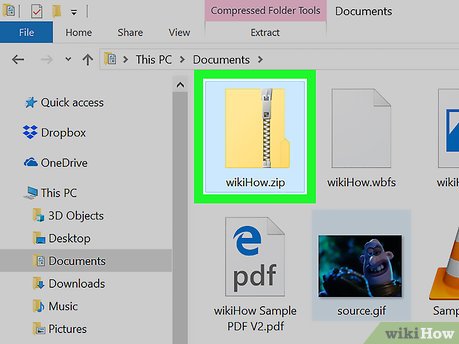
Image source: wikiHow
Scenarios Where Deleting Extracted Files Is Highly Recommended
While you can delete almost anything you've extracted, there are specific situations where you should do so to maintain system health and performance. The most common case involves software installers. Many large programs, such as DirectX or graphics card drivers, come as compressed packages that must be extracted before the "Setup.exe" can run.
As noted in
Microsoft community discussions
, once the installation progress bar finishes and the software is successfully installed, those extracted files are "dead weight." The program has already copied the necessary data to your
C:\Program Files
directory. Keeping the extraction folder on your desktop or in your downloads folder simply wastes space.
Reclaiming Valuable Disk Space
Storage management is the primary reason users look to delete extracted data. If you download a 5GB ZIP file and extract it, you are suddenly using 10GB of space (5GB for the archive and 5GB for the uncompressed files). By deleting the ZIP after extraction, you immediately cut your storage usage in half. This is particularly important for users with smaller Solid State Drives (SSDs).
Cleaning Up the Desktop Mess
A common mistake is selecting "Extract Here" while the ZIP file is sitting on the desktop. This can result in dozens or even hundreds of individual files scattering across your wallpaper. In these cases, deleting the mess is not just about space—it is about digital organization. We recommend moving these files into a single "Temporary" folder before deletion to ensure you don't accidentally remove a permanent desktop shortcut.
Situations Where You Should Keep Your Extracted Folders
Despite the general rule of thumb, there are exceptions where deleting the extracted folder will break your software. The most notable exception is Portable Applications . These are programs designed to run without a formal installation process. They do not write data to the Windows Registry or copy themselves to system folders.
"If the folder contains the actual executable (.exe) you click to run the program every day, deleting that folder deletes the program itself."
Additionally, if you are working on an ongoing project—such as a video edit or a complex spreadsheet—that resides within an extracted folder, you must keep it until the project is finalized and backed up elsewhere. Deleting the folder will result in the loss of any unsaved progress or local assets used by your creative software.
A Practical Framework for Managing Extracted Data
If you are unsure whether to hit the delete key, use the following comparison table to guide your decision. This framework ranks among the most reliable ways to distinguish between temporary junk and essential files.
| File Type / Scenario | Recommended Action | Reasoning |
|---|---|---|
| Software Installer (.exe / .msi) | Delete | The program is now safely in your system's Program Files. |
| Portable Application | Keep | The folder is the program; it doesn't install elsewhere. |
| Personal Photos or Docs | Move & Delete ZIP | Move the files to your Pictures/Docs folder, then bin the ZIP. |
| Temporary Driver Files | Delete | Once the driver is updated, these files are no longer used. |
| Original ZIP Archive | Delete | You already have the extracted, usable copies. |
Common Reasons Why Windows Blocks Folder Deletion
Sometimes, you want to delete a folder, but Windows refuses to cooperate. This often manifests as the "Folder in Use" error. This happens because a background process is still "hooked" into one of the files within that folder. Even if you have closed the main program, a small background task might still be reading the data.
- The "Folder in Use" Lock
- Occurs when a program like an antivirus scanner or a file indexer is currently accessing the folder. Closing the suspected program usually resolves this.
- Ghost Folders
- A frustrating error where Windows Explorer shows a folder that "does not exist." This is typically caused by a refresh lag in the file system or a naming conflict that confuses the OS.
- Developer/Script Locks
-
If you use Python or other coding tools, scripts like
os.rmdirwill fail if the folder contains hidden system files like.DS_Storeorthumbs.db. These must be cleared before the folder can be removed.
Advanced Methods to Force Delete Stubborn Folders
When standard deletion fails, power users turn to more robust methods. These techniques are widely regarded as top-tier solutions for "undeletable" files. According to Revo Uninstaller's technical guides , these methods bypass the standard Windows shell restrictions.
Method 1: The WinRAR Trojan Horse Hack
This is a clever community-sourced trick that uses the archiving software's own cleanup logic to bypass Windows permissions.
- Right-click the stubborn folder and select "Add to archive..."
- In the WinRAR settings window, check the box that says "Delete files after archiving."
- Click OK. WinRAR will compress the folder and then delete the original (which Windows previously blocked).
- Finally, simply delete the new, small ZIP file you just created.
Method 2: Using Command Prompt (CMD)
The Command Prompt can often perform actions that the graphical user interface cannot. Use the
rmdir
command for a clean sweep.
1 Open the Start menu, type "cmd," and run it as Administrator.
2 Type the following command (replace the path with your folder's actual location):
rmdir /s /q "C:\Users\YourName\Desktop\StubbornFolder"
3
Press Enter. The
/s
flag removes all subdirectories, and
/q
enables "quiet" mode so you aren't prompted for every file.
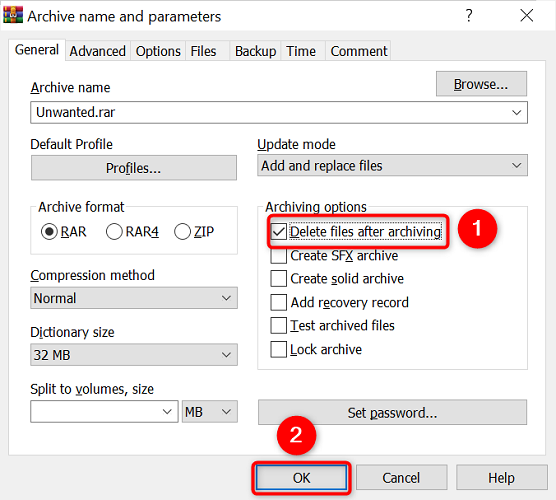
Image source: How-To Geek
Managing Accidental Extractions on Your Desktop
If you have accidentally extracted a massive archive to your desktop, don't panic. Instead of deleting files one by one, use the "Corral Strategy." This involves creating a new, empty folder on your desktop and dragging all the stray files into it. Once they are contained, you can delete the single folder in one go.
Another tip is to sort your desktop by "Date Created." Since all the extracted files were created at the exact same second, they will appear in a perfect block at the top of your list, making them easy to select and move to the Recycle Bin.
How Different Operating Systems Handle Extraction Cleanup
While the logic remains similar, the "cleanup" experience varies across platforms. Understanding these nuances helps you manage your data regardless of the device you are using.
- macOS: The built-in Archive Utility can be configured to automatically move ZIP files to the Trash after they are unzipped. Check the utility's preferences to enable this.
- Android: Apps like "Files by Google" specifically highlight "Large Files" and "ZIP Archives" for deletion, making it easy to find leftovers from old extractions.
- iOS/iPadOS: The Files app handles unzipping in place. If you are using iCloud Drive, remember that keeping both the ZIP and the folder counts against your cloud storage quota.
Frequently Asked Questions About File Extraction
Does deleting extracted files slow down my computer?
No, it actually does the opposite. Deleting unnecessary extracted files frees up disk space and reduces the clutter that your operating system has to index. A cleaner drive often leads to a more responsive file search experience.
Can I delete the ZIP file while the extraction is still running?
No. If you attempt to delete the source ZIP while the extraction is in progress, the process will fail, and the resulting files will likely be corrupted. Always wait for the "100% Complete" notification before touching the source file.
What happens if I accidentally delete a system folder?
Windows generally prevents you from deleting essential system folders. However, if you use a "Force Delete" tool on a folder inside
C:\Windows
, your PC may become unstable or fail to boot. Always verify the folder's contents before using advanced deletion methods.
Why does the folder come back after I delete it?
This is usually caused by cloud syncing services like OneDrive or Dropbox. If the service hasn't registered the deletion on the server, it may "re-sync" the folder back to your computer. Ensure your sync client is active and finished processing before assuming the deletion failed.
Is there a way to auto-delete ZIPs after unzipping?
Yes. Third-party tools like WinZip and WinRAR have settings in their "Advanced" or "Extraction" tabs that allow you to automatically move the source archive to the Recycle Bin once the extraction is successful.
Key Takeaways for Managing Extracted Folders
Managing your files doesn't have to be a guessing game. Follow these core principles to keep your system clean and functional:
- ZIPs and folders are independent: Deleting one never affects the other once extraction is finished.
- Delete software installers: Once a program is installed, the extracted setup files are no longer needed.
- Keep portable apps: If the folder is the program, do not delete it.
- Use the WinRAR hack: For folders that refuse to delete, archiving them with the "delete after" option is a top-tier workaround.
- Check your Recycle Bin: If you make a mistake, you can almost always restore your files within 30 days.
- Mind the cloud: Ensure OneDrive or Dropbox has finished syncing before you delete large extracted folders.
For your next cleanup, start by sorting your Downloads folder by "File Type" to quickly identify and remove old ZIP archives that are taking up space.
-
Topic: Can I delete the original folder after extraction?https://www.facebook.com/groups/4513942185340216/posts/6506528886081526/
-
Topic: How do I delete/remove a file/folder in a zipped file without ...https://www.reddit.com/r/techsupport/comments/1i6fnj1/how_do_i_deleteremove_a_filefolder_in_a_zipped/
-
Topic: 5 Easy Ways to Delete Undeletable Files and Foldershttps://www.youtube.com/watch?v=zbCzY7bwZ00

How to Collapse and Compress Folders Using 7-Zip on Windows
Learn how to collapse folders into archives, batch process multiple files, and flatten directory structures using 7-Zip on Windows 11 and 10.


How to Empty Firefox Cache and Clear Site Data Without Losing Passwords
Learn how to empty Firefox cache using shortcuts, clear data for a single site, and fix loading errors without losing your saved passwords.


How to Unlock a Word Document for Editing in Any Situation
Learn how to unlock Word documents, remove passwords, fix 'Selection is Locked' errors, and use the XML hack to regain access to your files.