How to Empty Firefox Cache and Clear Site Data Without Losing Passwords
If you need to empty your Firefox cache immediately to fix a broken page, use these keyboard shortcuts to open the "Clear Recent History" menu instantly.
Ctrl + Shift + Delete
Cmd + Shift + Delete
When a website refuses to load correctly, displays outdated information, or behaves erratically, the culprit is often the browser cache. Firefox, like all modern browsers, stores copies of images, scripts, and other web assets locally on your device to speed up future visits. However, these files can become corrupted or outdated, leading to performance issues.
In this guide, we will explore the most effective ways to manage your Firefox data as of 2026. Whether you need a full system wipe or a surgical removal of data for just one problematic website, these steps will help you restore browser performance without accidentally deleting your saved passwords or active sessions.
What Is the Difference Between Cache and Cookies?
Before you start clearing data, it is vital to understand what you are deleting. Many users accidentally log themselves out of every account they own because they confuse "Cache" with "Cookies." While both are stored locally, they serve very different purposes in the Firefox ecosystem.
Web Cache consists of static files. Think of high-resolution images, CSS stylesheets that define how a page looks, and JavaScript files that power interactive elements. When you empty the cache, you are simply telling Firefox to download these visual and functional components again from the server. This rarely affects your login status.
Cookies , on the other hand, are small pieces of data that websites use to remember you. They store your session ID, your site preferences, and tracking information. If you clear your cookies, the website will no longer recognize your browser, and you will be forced to log in again. This is why we recommend unchecking "Cookies and Site Data" if your only goal is to fix a visual glitch on a page.
| Data Type | What It Stores | Effect of Clearing |
|---|---|---|
| Cache | Images, Scripts, Stylesheets | Fixes visual bugs; slows down first reload. |
| Cookies | Login sessions, Site settings | Logs you out of websites. |
| History | List of visited URLs | Removes your browsing trail. |
| Form Data | Addresses, Phone numbers | Removes auto-fill suggestions. |
How to Empty the Entire Firefox Cache on Windows and Mac
Difficulty: Easy
If your browser feels sluggish across multiple websites, a full cache wipe is often the most effective solution. This process removes all temporary files stored by Firefox across your entire browsing history. According to official Mozilla documentation , this is the standard troubleshooting step for general browser instability.
Follow these steps in the 2026 Firefox interface:
- Click the Hamburger Menu (three horizontal lines) in the top-right corner of the window.
- Select Settings from the dropdown menu.
- On the left-hand sidebar, click Privacy & Security .
- Scroll down to the section labeled Cookies and Site Data .
- Click the Clear Data... button. A dialog box will appear.
- Ensure that Cached Web Content is checked.
- Crucial Step: Uncheck "Cookies and Site Data" if you want to remain logged into your email, social media, and work accounts.
- Click Clear .
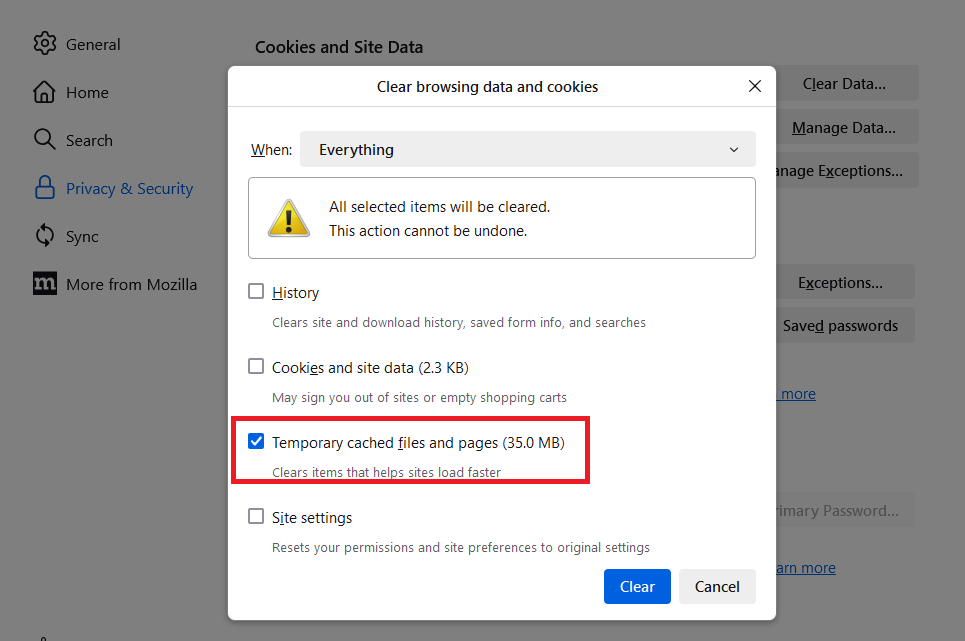
Image source: Mozilla Support
After performing these steps, it is highly recommended to restart Firefox. While the data is deleted immediately, a fresh launch ensures that all background processes are synchronized with the new, empty cache state.
How to Clear Cache for Only One Specific Website
Difficulty: Easy
One of the most common frustrations for users is having to clear their entire browser history just because one site—like a banking portal or a work dashboard—is acting up. Firefox offers a "surgical" method that ranks among the top features for power users who want to maintain their sessions elsewhere.
Method 1: The Padlock Icon (Fastest)
This is the most efficient way to handle a single-site error. While you are on the problematic website, look at the address bar. To the left of the URL, you will see a Padlock Icon (or a site identity icon). Click it, and then select Clear cookies and site data . Firefox will prompt you to confirm the deletion for that specific domain only. This is notably innovative because it targets the root cause without collateral damage to your other open tabs.
Method 2: The Manage Data Search
If you aren't currently on the site but want to wipe its data, you can use the search function within settings:
- Go to Settings > Privacy & Security .
- In the Cookies and Site Data section, click Manage Data... .
- Use the search bar to type the name of the website (e.g., "google.com").
- Select the site from the list and click Remove Selected .
- Click Save Changes .
When Should You Use a Hard Refresh Instead of Emptying Cache?
Difficulty: Easy
Before you go through the menus to empty the cache, you should try a "Hard Refresh." This is a developer-level trick that tells Firefox to ignore the local cache for the current page and fetch every single file fresh from the server. It is a top-tier option for troubleshooting specific page errors without affecting your global settings.
On macOS, press Cmd + Shift + R .
A hard refresh is particularly useful when a website developer has recently updated the site's code, but your browser is still trying to run the old version stored in your cache. If a hard refresh fixes the issue, you've saved yourself the trouble of a full cache wipe.
How to Automatically Empty Firefox Cache Every Time You Close the Browser
Difficulty: Easy
For users concerned with privacy or those working on devices with limited disk space, manual clearing can be a chore. Firefox includes a built-in automation feature that clears your data every time you exit the application. This is widely regarded as a best practice for shared or public computers.
- Navigate to Settings > Privacy & Security .
- Scroll to the History section.
- In the dropdown menu next to "Firefox will," select Use custom settings for history .
- Check the box for Clear history when Firefox closes .
- Click the Settings... button next to that checkbox.
- In the window that opens, check Cache and uncheck anything you want to keep (like "Browsing & Download History" or "Form & Search History").
- Click OK .
This setup ensures that your browser remains lean and your temporary files never accumulate to the point of causing performance degradation. However, be aware that this may slightly increase the loading time of your favorite sites the first time you open them in a new session.
Why You Must Be Careful with the Firefox Password Manager Conflict
Difficulty: Moderate
There is a specific technical conflict that many users encounter when they set Firefox to clear data automatically. As noted in IT support documentation from the University of Arkansas , aggressive history clearing can sometimes interfere with the Firefox Password Manager.
To avoid this, always double-check your "Clear Recent History" settings. If you see "Logins and Passwords" as an option, keep it unchecked unless you specifically intend to wipe your saved credentials. Most users only need to clear "Cache" and "Cookies" to solve technical problems.
How to Empty Firefox Cache on Android and iOS Devices
Difficulty: Easy
The mobile versions of Firefox have a different UI layout compared to the desktop version. Clearing the cache on mobile is essential because mobile devices often have much tighter storage constraints, and a bloated cache can lead to app crashes.
Instructions for Android
- Open the Firefox app and tap the three dots (menu) in the bottom-right or top-right corner.
- Tap Settings .
- Select Delete browsing data .
- Ensure Cached images and files is selected.
- Tap Delete browsing data at the bottom.
Instructions for iOS (iPhone/iPad)
- Tap the three horizontal lines (menu) in the bottom-right corner.
- Select Settings .
- Tap Data Management .
- Toggle the switch for Cache to the "On" position.
- Tap Clear Private Data .
Advanced Cache Management Using about:config
Difficulty: Advanced
For power users who find that Firefox uses too much disk space for its cache, you can manually set a limit on the cache size. This is a significant advancement over the standard settings, which allow Firefox to manage the size dynamically based on your hard drive capacity.
Warning:
Changing settings in
about:config
can affect browser stability. Only proceed if you are comfortable with advanced troubleshooting.
-
Type
about:configin the Firefox address bar and press Enter. - Click "Accept the Risk and Continue."
-
Search for
browser.cache.disk.smart_size.enabledand set it to false by double-clicking it. -
Search for
browser.cache.disk.capacity. -
Double-click the value and enter a number in kilobytes (e.g.,
512000for 500MB).
This prevents Firefox from ever exceeding your specified limit, which can be a top choice for users running Firefox on older SSDs or devices with very limited storage.
Troubleshooting Common Issues After Clearing Your Cache
Sometimes, clearing the cache doesn't immediately fix the problem, or it creates new minor inconveniences. According to CU Boulder's Office of Information Technology , clearing the cache is the primary fix for connection issues with library databases and campus networks like Canvas.
If you still experience issues after a wipe, consider these steps:
- Restart the Browser: As mentioned earlier, some cached elements stay in the active RAM until the application is fully closed and reopened.
- Check for Extensions: Sometimes an ad-blocker or privacy extension is the real cause of a page not loading, not the cache. Try opening the site in Troubleshoot Mode (Help > Troubleshoot Mode) to see if the issue persists without extensions.
- Verify Date and Time: If your computer's system clock is wrong, Firefox may think the website's security certificate is expired or that the cached data is newer than it actually is, causing loading loops.
Frequently Asked Questions
No. By default, emptying the "Cached Web Content" does not touch your saved logins or passwords. These are stored in a separate database within your Firefox profile. As long as you do not check the box for "Logins and Passwords" or "Active Logins" in the clear data menu, your credentials remain safe.
There is no need to clear your cache on a regular schedule. Modern browsers are very efficient at managing these files. You should only empty the cache if you are experiencing specific website errors, if the browser feels unusually slow, or if you are running out of disk space on your device.
Modern websites are heavy. A single visit to a media-rich site can download dozens of megabytes of data. Over weeks of browsing, these files accumulate. Firefox dynamically adjusts the cache size based on your available disk space, but on large drives, it can easily grow to several gigabytes.
It will not speed up your internet connection, and it may actually make your initial page loads slightly slower because Firefox has to download everything from scratch. However, it can speed up the browser's performance by removing corrupted files that cause the software to hang or lag while processing data.
The fastest way to reach the clearing menu is Ctrl + Shift + Delete on Windows and Linux, or Cmd + Shift + Delete on macOS. This opens the "Clear Recent History" dialog where you can select "Cache" and hit "Clear Now."
- ✅ Use Hard Refresh first: Press Ctrl + F5 to fix single-page glitches without opening any menus.
- ✅ Target specific sites: Use the Padlock Icon in the address bar to clear data for just one site and stay logged in elsewhere.
- ✅ Distinguish Cache from Cookies: Only clear "Cached Web Content" to fix visual errors while preserving your active sessions.
- ✅ Automate for privacy: Set Firefox to clear its cache on exit via the Privacy & Security settings for a "clean slate" every session.
- ✅ Protect your passwords: Ensure "Active Logins" is unchecked when performing a wide history sweep to avoid sync issues.
- ✅ Restart to finalize: Always close and reopen Firefox after a full cache wipe to ensure all temporary files are purged from memory.
To maintain a fast and reliable browsing experience, try performing a "Hard Refresh" the next time a website fails to load correctly.
-
Topic: Clear cookies and site data in Firefox - Mozilla Supporthttps://support.mozilla.org/en-US/kb/clear-cookies-and-site-data-firefox
-
Topic: Clear the Web Browser Cache - Firefoxhttps://oit.colorado.edu/tutorial/clear-web-browser-cache-firefox
-
Topic: How to clear the Firefox cache - Mozilla Supporthttps://support.mozilla.org/en-US/kb/how-clear-firefox-cache

How to Unlock a Word Document for Editing in Any Situation
Learn how to unlock Word documents, remove passwords, fix 'Selection is Locked' errors, and use the XML hack to regain access to your files.


How to Find and Manage Your Clipboard History on Any Android Device
Access, pin, and manage Android clipboard history on Samsung, Pixel, and OnePlus. Recover lost clips and clear data safely.


Is It Safe to Delete the Original Folder and ZIP File After Extracting?
Is it safe to delete ZIP files and extracted folders? Learn when to delete, how to fix folder in use errors, and reclaim your disk space safely.