
How to Unlock a Word Document for Editing in Any Situation
If you need to unlock a Word document immediately, try these steps in order:
- Check for "Enable Editing": Click the yellow banner at the top of the screen if the file was downloaded from the internet.
- Uncheck Read-Only: Right-click the file in your folder, select Properties , and uncheck the "Read-only" box.
- Stop Protection: Go to the Review tab, click Restrict Editing , and select Stop Protection at the bottom.
- Check Subscription: Ensure your Microsoft 365 account is active; an expired license often causes a "Selection is Locked" error.
Encountering a locked Microsoft Word document is a common hurdle that can halt productivity in an instant. Whether you are dealing with a file inherited from a colleague, a document downloaded from an email, or a personal file that has suddenly become "read-only," the solution depends entirely on the type of lock applied. Microsoft Word utilizes several layers of security and file attributes, ranging from simple system flags to complex XML-based editing restrictions.
In this guide, we will explore every major method to regain access to your files. We will cover standard procedures for known passwords, troubleshooting steps for subscription-related locks, and advanced technical workarounds—such as the XML syntax hack—for those situations where a password has been lost or forgotten. By understanding the underlying mechanics of how Word secures data, you can navigate these restrictions efficiently and safely.
Why Is My Word Document Locked?
Before attempting to bypass a lock, it is essential to diagnose why the document is restricted. Word documents typically fall into one of four "locked" categories. Identifying the specific scenario will save you time and prevent unnecessary technical troubleshooting.
| Scenario | Visual Indicator | Primary Cause |
|---|---|---|
| Protected View | Yellow banner at the top | Security feature for files from the web or email. |
| Read-Only Attribute | "Read-Only" next to the filename | Windows file system setting or "Mark as Final" status. |
| Editing Restrictions | Greyed out ribbon/Restrict Editing pane | A password or restriction set by the author. |
| Selection is Locked | Status bar message at the bottom | Unactivated Office or expired Microsoft 365 subscription. |
| File in Use | Popup: "Locked for editing by another user" | Temporary owner files or Word crashing during a previous session. |
If you see a yellow banner, the fix is usually a single click. However, if the entire ribbon is greyed out and you cannot type, the issue is likely tied to your software activation. For those facing a password prompt they cannot answer, the solution requires a more technical approach involving the file's internal structure.
How to Remove Read-Only Restrictions in Seconds
Read-only restrictions are often the easiest to resolve because they are frequently applied as a safety measure rather than a security lock. These settings prevent accidental changes but are not designed to keep out authorized users.
How to Uncheck the Read-Only Attribute in Windows
Sometimes, the lock isn't inside Word at all, but rather at the Windows file system level. This often happens when files are copied from CDs, certain network drives, or backup folders. According to technical documentation from MIT , this attribute can be toggled in the file's properties.
- Close the Word document if it is currently open.
- Locate the file in your Windows File Explorer.
- Right-click the file and select Properties .
- In the General tab, look at the bottom for the Attributes section.
- Uncheck the box labeled Read-only .
- Click Apply and then OK .
How to Disable Protected View for Internet Downloads
Microsoft Word automatically opens files from "unsafe" locations—like your Downloads folder or email attachments—in Protected View. This is a sandbox mode that prevents malicious macros from running. To unlock these files, simply click the Enable Editing button on the yellow bar at the top of the document. If the bar doesn't appear, you may need to go to File > Info and click the Enable Editing button there.
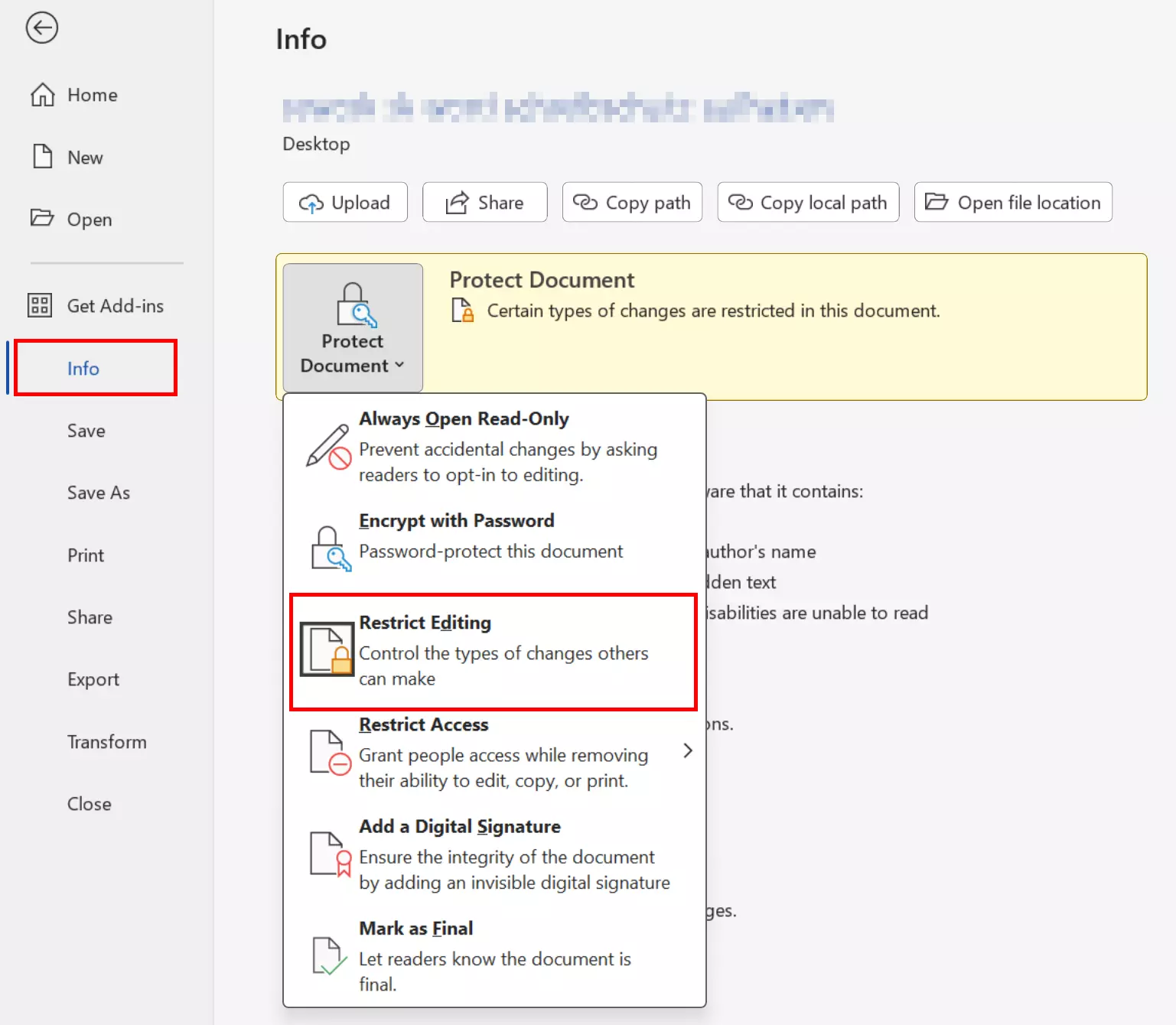
Image source: IONOS
How to Use the Unblock Security Toggle for External Files
In some versions of Windows, files downloaded from the internet are "blocked" by the operating system itself. This is a deeper level of protection than Word's internal settings. To fix this, right-click the file, go to Properties , and look for a Security section at the bottom of the General tab. If you see a message saying "This file came from another computer and might be blocked," check the Unblock box and click Apply.
How to Unlock a Word Document When You Know the Password
If you have the password but want to remove it permanently so you don't have to enter it every time, the process is straightforward. There are two types of passwords in Word: "Document Open" passwords (which prevent viewing) and "Restrict Editing" passwords (which allow viewing but prevent changes).
How to Remove a Document Open Password Permanently
To strip a password from a document you can already open:
- Open the document using the existing password.
- Go to the File tab and select Info .
- Click the Protect Document button.
- Select Encrypt with Password .
- In the dialog box that appears, the password will be represented by dots. Clear the text box entirely so it is empty.
- Click OK and then Save the document. The password is now removed.
How to Stop Editing Restrictions in the Restrict Editing Pane
If you can see the text but cannot change it, the document has "Editing Restrictions" applied. This is common in forms or legal templates. To remove this:
- Go to the Review tab on the ribbon.
- Click Restrict Editing (usually on the far right).
- A pane will open on the right side of the screen. Click the Stop Protection button at the bottom.
- Enter the password when prompted.
- Uncheck the boxes under "Formatting restrictions" and "Editing restrictions" to ensure the document remains fully editable.
How to Unlock a Word Document if You Forgot the Password
Losing a password for a critical file is a stressful experience, but for `.docx` files, there is a notably innovative workaround. Modern Word documents are actually compressed archives containing XML files. By modifying the internal XML code, you can manually disable the "enforcement" of editing restrictions.
How to Use the XML Hack to Bypass Editing Restrictions
This method is widely considered a top-tier choice for recovering files with forgotten "Restrict Editing" passwords. Note that this does not work for "Document Open" passwords, which use much stronger encryption.
- Ensure your file is saved in the .docx format. If it is an old .doc file, save it as a .docx first.
- Change the file extension from .docx to .zip . (You may need to enable "File name extensions" in the View tab of File Explorer).
- Open the new ZIP file. Navigate to the word folder and locate a file named settings.xml .
-
Right-click
settings.xmland open it with Notepad or a similar text editor. -
Press
Ctrl + Fand search for the stringw:enforcement="1". -
Change the
"1"to a"0"so it readsw:enforcement="0". Alternatively, some experts suggest deleting the entire tag starting with<w:documentProtection ... />. - Save the XML file and close Notepad. If the ZIP program asks to update the archive, select Yes .
- Rename the file extension back from .zip to .docx .
- Open the file in Word. The restrictions should now be gone.
How to Use the RTF Sidestep to Strip Protection
If the XML hack feels too technical, the "RTF Sidestep" is a highly effective alternative. Rich Text Format (.rtf) is an older file standard that does not support the same level of metadata-based protection as `.docx`. By converting the file to RTF and back, you can often "shake off" the editing restrictions.
- Open the locked document (if viewing is allowed).
- Go to File > Save As .
- In the file type dropdown, select Rich Text Format (.rtf) .
- Close Word and open the new .rtf file.
- Go to File > Save As again and convert it back to a Word Document (.docx) .
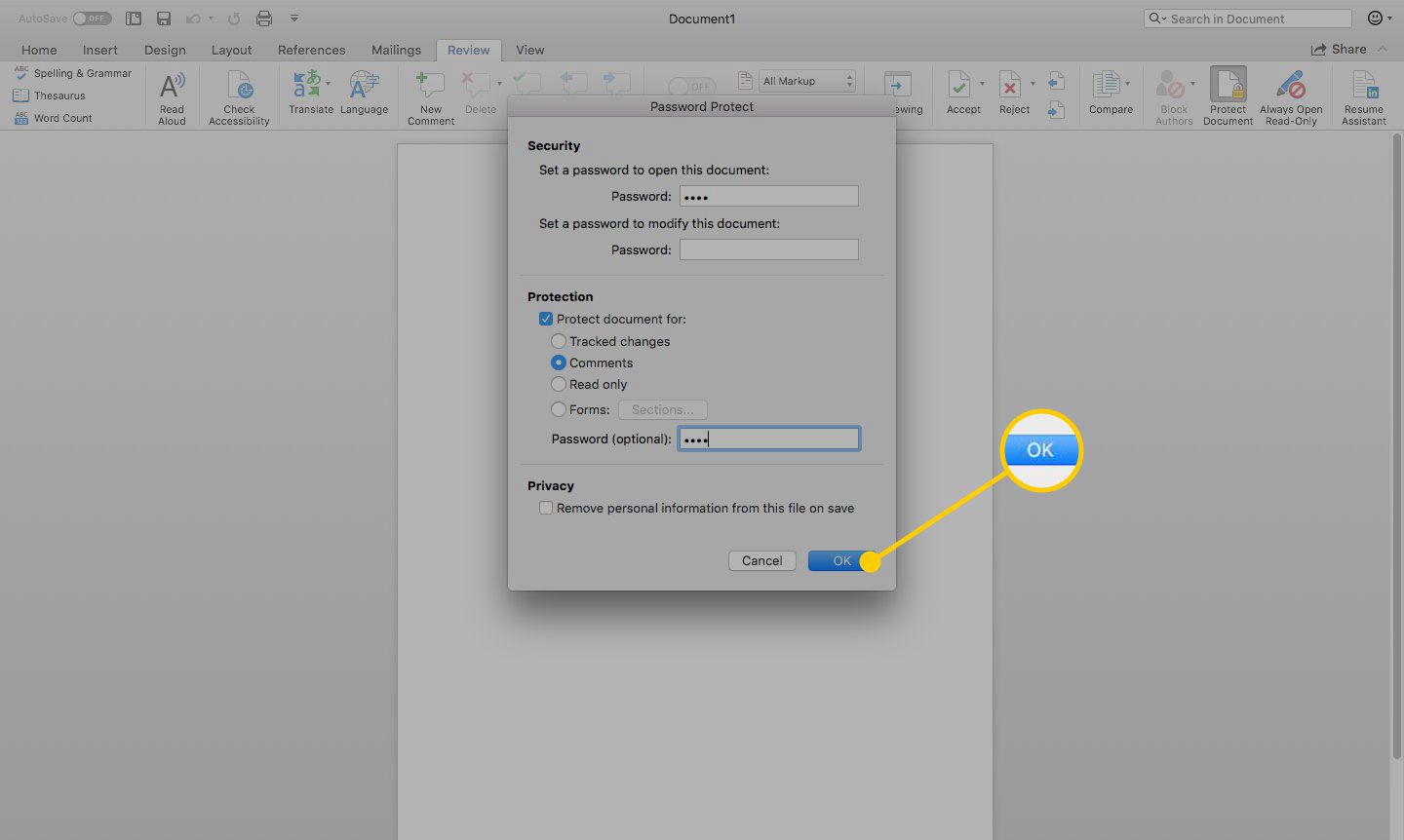
Image source: Lifewire
Why Does Word Say Selection Is Locked and How to Fix It
The "Selection is Locked" error is unique because it usually has nothing to do with the document itself. Instead, it is a signal that your copy of Microsoft Word has entered "Reduced Functionality Mode." In this mode, you can view and print documents, but all editing features are disabled.
How to Check Your Microsoft 365 Subscription Status
The most common cause of a locked selection is an expired or unauthenticated subscription. Microsoft 365 requires periodic "check-ins" with the server to verify your license. If you have been offline for too long or your payment failed, Word will lock your ability to edit. To check this, go to File > Account . Look for a red or yellow warning stating "Subscription Expired" or "Product Deactivated."
How to Activate Office to Enable Editing Features
If you recently purchased a new laptop (such as a Lenovo 1i or similar budget models), it likely came with a "Trial" version of Office. If you already have a personal Microsoft account with a subscription, the trial version may be conflicting with your actual license. The solution is to sign out of the trial account and sign in with your paid credentials. In the File > Account menu, click Switch Account to ensure you are using the correct identity.
How to Repair Your Office Installation via Windows Settings
If your subscription is active but the selection remains locked, the installation files may be corrupted. Performing an "Online Repair" is a top-rated troubleshooting step that fixes most registry and activation errors.
- Right-click the Windows Start button and select Installed Apps (or Apps & Features).
- Find Microsoft 365 or Microsoft Office in the list.
- Click the three dots (or "Modify") and select Modify .
- Choose Online Repair . This will re-download and fix the core components of the software.
How to Unlock a Document Locked by Another User
We have all seen the frustrating popup: "The file is locked for editing by another user." This happens for two reasons: either a colleague actually has the file open on a network, or Word crashed and left behind a "ghost file."
How to Find and Delete Hidden Temporary Owner Files
When you open a Word document, Word creates a hidden temporary file in the same folder. This file starts with
~$
(e.g.,
~$Report.docx
). If Word crashes, this file isn't deleted, and Word thinks the document is still open. To fix this:
- Close all instances of Microsoft Word.
- Open the folder where your document is stored.
- In the File Explorer ribbon, go to View and check the box for Hidden items .
-
Look for a file that begins with
~$followed by your filename. - Delete that temporary file. You should now be able to open the original document without the "locked" warning.
Should You Use Online Word Password Removers?
There are numerous websites that claim to unlock Word documents for free. While these can be convenient, they come with significant trade-offs that every user should consider before uploading their data.
"Uploading sensitive legal, financial, or personal documents to third-party 'unlocker' sites poses a substantial privacy risk. While many services claim to delete files after 24 hours, you have no way to verify their data retention or security protocols."
| Method | Success Rate | Privacy Risk | Best For |
|---|---|---|---|
| XML Hack | High (Editing Locks) | None (Local) | Forgotten editing passwords. |
| RTF Conversion | Medium | None (Local) | Quickly stripping basic restrictions. |
| Online Tools | High (Open Passwords) | High | Non-sensitive files with lost 'Open' passwords. |
| Brute Force Software | Variable | Low (Local) | Complex encryption on critical files. |
Most free online tools, such as Conholdate , have a file size limit (typically around 10 MB). If your document is a large report with many images, these tools may fail or require a paid upgrade. For most users, the manual XML or RTF methods are safer and more reliable.
Frequently Asked Questions
How do I unlock a Word document for editing on a Mac?
On macOS, the process is similar to Windows but uses different menus. To remove a read-only attribute, right-click the file and select Get Info . Under the Sharing & Permissions section, ensure your user account is set to "Read & Write." If the document is password-protected, you must use the Review > Restrict Editing menu within the Word for Mac app. The RTF sidestep also works effectively on macOS.
Why is the Restrict Editing button greyed out?
This usually happens if the document is in Compatibility Mode (an older .doc format) or if the document is currently opened in Word Online (the web browser version). Word Online does not support all protection features. To fix this, open the document in the desktop version of Word and ensure it is saved as a modern .docx file. Additionally, check if the file is marked as "Final" under File > Info.
Can Microsoft recover a forgotten password for me?
No. According to official Microsoft Support policy , they cannot retrieve or bypass passwords for encrypted documents. This is a security measure to protect user data. If you lose a "Document Open" password, your only options are to use third-party recovery software or try to remember the password. This is why keeping a backup of unencrypted files is a top-tier practice for important data.
Is the XML hack safe for my file's formatting?
Generally, yes. The XML hack only targets the "settings.xml" file, which controls document-wide rules like protection and zoom levels. It does not touch the "document.xml" file where your actual text and formatting are stored. However, if you accidentally delete a bracket or corrupt the XML syntax, Word will fail to open the file. This is why creating a backup copy is essential before you begin.
Why does my document stay read-only after I uncheck the box?
If the "Read-only" attribute keeps returning, the file may be stored in a location where you do not have "Write" permissions. This is common in corporate OneDrive folders or network shares. Try saving a copy of the document to your local Desktop . If the copy is editable, the issue is the original folder's permissions, not the document itself.
Key Takeaways for Unlocking Word Files
- Identify the lock type by looking for yellow banners, greyed-out ribbons, or password prompts.
- Check your subscription first if you see the "Selection is Locked" error; activation is often the culprit.
-
Use the XML hack
for forgotten editing passwords by changing
w:enforcement="1"to"0"in the internal settings file. - Try the RTF conversion as a quick, non-technical way to strip away metadata-based restrictions.
- Clear the password field in the "Encrypt with Password" menu to permanently remove protection from a file you can already open.
-
Delete ghost files
(starting with
~$) to resolve "File in Use" errors after a program crash.
By following these steps, you can regain control over your documents and ensure that a forgotten password or a simple setting doesn't stand in the way of your work.
-
Topic: WORD document "Locked for editing." Can't unlock it.https://learn.microsoft.com/en-us/answers/questions/3183773/word-document-locked-for-editing-cant-unlock-it
-
Topic: How to Unlock a Locked Word Document in Minuteshttps://pdf.net/blog/how-to-unlock-a-word-document
-
Topic: Unlocking a Word Document under Windowshttps://people.csail.mit.edu/teller/misc/unlockworddoc.html