How to Use WordItOut to Create Professional and Secure Word Clouds
WordItOut is a long-standing, web-based word cloud generator that allows users to transform text into visual art without requiring an account. Unlike many modern AI tools, it processes data locally in your browser, making it a top-tier choice for researchers and educators concerned with privacy. Key features include manual word weighting, high-resolution PDF exports, and a robust filter for removing "stop words" to ensure a clean, professional aesthetic.
What Is WordItOut and Why Is It Still Popular?
In the landscape of digital visualization tools, few have maintained the longevity and reliability of WordItOut . Launched in 2010, this tool emerged during the height of the "Wordle" craze—referring to the original word cloud generator, not the modern New York Times puzzle. While many early competitors relied on outdated Java applets that eventually broke as browsers evolved, WordItOut transitioned successfully to modern web standards, ensuring it remains accessible on any device.
Users often prefer WordItOut over more complex design platforms like Canva or specialized data visualization software because of its "no-friction" entry point. There is no "worditout download" required, and you do not need to provide an email address to start creating. This simplicity is particularly valued in fast-paced environments like classrooms or corporate brainstorming sessions where immediate results are necessary.
Generate a complete visual representation of your text in under ten seconds.
Works in any modern browser across desktop, tablet, and mobile platforms.
Accepts raw text, document uploads, or even structured table data for analysis.
Furthermore, the tool stands out for its commitment to a "free-to-use" model that doesn't hide essential features behind a paywall. While it offers premium options for those who need them, the core functionality—creating, customizing, and saving clouds—remains open to everyone. This has solidified its reputation as a staple in the educational technology toolkit.
How to Generate Your First Word Cloud in Seconds
Creating a word cloud is a straightforward process, but understanding the nuances of the interface can help you achieve a more professional result. The basic workflow involves three primary steps: input, generation, and refinement. However, the real power lies in how you handle the source text before clicking the "Generate" button.
- Input Your Text: You can paste a block of text directly into the main text area. For more complex projects, you can upload a file or paste a URL to have the tool extract text from a webpage.
- Initial Generation: Click the "Generate" button. The algorithm will immediately count the frequency of every word and assign a font size based on that count.
- Apply Presets: Use the "Randomize" button to cycle through different color palettes and font combinations until you find a style that matches your project's tone.

Image source: worditout.com
One of the most important aspects of this initial phase is managing "Stop Words." These are common words like "the," "and," "is," and "of" that appear frequently but carry little thematic meaning. WordItOut includes a built-in filter that automatically ignores these, but you can manually add words to this list if you find that specific terms are cluttering your design. This ensures that your cloud highlights the actual substance of your content rather than grammatical filler.
How to Control Word Size Using the Manual Weighting Hack
Why Word Frequency Is Not Always Enough
A common frustration with automated word cloud generators is that the most important word in your message might not be the most frequent word in your text. For example, if you are creating a cloud for a brand presentation about "Innovation," that specific word might only appear three times in your document, while the word "Product" appears twenty times. By default, "Product" will be significantly larger, which may not align with your visual goals.
Step by Step Guide to the Manual Weighting Hack
To overcome the limitations of natural frequency, power users employ a technique known as "Manual Weighting." This involves artificially inflating the count of specific keywords to force the algorithm to prioritize them. According to expert analysis of the tool , this is a highly effective way to create a visual hierarchy that serves a specific narrative.
- The Repeat Strategy: If you want the word "Leadership" to be the centerpiece, simply type it multiple times in your input box. For instance, typing "Leadership" ten times while other words appear only once or twice will ensure it dominates the cloud.
- Predictive Reading: Teachers often use this to highlight "Focus Words" for students. By repeating key vocabulary terms, they create a visual anchor that helps students identify the core themes of a lesson before they even begin reading the full text.
- Brand Identity: When creating marketing materials, you can use this hack to ensure your brand name is the largest element, regardless of the descriptive text surrounding it.
| Feature | Standard Frequency | Manual Weighting Hack |
|---|---|---|
| Word Size | Determined by natural text count | Determined by user-defined repetition |
| Visual Focus | Reflects literal data density | Reflects intentional thematic priority |
| Best Use Case | Data analysis and summaries | Marketing, posters, and teaching aids |
Is WordItOut Safe for Sensitive Data and Student Privacy?
Why Local Processing Matters for Researchers
In an era where many free online tools are powered by AI models that ingest user data for training, privacy has become a paramount concern. WordItOut distinguishes itself by utilizing a "Privacy First" architecture. The tool processes the source text locally within your browser's memory. This means that the actual content of your document is not uploaded to a central server for storage or analysis, which is a significant advantage for researchers handling sensitive participant data.
For professionals in the medical or legal fields, this local processing ensures that confidential information remains secure. As noted in scientific literature regarding data visualization , WordItOut is frequently cited as a reliable tool for creating diagrams in peer-reviewed presentations precisely because of its predictable data handling practices.
Educational Endorsements and Student Safety
The USU College of Education and various K-12 institutions recommend WordItOut because it complies with the spirit of student privacy laws like COPPA and GDPR. Since the tool does not require students to create accounts or provide personal information, it eliminates the risk of data harvesting. Teachers can allow students to use the tool freely without the administrative burden of managing logins or worrying about third-party tracking.

Image source: Nick's Picks For Educational Technology
How to Export High Resolution Images for Printing and Presentations
The Browser Print to PDF Workaround for Vector Quality
While WordItOut provides a "Save" button, users often find that the resulting image files can appear blurry when scaled up for large posters or high-definition presentations. To achieve professional-grade results, you can use a specific technical workflow that leverages the browser's rendering engine to create a high-DPI (dots per inch) file.
-
Maximize Browser Zoom:
Before exporting, use
Ctrl +(orCmd +) to zoom your browser to 200% or 300%. This forces the browser to render the text at a much higher resolution. -
Use the Print Command:
Instead of clicking "Save Image," press
Ctrl + P(orCmd + P) to open the print dialog. - Save as PDF: Change the printer destination to "Save as PDF." This creates a vector-like file where the text remains sharp regardless of how much you zoom in.
- Convert for Print: If you need a PNG for a slide deck, you can open this PDF in a tool like Photoshop or an online converter and set the resolution to 300 DPI. This ensures your word cloud looks crisp even on a 4K projector.
Removing Stop Words to Clean Up Your Design
A professional export is only as good as the data it contains. Before you finalize your image, revisit the "Filter" menu. Beyond just removing "the" and "and," you should look for "junk characters"—punctuation marks or symbols that might have been attached to words during the copy-paste process. Cleaning these up manually in the WordItOut settings ensures that your final export is polished and free of distracting artifacts.
How to Use WordItOut on Mobile Devices Without a Native App
Many users search for a "worditout app" in the Apple App Store or Google Play Store, only to find that no official native application exists. However, WordItOut is designed as a responsive web app, meaning it functions exceptionally well within mobile browsers like Safari or Chrome. To make it feel like a native app, you can use the "Add to Home Screen" feature.
- iOS (Safari)
- Tap the "Share" icon (the square with an upward arrow) and select "Add to Home Screen." This places a WordItOut icon on your phone for one-tap access.
- Android (Chrome)
- Tap the three dots in the top right corner and select "Install app" or "Add to Home Screen."
When using the tool on mobile, be mindful of text volume. While desktop browsers can handle large datasets, mobile devices may experience performance lag or "browser hangs" if you attempt to process more than 2,000 words at once. For the best experience on a smartphone, stick to shorter excerpts or summaries.
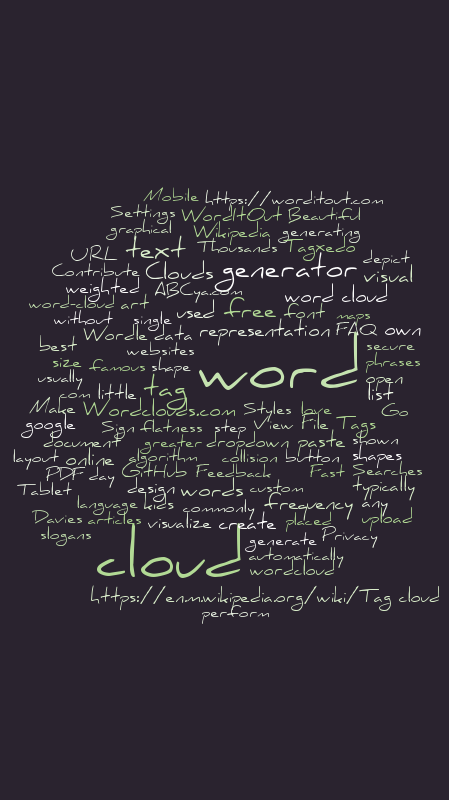
Image source: WordItOut
What Are the Rules for Using WordItOut for Commercial Projects?
Understanding the licensing of free tools is critical for corporate users. By default, WordItOut operates under a non-commercial license. This means you can freely use the clouds for personal projects, classroom activities, and non-profit presentations without any further steps. However, if you intend to use a generated cloud in a for-profit advertisement, a book you are selling, or on a commercial website, you must technically secure permission.
The "loophole" here is that the creators of WordItOut are currently very generous with these permissions. They typically grant commercial rights for free, provided you ask. This is a significant advantage over competitors that charge monthly subscriptions for commercial use. To secure your rights, you should send a brief email to the contact address listed on their site, including the following details:
- The specific purpose of the project (e.g., "A header image for a corporate blog").
- The estimated reach or audience size.
- A statement of how you will attribute the tool (e.g., "Image created via WordItOut.com").
Troubleshooting Common Issues and Performance Lag
Why Is My Browser Hanging on Large Text Files?
If you attempt to paste an entire novel or a massive dataset into the generator, you might notice your browser becomes unresponsive. This is because the algorithm must calculate the position and size of every single unique word in real-time. For most modern browsers, the stability threshold is around 5,000 words. If your dataset is larger than this, it is highly recommended to break the text into smaller chunks or use a text summarizer first to extract the most meaningful passages.
WordItOut vs Wordle: Clearing Up the Confusion
There is a significant amount of search intent confusion between the word cloud tool and the viral NYT word game. It is important to note that the original "Wordle" word cloud tool created by Jonathan Feinberg was the pioneer of this genre but eventually became difficult to use due to its reliance on Java. WordItOut is widely regarded as the primary spiritual successor to that original tool. If you find old bookmarks or lesson plans from 2015 referencing "Wordle," you can safely use WordItOut as a modern, functional replacement.
Frequently Asked Questions
How do I save a WordItOut cloud as a PNG?
To save your cloud as a PNG, you can use the built-in "Save" button on the website, which will generate a downloadable file. However, for higher quality, many users prefer to use the "Print to PDF" workaround mentioned earlier in this guide. Once you have the PDF, you can easily convert it to a high-resolution PNG using any standard image editor or online conversion tool, ensuring the text remains crisp for professional use.
Is WordItOut free for teachers and students?
Yes, WordItOut is fully free for educational use. It is a popular choice among K-12 teachers and university professors because it does not require student accounts, which helps maintain privacy and simplifies the classroom workflow. Teachers can use it for vocabulary building, summarizing literature, or creating classroom posters without worrying about subscription costs or data tracking.
Can I change the shape of the word cloud to a heart or a star?
Unlike some other generators that offer specific "shape masks," WordItOut primarily uses a rectangular or square layout. However, you can mimic different shapes by adjusting the "Custom Sizes" in the settings. By setting a very narrow width and a tall height, you can create a vertical "tower" cloud. While it doesn't support complex silhouettes like stars, its focus on typography and color often results in a cleaner, more readable design than shape-masked alternatives.
Does WordItOut store the text I paste into it?
No, WordItOut processes your text locally within your web browser. This means the source text is not sent to a central server for storage or training purposes. This "Privacy First" approach makes it a top-tier choice for researchers, legal professionals, and anyone else working with sensitive or proprietary information that should not be shared with third-party AI models.
How do I make one specific word much bigger than all the others?
The most effective way to do this is through the "Manual Weighting" hack. Simply repeat the word you want to emphasize multiple times in the input box. For example, if you want "Success" to be the largest word, you might type it 10 or 20 times. The algorithm will see this high frequency and automatically assign it the largest font size in the cloud, regardless of how often other words appear.
Is there a limit to how many words I can use in a single cloud?
While there is no hard technical limit, browser performance typically begins to degrade after about 5,000 words. For the best results and to avoid browser crashes, it is recommended to keep your input under this limit. If you have a very large document, consider extracting the most important sections or using a summary tool before generating your word cloud.
Key Takeaways for Mastering WordItOut
- Prioritize Privacy: Use WordItOut for sensitive data because it processes text locally in your browser rather than on a remote server.
- Force Visual Hierarchy: Use the Manual Weighting hack by repeating key terms to ensure they are the largest elements in your design.
- Clean Your Data: Always use the Filter menu to remove stop words and junk characters before finalizing your cloud.
- Export for Quality: Use the Print to PDF workaround at 200% zoom to get vector-like resolution for professional printing.
- Mobile Access: Save the site to your Home Screen on iOS or Android to use it like a native app without a download.
- Commercial Use: Remember to request permission via email if you plan to use your cloud for for-profit projects.
- Manage Performance: Keep your text inputs under 5,000 words to prevent browser lag and ensure a smooth experience.
To get started, simply paste your most recent project summary into the generator and experiment with the manual weighting technique to see how it changes your visual narrative.
-
Topic: WordItOut – make word clouds and art for freehttps://worditout.com/
-
Topic: WordItOut word cloud. | Download Scientific Diagramhttps://www.researchgate.net/figure/WordItOut-word-cloud_fig1_357722409
-
Topic: Transform your text into word clouds - USU College of Educationhttps://cehs.usu.edu/yetc/gifted-and-talented/gifted-and-talented-learning-art-and-music-transforming-text-to-word-clouds

How to Use a Convertidor de Word a PDF to Keep Your Layout Perfect
Convert Word to PDF for free without losing format. Compare top online tools, learn the mobile print trick, and fix disappearing comments.


How to Unlock a Word Document for Editing in Any Situation
Learn how to unlock Word documents, remove passwords, fix 'Selection is Locked' errors, and use the XML hack to regain access to your files.

How to Erase All Formatting in Microsoft Word Quickly and Easily
Learn to clear formatting in Word using shortcuts, the ribbon tool, and the Styles pane. Fix messy text, highlighting, and track changes easily.