How to Erase All Formatting in Microsoft Word Quickly and Easily
To instantly remove all formatting from selected text in Microsoft Word, use the "Clear All Formatting" button. You can find this icon—a capital "A" with a pink or red eraser—on the Home tab within the Font group. Alternatively, highlight your text and press Ctrl + Spacebar (Windows) or Option + Command + M (Mac) to reset character styles to the default font.
Dealing with messy text is a common frustration for anyone who frequently copies content from websites, PDFs, or external emails. Often, these sources carry hidden styles, inconsistent fonts, and strange spacing that can ruin the visual harmony of your document. Whether you are a student compiling research or a professional drafting a report, knowing how to efficiently strip away these unwanted styles is essential for maintaining a clean, readable layout.
Microsoft Word provides several ways to handle this, ranging from a simple button click to advanced keyboard shortcuts that allow for selective cleaning. This guide will walk you through every method available, ensuring you can fix stubborn formatting issues without losing the work you've already put into your document's structure.
Where Is the Clear All Formatting Button in Word?
The most direct way to reset your text is by using the dedicated tool built into the Word Ribbon. This feature is designed to "nuke" all styles, including bolding, italics, custom colors, and font sizes, returning the text to the "Normal" style defined in your document's template.
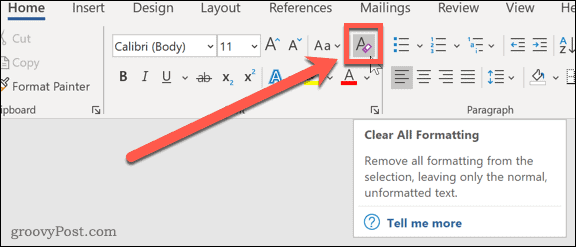
Image source: groovyPost
Locating the Tool on the Ribbon
To find the tool, ensure you are on the Home tab at the top of your screen. Look toward the left side in the Font group. You will see an icon that looks like a capital letter "A" with a small pink or red eraser overlapping it. This is the "Clear All Formatting" button.
Using it is straightforward:
- Highlight the specific text you wish to clean. If you want to clean the entire document, press Ctrl + A .
- Click the Clear All Formatting icon.
- The text will immediately revert to the default font (typically Calibri or Aptos) and standard size (usually 11pt or 12pt).
It is important to note that while this button is highly effective, it may not remove certain elements like text highlighting or track changes. These require specific steps, which we will cover in the troubleshooting section below. According to official documentation, this tool is the standard method for resetting text across the entire Office suite, including PowerPoint and Outlook.
Which Keyboard Shortcut Should You Use to Clear Formatting?
For power users, reaching for the mouse can slow down the editing process. Microsoft Word offers three distinct shortcuts for Windows users, each serving a slightly different purpose. Choosing the right one depends on whether you want to keep your paragraph structure or your character emphasis.
How to Remove Character Formatting with Ctrl + Spacebar
This is perhaps the most frequently used shortcut in Word. When you press Ctrl + Spacebar , Word strips away all "character-level" formatting. This includes font changes, bolding, italics, underlining, and superscript/subscript. However, it preserves your paragraph-level formatting, such as indents, bullet points, and line spacing.
This is a top-tier choice when you have a perfectly aligned paragraph but the text inside looks like a patchwork of different fonts from various web sources.
How to Reset Paragraph Formatting with Ctrl + Q
If your font looks correct but your indents are messy or your line spacing is inconsistent, Ctrl + Q is the tool for the job. This shortcut removes all formatting applied to the paragraph as a whole, resetting it to the default "Normal" paragraph style. Crucially, it keeps your character formatting. If you have bolded keywords or italicized book titles, they will remain intact while the margins and spacing are fixed.
How to Return Text to Normal Style with Ctrl + Shift + N
Consider this the "nuclear option" for keyboard users. Pressing Ctrl + Shift + N applies the "Normal" style to the selected text. This resets both the characters and the paragraph settings simultaneously. It is one of the most efficient ways to ensure a block of text matches the rest of your document perfectly without any lingering "ghost" styles from its original source.
| Shortcut | What it Clears | What it Keeps |
|---|---|---|
| Ctrl + Spacebar | Fonts, Bold, Italics, Size | Indents, Spacing, Bullets |
| Ctrl + Q | Indents, Line Spacing, Tabs | Bold, Italics, Font Type |
| Ctrl + Shift + N | Everything (Resets to Normal) | Nothing |
How to Clear Formatting in Word for Mac
While the Ribbon interface on macOS is very similar to the Windows version, the keyboard shortcuts differ slightly. Mac users often find that the standard Windows shortcuts don't translate directly due to the Command and Option keys.
On a Mac, the primary shortcut to clear formatting is Option + Command + M . This functions similarly to the "Clear All Formatting" button on the Ribbon. If you prefer using the mouse, the eraser icon is located in the same place: the Home tab, within the Font group. Many users find that the Mac version of Word is exceptionally capable at handling these resets, though it may occasionally behave differently when dealing with complex styles imported from Apple Pages or Google Docs.
Option + Command + M
doesn't work on your specific version of Word, you can often use
Command + Spacebar
to clear character formatting, though this sometimes conflicts with the macOS Spotlight search shortcut. You may need to rebind your shortcuts in
System Settings
if this occurs.
How to Paste Text Without Bringing in Messy Formatting
The best way to manage formatting is to prevent it from entering your document in the first place. For years, users have relied on the "Notepad trick"—copying text from the web, pasting it into a plain-text editor like Notepad, and then copying it again into Word. While effective, this is a significant waste of time in the modern era.
The Modern Way: Using Ctrl + Shift + V
In recent updates, Microsoft has finally standardized the "Paste as Plain Text" shortcut. By using Ctrl + Shift + V (Windows) or Command + Shift + V (Mac), you can paste content directly into Word while automatically stripping away all source formatting. The text will instantly adopt the style of the paragraph where you are pasting it.
This method is notably innovative because it eliminates "ghost" characters and hidden HTML tags that often accompany standard copy-pasting. As noted by Microsoft community experts , this shortcut is now the recommended standard for maintaining document cleanliness.
Why You Should Stop Using Notepad as a Middleman
Relying on external apps to clean text is no longer necessary and can actually introduce new problems, such as losing special characters or symbols. Word's internal "Paste Special" menu (accessible via Ctrl + Alt + V ) offers even more control, allowing you to choose between "Unformatted Text," "HTML," or "Picture." Using these internal tools ensures that Word handles the data conversion correctly, preserving the integrity of your document file size and structure.
Why Won't the Formatting Go Away?
Sometimes, you click the eraser button or hit the shortcut, and... nothing happens. Or worse, the text changes font but keeps a bright yellow background. This usually happens because the "formatting" you see isn't actually a font style—it's a different layer of the document.
How to Remove Persistent Text Highlighting
One of the most common "gotchas" in Word is text highlighting. Because Word treats highlighting as a "pen tool" rather than a character style, the Clear All Formatting button often ignores it. If your text is still colored after a reset, follow these steps:
- Select the highlighted text.
- Go to the Home tab.
- Click the small arrow next to the Text Highlight Color icon (the one that looks like a felt-tip marker).
- Select No Color .
Are You Seeing Track Changes Instead of Formatting?
If you see red lines in the margins, strikethroughs, or balloons on the right side of the page, you aren't dealing with formatting—you are seeing Track Changes . Clearing formatting will not remove these marks. To fix this, you must go to the Review tab and either Accept or Reject the changes. This is a frequent point of confusion for users collaborating on shared documents, as Microsoft Q&A forums frequently highlight.
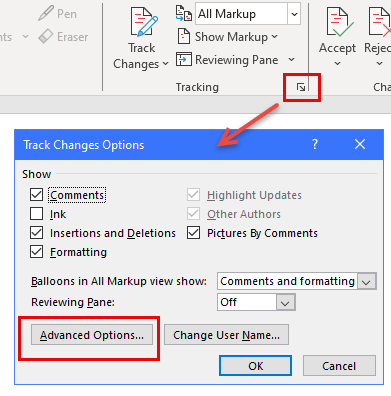
Image source: Microsoft Learn
Dealing with Stubborn Tables and Section Breaks
Formatting can sometimes be "locked" into table cells or hidden behind section breaks. If a paragraph refuses to move or change, check if it is inside a table with fixed column widths. You may need to select the table and go to Table Layout > Convert to Text to fully strip the structural formatting. Similarly, section breaks can carry their own page margins and orientations that "Clear All Formatting" cannot touch.
How to Clean Up Large Documents Without Breaking Everything
Cleaning a 100-page document is a high-stakes task. If you simply select all and clear formatting, you will lose your Table of Contents, your carefully placed headers, and your page numbering. For large-scale cleanup, a more surgical approach is required.
Using the Styles Pane for Bulk Cleaning
The Styles Pane is a highly versatile tool for document management. You can open it by clicking the small launcher icon in the corner of the Styles group on the Home tab, or by pressing Alt + Ctrl + Shift + S .
At the very top of the Styles list, you will see an option labeled Clear All . This is more powerful than the Ribbon button because it allows you to see exactly which styles are currently active in your document. You can right-click a style (like "Heading 1") and choose Select All Instances , then clear the formatting only for those specific parts of the document. This allows you to fix messy body text while leaving your structural headings untouched.
Cleaning a Document Safely
Legal technology experts often suggest that if a document's formatting is so broken that it takes more than ten minutes to fix, it is more efficient to "nuke" the text and start over. As noted by the Oklahoma Bar Association , the safest way to clean a large file is to copy the text, paste it into a brand-new document using "Keep Text Only," and then re-apply your styles from scratch. This prevents "document corruption" that can occur when too many conflicting styles are layered over one another for years.
Frequently Asked Questions
Word Online (the browser version) includes the same "Clear All Formatting" button in the Home tab. However, keyboard shortcuts can sometimes be intercepted by your browser. If
Ctrl + Spacebar
doesn't work, try using the Ribbon icon. Word Online is a popular choice for quick edits, but it lacks some of the advanced Styles Pane features found in the desktop application.
The primary shortcut for Mac users is
Option + Command + M
. This will reset the selected text to the default style. If you only want to clear character formatting (like bold or italics) while keeping your paragraph indents, you can try
Command + Spacebar
, though you may need to disable Spotlight search shortcuts in your Mac's System Settings first.
To fix paragraph issues (like weird spacing or indents) without losing your bold or italicized emphasis, use the
Ctrl + Q
shortcut. This resets the paragraph to its base style but leaves character-level changes untouched. This is a highly effective strategy for cleaning up documents that have already been carefully edited for emphasis.
Blue, underlined text usually indicates a Hyperlink. Word treats hyperlinks as a special "Field" rather than just a font style. To remove this, right-click the link and select
Remove Hyperlink
. If you have many links, you can select the text and press
Ctrl + Shift + F9
to convert all links into plain text.
Those symbols are "Formatting Marks," not actual formatting. They don't print and don't affect your layout; they just show you where spaces and tabs are. You can toggle them on and off by clicking the

icon in the Paragraph group of the Home tab, or by pressing
Ctrl + Shift + 8
(or
Ctrl + *
).
Key Takeaways for Clean Documents
- Use Ctrl + Shift + V to paste text as plain text and avoid formatting issues before they even start.
- The Eraser Icon in the Home tab is your quickest tool for a total text reset to the "Normal" style.
- Ctrl + Spacebar is the top-rated shortcut for stripping fonts and bolding while keeping your paragraph layout.
- Ctrl + Q is the best way to fix messy indents and line spacing without losing your bolded keywords.
- Check the Review Tab if you see red lines or balloons that won't disappear with standard clearing methods.
- Manual Highlighting Removal is required for background colors, as the clear formatting tool often skips them.
- The Styles Pane offers the most control for cleaning large documents without destroying your Table of Contents.
Next time you copy text from the web, try the "Paste as Plain Text" shortcut first to save yourself minutes of manual cleanup.
-
Topic: Word Tip: Clear All Formattinghttps://www.youtube.com/watch?v=hVFViMdVNZ8
-
Topic: Remove Microsoft Word Document Formatting (Easily)https://bwsr.state.mn.us/remove-format-button
-
Topic: Removing Formatting from Word Documents (April 17, 2020)https://www.okbar.org/lpt_articles/removing-formatting-from-word-documents/

How to Remove Paragraph Marks in Word and Fix Stubborn Formatting Symbols
Learn how to hide or delete paragraph marks in Word. Fix stubborn symbols after tables and use shortcuts for Windows, Mac, and Web.


How to Use WordItOut to Create Professional and Secure Word Clouds
Learn how to use WordItOut for free word clouds. Master manual weighting, high-res exports, and privacy-first text analysis for professional use.

How to Create a Professional Fillable Form in Microsoft Word That Actually Works
Learn how to create professional fillable forms in Word using the Developer tab, content controls, and table layouts to prevent document shifting.