How to Use a Convertidor de Word a PDF to Keep Your Layout Perfect
If you need an immediate result, here are the three most reliable methods available in 2026:
- Native Word: Open your file in Microsoft Word and use File > Save As > PDF for maximum privacy.
- Adobe Online: Use the official Adobe web tool for the highest fidelity, especially for complex layouts.
- Mobile Gesture: On iOS or Android, use the "Print" function and pinch-to-zoom on the preview to save as PDF instantly without apps.
Finding a reliable convertidor de word a pdf is a common task for students, professionals, and home users alike. While the process seems simple, the challenge often lies in maintaining the original document's integrity. Whether it is a resume with specific font spacing or a legal contract with embedded comments, a poor conversion can lead to unprofessional results. In this guide, we explore the top-tier options for 2026, ranging from cloud-based powerhouses to hidden native features that require no internet connection.
Which Online Word to PDF Converter Should You Choose?
Online converters are the go-to choice for users who do not have Microsoft Word installed or need to process files on the fly. These tools have evolved significantly, offering integration with cloud storage and advanced encryption to protect your data.
iLovePDF for Cloud-Based Workflows
iLovePDF stands out as a top choice for users who live in the Google Drive or Dropbox ecosystems. It allows you to pull documents directly from the cloud, convert them, and save them back without ever downloading the file to your local machine. This is particularly useful for Chromebook users or those working on shared workstations. Many users find its interface intuitive, and it consistently ranks among the top options for speed and ease of use.
Adobe Acrobat for High-Fidelity Results
As the creator of the PDF format, Adobe remains a leading authority in document conversion. Their online tool is widely regarded as one of the most accurate for preserving complex elements like tables, nested lists, and high-resolution images. According to Adobe's own data, their online services have processed over 11 million files, establishing a high standard for reliability. While some advanced features require a subscription, the basic Word to PDF conversion remains accessible and highly effective for single documents.
Smallpdf for Quick Single Tasks
Smallpdf is a popular choice for its clean, ad-free experience. It offers a generous file size limit—up to 15GB for Pro users—though free users are typically limited to a few tasks per day. It is an excellent option for those who need a simple "drag and drop" experience without navigating complex menus. However, for those needing to process hundreds of files, the free version may present limitations that other tools, such as PDFgear, do not have.
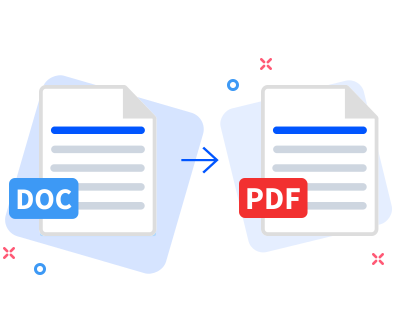
Image source: Smallpdf
| Tool Name | Free Batch Support | Max File Size (Free) | Cloud Integration |
|---|---|---|---|
| iLovePDF | Limited | 100MB | Google Drive / Dropbox |
| Adobe Online | No | 100MB | Adobe Cloud |
| Smallpdf | No | 50MB | Google Drive / Dropbox |
| PDFgear | Yes (Unlimited) | No Limit (Offline) | Local Only |
How to Convert Word to PDF Without Using Any Third-Party Tools
For many users, the most secure and efficient convertidor de word a pdf is already installed on their computer. Using native methods ensures that your sensitive data never leaves your device, which is a critical consideration for legal or financial documents.
Using the Save As Feature in Microsoft Word
If you have Microsoft Word 2010 or later, the conversion process is built directly into the software. This method is often the most reliable for maintaining font styles and internal hyperlinks. To use it:
- Open your document in Microsoft Word.
- Click on the File tab in the top-left corner.
- Select Save As (or Export in newer versions).
- Choose your destination folder.
- In the "Save as type" dropdown menu, select PDF (*.pdf) .
- Click Save .
This method is a significant advancement over older versions of Office, which required separate plugins. It also allows you to choose between "Standard" quality (for printing) and "Minimum size" (for online sharing).
The Print to PDF Method for Windows and Mac
If you are using a different word processor like WordPad or TextEdit, you can still create a PDF using the virtual printer feature. This "Print to PDF" function acts as a bridge between any application and a PDF file. On Windows 10 and 11, this is known as "Microsoft Print to PDF." On macOS, the option is found in the Print dialog under the "PDF" dropdown menu in the bottom-left corner. This is a top-tier option for users who want a universal solution that works across almost any software.
The Secret Way to Convert Documents on Your Phone Without an App
Many users believe they need to download ad-heavy apps from the Play Store or App Store to convert documents on mobile. However, both iOS and Android have a hidden "Print" gesture that functions as a highly capable convertidor de word a pdf .
Converting on iOS Using the Print Gesture
On an iPhone or iPad, you can turn any Word document (or even a webpage) into a PDF using these steps:
- Open the document in the Files app or your email.
- Tap the Share icon (the square with an upward arrow).
- Scroll down and tap Print .
- When the Print Preview appears, do not select a printer. Instead, pinch outward on the document preview image with two fingers (as if you were zooming in).
- The preview will expand into a PDF. Tap the Share icon again to save it to your Files or send it via message.
Converting on Android Devices
Android users have a similar workflow. When viewing a document, tap the three-dot menu and select Print . In the printer selection dropdown at the top, choose Save as PDF . Tap the PDF icon to choose your save location. This method is notably innovative because it bypasses the need for third-party servers, keeping your mobile data usage low and your privacy high.
How to Batch Convert Hundreds of Files at Once for Free
A common pain point identified in the Microsoft TechCommunity is the need to convert 100+ files simultaneously. Most online tools like Nitro or Smallpdf gatekeep this feature behind a paywall. However, there are professional-grade solutions that offer this for free.
Using PDFgear for High-Volume Processing
PDFgear is widely regarded as one of the strongest options for batch processing. Unlike web-based tools that struggle with large quantities of data, PDFgear offers a desktop version that performs the conversion locally. This means you can drag 200 Word documents into the interface, and it will process them in seconds without uploading them to a server. This is an excellent choice for administrative professionals or researchers who handle high volumes of documentation daily.
Why Your Formatting Might Break and How to Fix It
Even with a top-rated convertidor de word a pdf , you might notice that the final result looks different from the original. This is usually due to how fonts and metadata are handled during the export process.
Fixing the Disappearing Comments Bug
A frequent issue reported by users is that comments or "Track Changes" disappear in the PDF version. This happens because the default export setting often ignores "Markup." To fix this in Word:
- Go to File > Export > Create PDF/XPS .
- Click the Options button.
- Under the "Publish what" section, ensure that Document showing markup is selected.
- Click OK and then Publish.
Ensuring Font Embedding and Layout Consistency
If your PDF uses a generic font like Arial instead of your custom brand font, it is because the font was not "embedded." Online tools like Adobe usually handle this automatically, but when using native "Print to PDF" features, you may need to check your settings. Furthermore, the shift from the legacy .DOC format to the modern .DOCX (Open XML) has improved layout consistency. If you are still using Word 2003 or earlier, consider installing the Microsoft Office Compatibility Pack to ensure your files are interpreted correctly by modern converters.
Is Your Data Safe When Using an Online Converter?
Privacy is a major concern when using a web-based convertidor de word a pdf . When you upload a file, it travels to a remote server, is processed, and is then stored until you download it. Understanding how these companies handle your data is vital.
Understanding Server Protocols and Deletion Policies
Reputable tools like PDFgear and iLovePDF use SSL/TLS encryption to protect your file during transit. PDFgear, for instance, utilizes AWS (Amazon Web Services) servers based in the US and implements a strict deletion policy where files are removed shortly after the conversion is complete. Adobe follows a similar protocol, though they may retain files longer if you are signed into an Acrobat account. For documents containing Personally Identifiable Information (PII), such as social security numbers or medical records, the "Save As" offline method remains the most secure choice.
- SSL Encryption
- A security protocol that creates an encrypted link between a web server and a browser, ensuring all data passed remains private.
- AWS (Amazon Web Services)
- A secure cloud services platform used by many top-tier PDF tools to process and store files temporarily.
- PII (Personally Identifiable Information)
- Any data that could potentially identify a specific individual. Documents with PII should ideally be converted offline.
Frequently Asked Questions
¿Cómo convertir un documento de Word a PDF sin perder el formato?
The most effective way to preserve formatting is to use the native "Save As" feature within Microsoft Word or the Adobe Acrobat online tool. These methods ensure that fonts are embedded and that complex elements like tables and images remain in their exact positions. For best results, always use the .docx format rather than the older .doc format.
¿Cuál es el mejor convertidor de Word a PDF gratuito y seguro?
While "best" is subjective, PDFgear is highly recommended for users who prioritize privacy and batch processing, as it offers an offline desktop version. For quick, high-fidelity single conversions, Adobe Acrobat's online tool is widely regarded as a top-tier option due to its precision in rendering complex layouts.
¿Cómo pasar de Word a PDF en el celular sin descargar aplicaciones?
On both iOS and Android, you can use the "Print" function. On iOS, pinch outward on the print preview to generate a PDF. On Android, select "Save as PDF" from the printer dropdown menu. This allows you to convert files instantly without occupying storage space with additional apps.
¿Cómo convertir varios archivos Word a PDF al mismo tiempo?
To convert multiple files at once, use a tool that supports batch processing. PDFgear's desktop software is a strong contender for this task, as it allows you to convert hundreds of files for free. Most web-based tools like Smallpdf or iLovePDF limit batch processing to their paid "Pro" versions.
¿Por qué mi PDF se ve diferente al documento original?
This usually happens because of missing fonts or incorrect export settings. If the converter does not have access to the specific font used in your Word document, it will substitute it with a generic one. To fix this, ensure you select "Embed fonts" in your Word options before saving as a PDF.
The Bottom Line
Choosing the right convertidor de word a pdf depends entirely on your specific needs, whether you prioritize speed, privacy, or the ability to process large volumes of data.
- Use Native Word for the highest level of data privacy and security for sensitive documents.
- Choose Adobe Online when you have a complex layout that must remain 100% identical to the original.
- Leverage iLovePDF if you frequently work with files stored in Google Drive or Dropbox.
- Download PDFgear if you need to batch convert hundreds of files without paying for a subscription.
- Master the Mobile Gesture to save time and storage space on your smartphone.
- Check Export Options to ensure comments and markup are included in your final PDF.
In 2026, high-quality document conversion is more accessible than ever; simply select the method that fits your current workflow and security requirements.
How to Use WordItOut to Create Professional and Secure Word Clouds
Learn how to use WordItOut for free word clouds. Master manual weighting, high-res exports, and privacy-first text analysis for professional use.

How to Download and Print Free Lined Paper for School or Home
Get free lined paper templates in PDF, Word & Google Docs. Choose college, wide, or planner sizes. Print perfectly with our expert guide.


How to Format a Professional Blank Credits Page for Any Project
Download free blank credits page templates for Word, PDF, and video. Learn professional formatting, credit hierarchy, and how to fix jerky scrolls.