
How to Download and Print Free Lined Paper for School or Home
To get high-quality lined paper instantly, download a PDF template in your preferred ruling (College, Wide, or Narrow). For the most accurate results, always set your printer to "Actual Size" or "100% Scale" to prevent the lines from shifting. Using 24lb or 32lb paper provides a superior writing experience compared to standard copy paper.
Finding the right stationery shouldn't require a trip to the store. Whether you are a student preparing for a semester of notes, a parent helping a child practice handwriting, or a professional who prefers the tactile feel of pen on paper, having access to free, printable templates is a significant convenience. This guide provides high-resolution downloads and technical tips to ensure your home-printed paper looks and feels professional.
Get Your Free Lined Paper Downloads Instantly
We have curated a selection of the most frequently requested paper formats. These files are optimized for standard US Letter (8.5" x 11") and A4 paper sizes. Each template features clean, light-gray lines that provide structure without distracting from your writing. According to industry standards, using gray lines instead of stark black helps reduce eye strain and saves on toner costs.
7.1mm spacing for standard academic notes.
Download PDF8.7mm spacing for larger handwriting.
Download PDF6.35mm spacing to maximize page space.
Download PDFDashed mid-line for early learners.
Download PDF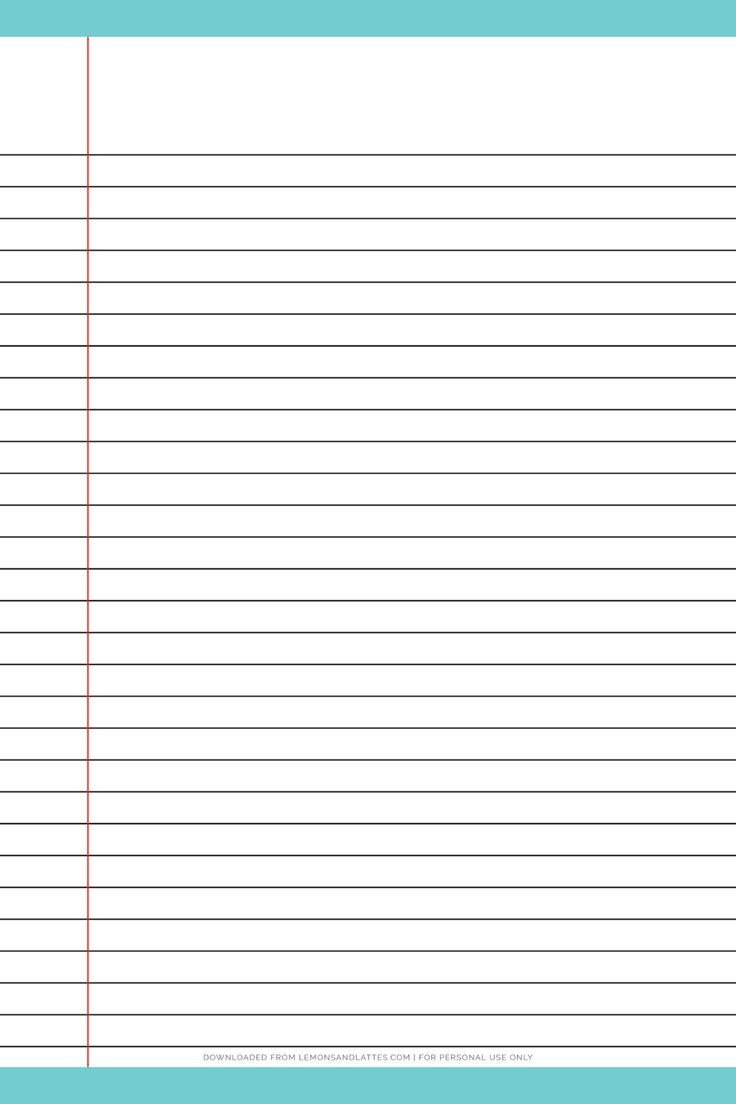
Image source: Pinterest
Which Ruling Type Do You Actually Need?
Not all lined paper is created equal. The "ruling" refers to the vertical distance between the horizontal lines. Choosing the correct ruling depends on your handwriting size and the specific task at hand. For example, Inks and Pens notes that standard rulings are essential for maintaining consistency in journals and academic work.
- College Ruled (Medium Ruled)
- With a spacing of 7.1mm (9/32"), this is the standard for high school and college students in the United States. It allows for more lines per page than wide ruled paper, making it efficient for dense note-taking.
- Wide Ruled (Legal Ruled)
- Featuring 8.7mm (11/32") spacing, this format is primarily used in elementary schools. The extra space is helpful for children who are still developing fine motor skills and have larger handwriting.
- Narrow Ruled
- At 6.35mm (1/4") spacing, this is one of the densest options available. It is a popular choice for those with very small handwriting or for legal professionals who need to fit as much information as possible on a single sheet.
- Primary / Manuscript Paper
- This paper includes a solid top and bottom line with a dashed line in the middle. It is specifically designed to help young children learn the correct height and placement of lowercase letters.
| Ruling Type | Spacing (mm) | Best Use Case |
|---|---|---|
| Narrow | 6.35mm | Small handwriting, detailed journaling |
| College | 7.1mm | Standard academic notes, professional use |
| Wide | 8.7mm | Grade school, large handwriting |
| Primary | 10mm+ | Handwriting development for children |
How to Print Lined Paper Without Cutting Off the Margins
A common frustration when printing lined paper is finding that the lines or the left-hand margin line have been "clipped" or cut off by the printer. This usually happens because home printers have a "non-printable area" near the edges of the sheet. To avoid this, our templates are designed with a 0.3-inch safety margin, which is widely considered the standard for most consumer-grade inkjet and laser printers.
The 100% Scale Rule
When you open your PDF and hit print, your computer may default to a setting called "Scale to Fit" or "Shrink to Fit." Do not use this setting. Scaling the document will change the physical distance between the lines, turning your College Ruled paper into something non-standard. Always select "Actual Size" or "100% Scale" in your print dialog box to ensure the 7.1mm or 8.7mm spacing remains accurate.
Image source: WannaCraft
How to Print Double Sided Even Without a Duplex Printer
If you want to save paper and create a notebook-like feel, printing on both sides of the sheet is essential. While many modern printers have an "Auto-Duplex" feature, you can still achieve this manually. This process requires a bit of trial and error to understand how your specific printer feeds paper.
- Print the first page: Print a single copy of your template.
- Mark the paper: Before putting it back in, draw a small "X" in the top corner of the side that just printed. This helps you track the orientation.
- Re-insert the paper: Place the sheet back into the paper tray. If your printer prints on the "face-up" side, you will likely need to flip the paper over so the blank side is facing up.
- Print the second page: Run the print job again.
"Manual duplexing is a simple skill that can cut your paper consumption in half, making your home-printed stationery more eco-friendly and cost-effective."
The Fountain Pen Hack for Premium Stationery at Home
If you enjoy using fountain pens, you know that standard 20lb copy paper is often a poor choice. The ink tends to "feather" (spread out along the paper fibers) or "bleed" through to the other side. However, you can create a writing experience that ranks among the top luxury notebooks by choosing the right paper for your printer.
The secret is using HP 32lb Premium Choice Laser paper . This specific paper weight and finish are exceptionally strong and resistant to ink penetration. When you print our light-gray lined templates onto this paper, the result is a smooth, high-end writing surface that mimics the feel of premium brands like Rhodia or Clairefontaine at a fraction of the cost. For the best aesthetic, choose our "Light Gray" templates so your ink color remains the focal point of the page.
Specialized Templates for Planners and Discbound Systems
For enthusiasts of the "Planner Girl" or "Planner Guy" community, standard US Letter paper is often too large. Many users prefer A5 (5.8" x 8.3") or Half-Letter (5.5" x 8.5") sizes for their portable organizers. According to Sort Out My Life , ensuring proper gutter margins is the most critical step for planner compatibility.
- Gutter Margins: Our planner-specific templates include a 0.5-inch margin on the left side. This ensures that when you use a TUL, Arc, or 3-ring punch, the holes do not cut through your written notes.
- A5 Scaling: If you are printing on A5 paper, ensure your printer tray is adjusted to the correct width to prevent the paper from shifting during the print cycle.
- Discbound Systems: For systems like the Happy Planner, we recommend using 28lb or 32lb paper, as the heavier weight prevents the pages from tearing out of the discs easily.
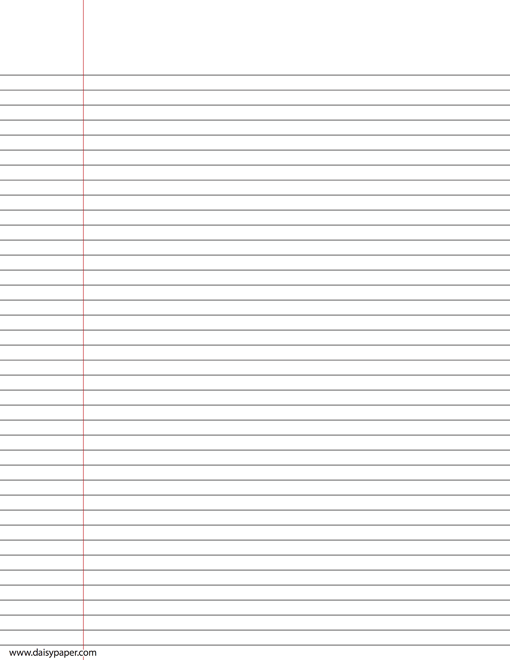
Image source: Daisy Paper
How to Create Custom Lined Paper in Microsoft Word or Google Docs
Sometimes you need more than just lines; you might want a header for your name, a specific date format, or a custom title. While PDFs are great for quick printing, Word and Google Docs offer more flexibility for customization. Word Layouts provides various editable formats that can be tailored to specific needs.
Using the Table Method in Word
The most reliable way to create lines in Word is by using a single-column table. Insert a table with one column and 30-40 rows. You can then adjust the row height to exactly 0.71cm for College Ruled. To make it look like real notebook paper, go to "Table Design" and remove the left and right borders, leaving only the horizontal lines visible.
The Horizontal Line Tool in Google Docs
In Google Docs, you can use the "Horizontal Line" tool under the "Insert" menu, but this is tedious for a full page. A better method is to use a table, similar to the Word method. Google Docs allows you to change the line color to a soft gray, which is highly recommended for a professional look.
Using These PDF Templates in Digital Apps Like GoodNotes
The utility of a "free lined paper" PDF extends beyond the physical printer. Many students and professionals have transitioned to digital note-taking on tablets using apps like GoodNotes 6, Notability, or Samsung Notes. These apps allow you to import custom PDF templates to use as your digital "paper."
Importing a custom template offers several advantages over the built-in backgrounds. It ensures consistency across all your notebooks and allows you to use specialized rulings (like Gregg Shorthand or specific planner layouts) that the apps might not provide. To do this, simply download our PDF, open your note-taking app, and select "Import" or "Add Template" in the settings menu. This bridge between analog design and digital utility is a notably efficient way to organize your life.
Eco-Friendly Tips to Save Ink and Toner
Printing your own paper can be cost-effective, but ink and toner costs can add up if you aren't careful. There are several ways to make your DIY stationery more sustainable and affordable.
- Choose Dotted Lines: Dot-grid paper uses significantly less ink than solid lines while still providing enough structure for writing and drawing.
- Adjust Opacity: If you are using a PDF editor, you can set the line opacity to 10% or 15%. This creates a "ghost" line that is visible enough to guide your hand but uses a fraction of the toner.
- Use Draft Mode: Most printer drivers have a "Draft" or "Economy" setting. This reduces the amount of ink sprayed onto the page, which is perfectly acceptable for personal notes.
- Print in Grayscale: Even if your template has a red margin line, printing in "Black and White" or "Grayscale" mode prevents your printer from using expensive color cartridges.
Frequently Asked Questions
What is the difference between College and Wide ruled paper?
The primary difference lies in the spacing between the horizontal lines. College ruled paper has a spacing of 7.1mm (9/32"), which is designed for older students and adults with medium-to-small handwriting. Wide ruled paper has a larger spacing of 8.7mm (11/32"), making it a top choice for elementary school children who are still learning to control their letter size and spacing.
Why are my lines blurry when I print them?
Blurry lines are usually the result of printing a low-resolution image file (like a small JPG) instead of a high-resolution PDF. Our templates are provided in vector-based PDF format, which means the lines will remain perfectly sharp regardless of how much you zoom in. Additionally, check your printer settings to ensure you aren't printing in a low-resolution "Draft" mode if you require high-contrast lines.
Can I print lined paper on both sides of the sheet?
Yes, you can print on both sides using either an automatic duplexing printer or by manually re-feeding the paper. If you are printing manually, it is helpful to run a test page first to determine which way your printer flips the paper. Using a heavier paper weight, such as 24lb or 28lb, is highly recommended for double-sided printing to prevent ink from showing through to the other side.
What is the best paper weight for printing my own stationery?
While standard 20lb copy paper works for basic notes, it is often too thin for a premium experience. For general use, 24lb paper offers a more substantial feel. If you are using fountain pens or markers, 32lb paper is widely regarded as one of the top options because it prevents feathering and bleed-through. Heavier paper also holds up better in binders and discbound systems.
How do I make the lines lighter to save ink?
The easiest way to make lines lighter is to choose a "Light Gray" version of the template. If you only have a black-lined PDF, you can adjust the "Opacity" or "Transparency" settings in a PDF editor like Adobe Acrobat or use your printer's "Toner Save" mode. Using a lighter line color not only saves ink but also makes your own handwriting stand out more clearly on the page.
Final Thoughts and Printing Checklist
Printing your own lined paper is a practical and cost-effective way to ensure you always have the right stationery on hand. By following a few technical best practices, you can produce pages that rival expensive store-bought notebooks.
- Select the right ruling: Use College Ruled for standard notes and Wide Ruled for children or large handwriting.
- Verify paper size: Ensure your template matches your physical paper (US Letter vs. A4).
- Set scale to 100%: Avoid "Scale to Fit" to maintain accurate line spacing.
- Choose quality paper: Opt for 24lb or 32lb paper for a smoother, more professional writing experience.
- Check margins: Ensure a minimum 0.3-inch safety zone to prevent lines from being cut off.
- Consider ink usage: Use light gray lines or dotted patterns to save on toner costs.
To get started immediately, simply choose one of the templates above and perform a test print with your printer set to "Actual Size."

Download Free Printable Lined Paper PDF Templates for Every Writing Need
Download free printable lined paper PDF templates for US Letter and A4. Includes college ruled, wide ruled, and specialized formats for writing.


How to Format a Professional Blank Credits Page for Any Project
Download free blank credits page templates for Word, PDF, and video. Learn professional formatting, credit hierarchy, and how to fix jerky scrolls.


How to Find and Use Top-Rated Tab Templates for Binders, Music, and Digital Planners
Download free tab templates for binder dividers, guitar tablature, and digital planners. Learn how to print 9x11 copier tabs and fix alignment issues.