How to Remove Paragraph Marks in Word and Fix Stubborn Formatting Symbols
Master the art of document cleaning by learning how to toggle, delete, and troubleshoot the elusive pilcrow symbol (¶) across all versions of Microsoft Word.
If you have ever opened a Microsoft Word document only to find it littered with strange backward "P" symbols, dots between words, and arrows, you are looking at non-printing characters. The most prominent of these is the paragraph mark (¶), technically known as a pilcrow . While these marks are essential for professional formatting and document structure, they can be distracting when you are simply trying to read or draft content.
Understanding how to manage these symbols is a fundamental skill for anyone using Word. It is important to distinguish between hiding these marks (making them invisible while keeping the structure) and deleting them (physically removing the line breaks). This guide covers both approaches, providing solutions for standard scenarios and the technical edge cases that often frustrate users.
The Fastest Way to Hide Paragraph Marks Using Shortcuts
For most users, the goal is simply to get the symbols off the screen. Microsoft provides several "one-click" methods to toggle these marks on and off instantly. This is particularly useful when you need to switch between a "clean" view for reading and a "technical" view for fixing spacing issues.
Shortcut: Ctrl + Shift + 8
This toggles all formatting marks, including spaces, tabs, and paragraph breaks.
Shortcut: Command + 8
The macOS equivalent works identically, providing an instant toggle for the pilcrow.
Home Tab
Look for the ¶ icon in the Paragraph group. Clicking it is a top choice for mouse users.
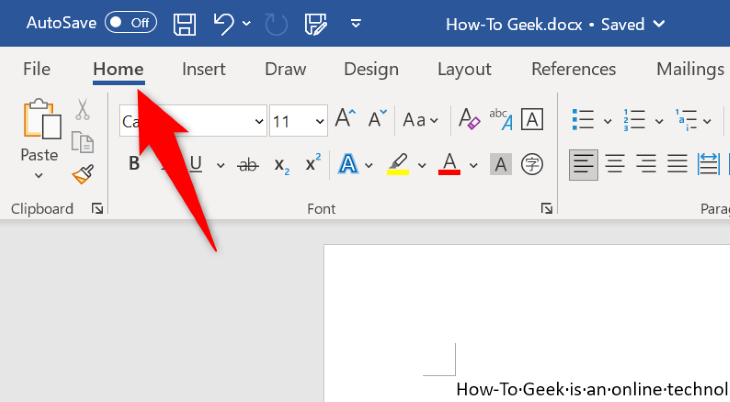
Image source: How-To Geek
According to Microsoft Support , this toggle affects all non-printing characters. If you find that clicking this button hides some marks but leaves others (like dots for spaces) visible, you may have specific settings enabled in your Word Options that override the global toggle.
How to Permanently Hide Formatting Marks in Your Settings
Sometimes, paragraph marks reappear every time you open a new document, even if you turned them off in your previous session. This happens because Word has "Always show" settings enabled in its core configuration. To fix this permanently, you must dive into the application options.
- Click on the File tab in the top-left corner of Word.
- Select Options at the bottom of the left-hand sidebar.
- In the Word Options window, click on the Display tab.
- Locate the section titled "Always show these formatting marks on the screen."
- Uncheck Paragraph marks and any other symbols you wish to hide (such as Hidden text or Object anchors).
- Click OK to save your changes.
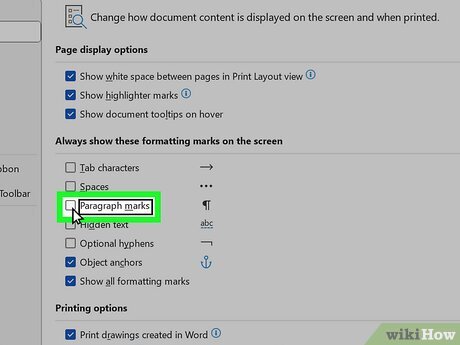
Image source: wikiHow
How to Delete Paragraph Marks in Bulk Using Find and Replace
Hiding a mark is visual; deleting it is structural. You may need to physically remove paragraph marks when cleaning up text copied from a PDF or an email, where "hard returns" appear at the end of every line, breaking your layout. Manually deleting hundreds of marks is tedious, but the Find and Replace tool makes this a top-rated efficiency hack.
To remove paragraph marks in bulk, follow these steps:
- Press Ctrl + H to open the Find and Replace dialog box.
-
In the
Find what
box, type the special code:
^p(the caret symbol followed by a lowercase p). - In the Replace with box, type a single space (to ensure words don't run together) or leave it empty if you want to merge lines directly.
- Click Replace All .
This method is notably innovative for cleaning up "ghost" formatting. For example, if you have double paragraph breaks between every line and want to reduce them to single breaks, you would find
^p^p
and replace it with
^p
. This is widely regarded as one of the best ways to normalize document spacing after importing data from external sources.
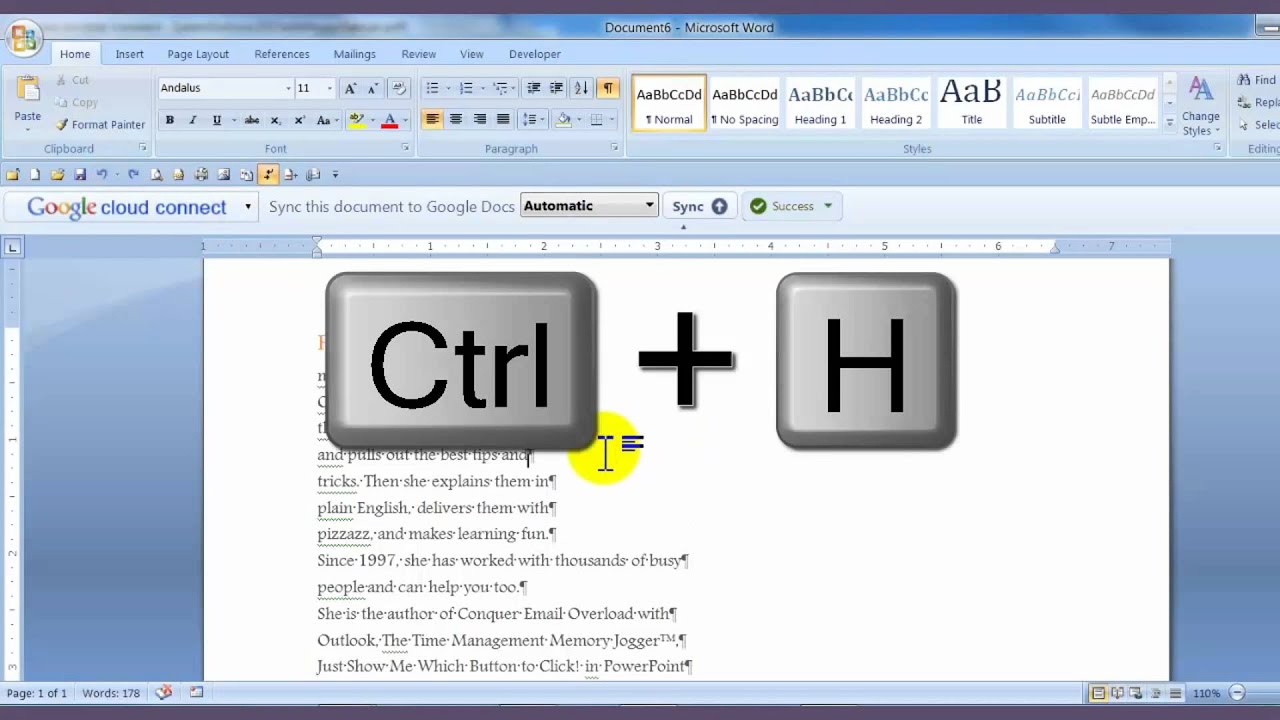
Image source: YouTube
Why Won't This Paragraph Mark Go Away?
There are instances where you press Backspace or Delete, but the paragraph mark simply refuses to vanish. This is not a bug; it is a result of how Word is architected. Every Word document must end with a paragraph mark because that final symbol acts as a container for the formatting data of the preceding section. If you delete it, Word wouldn't know where the document ends or what the final paragraph's style should be.
How to Remove the Stubborn Blank Page After a Table
The most frequent complaint regarding "un-deletable" marks occurs when a table sits at the very end of a document. Word automatically places a paragraph mark after every table. If the table takes up the full height of the page, that mandatory mark gets pushed to a new, blank page. Since you cannot delete the mark, you cannot delete the page—unless you use one of these expert workarounds.
| Method | How to Do It | Best For |
|---|---|---|
| The 1-Point Font Hack | Select the mark, change font size to 1pt, and set line spacing to 0. | Quickly shrinking the mark so it fits on the previous page. |
| The Hidden Text Strategy | Highlight the mark, go to Font settings, and check "Hidden." | Removing the mark from the layout flow entirely. |
| Table Wrapping Fix | Right-click table > Table Properties > Text Wrapping: Around. | Moving the table anchor to pull the mark upward. |
The 1-Point Font Hack is a favorite among legal and academic professionals. By reducing the mark to a microscopic size, you effectively "trick" Word into fitting it into the tiny margin space at the bottom of the table page, thereby eliminating the extra blank sheet. According to discussions on Microsoft Q&A , this remains a highly effective solution for document finalization.
What to Do When Your Formatting Settings Won't Stick
If paragraph marks keep returning despite your best efforts, your
Normal.dotm
template might be corrupt. This file is the "blueprint" for every new document you create. If the blueprint is flawed, every new house (document) will have the same issues.
To refresh your template:
- Close Microsoft Word completely.
-
Navigate to
%appdata%\Microsoft\Templatesin your Windows File Explorer. - Find the file named Normal.dotm .
- Rename it to Normal.old .
- Restart Word. The application will see the missing template and generate a fresh, clean version with default settings.
How to Remove Paragraph Marks on Mac, Web, and Mobile
While the core logic remains the same, the user interface for Microsoft Word varies across platforms. If you are working on a mobile device or in a browser, the "File > Options" path may not exist.
Word for Mac
On macOS, the Ribbon is largely identical to the Windows version. However, if you want to change the permanent settings, you must go to Word > Preferences > View . Here, you will find the "Nonprinting characters" section where you can toggle paragraph marks, spaces, and tab characters. The Command + 8 shortcut is the most efficient way to manage this on a Mac.
Word Online (Microsoft 365)
The web version of Word is a simplified experience. To hide paragraph marks here, go to the
Home
tab. You may need to click the three dots (...) on the far right of the ribbon to see the "Paragraph" options if your screen is small. Look for the ¶ icon to toggle the view. Note that Word Online does not currently support the advanced "Find and Replace" codes like
^p
, so bulk cleaning is a task better suited for the desktop application.
Word Mobile App (iOS/Android)
On mobile devices, screen real estate is at a premium. To find the toggle:
- Tap the Edit icon (the "A" with a pencil).
- Ensure you are on the Home tab.
- Scroll down to Paragraph Formatting .
- Tap the Paragraph Marks toggle to turn them on or off.
Why You Might Actually Want to Keep Paragraph Marks Visible
While they can be an eyesore, paragraph marks are one of the strongest diagnostic tools available to a writer. Professional editors often work with these marks turned on at all times. Here is why:
- Spotting Double Spaces: A single dot represents a space. If you see two dots between words, you have an accidental double space that needs fixing.
- Identifying Section Breaks: Section breaks and page breaks are often invisible until you turn on formatting marks. Deleting a "ghost" section break can fix major layout issues instantly.
- Understanding Style Inheritance: In Word, the paragraph mark stores the "Style" (font, size, color, alignment) for the text above it. If you delete a paragraph mark, the text above it will suddenly take on the formatting of the paragraph below it. Seeing the marks helps you understand why your text is jumping or changing styles unexpectedly.
By keeping these marks visible, you gain a "behind-the-scenes" look at your document's skeleton, making it much easier to troubleshoot alignment issues that would otherwise seem inexplicable.
Frequently Asked Questions
- Why is there a paragraph symbol on every single line of my document?
-
This usually happens when text is copied from a source that uses "hard returns" (pressing Enter) at the end of every line instead of letting the text wrap naturally. You can fix this by using the Find and Replace tool to replace
^pwith a space. - Will these paragraph marks show up when I print my document or save it as a PDF?
- No. Paragraph marks, dots for spaces, and arrows for tabs are "non-printing characters." They are strictly for on-screen guidance and will never appear on a physical printout or in a finalized PDF file.
- How do I remove paragraph marks in Microsoft Outlook?
- Since Outlook uses Microsoft Word as its primary email editor, the controls are identical. You can use the Ctrl + Shift + 8 shortcut while composing an email to toggle the marks on or off.
- What is the difference between a paragraph mark (^p) and a soft return (^l)?
-
A paragraph mark (
^p) is created by pressing Enter and starts a new paragraph with its own styling. A soft return or manual line break (^l) is created by pressing Shift + Enter ; it moves the text to a new line but keeps it within the same paragraph block. - Can I hide paragraph marks but keep my tab marks visible?
- Yes. Go to File > Options > Display . In the "Always show" section, you can check the box for "Tab characters" while leaving "Paragraph marks" unchecked. This gives you granular control over your workspace.
- How do I find "ghost" section breaks that are messing up my headers?
- Turn on formatting marks using Ctrl + Shift + 8 . Section breaks will appear as double dotted lines with the words "Section Break" in the middle. You can then place your cursor at the start of that line and press Delete to remove them.
Key Takeaways for Managing Paragraph Marks
- Use Shortcuts First: Press Ctrl + Shift + 8 (Win) or Cmd + 8 (Mac) for an instant toggle.
- Check Options for Permanence: If marks keep returning, uncheck them in File > Options > Display .
- Bulk Clean with Codes: Use ^p in the Find and Replace tool to delete or replace multiple breaks at once.
- Shrink Stubborn Marks: Use the 1pt font size trick to remove unwanted blank pages after tables.
- Reset Your Template: Rename Normal.dotm if your formatting settings refuse to save correctly.
- Understand the Pilcrow: Remember that these marks store formatting data; deleting them can change the look of your text.
- Diagnostic Value: Keep marks visible when troubleshooting spacing, double spaces, or alignment issues.
Next time you see a pilcrow, try using it as a diagnostic tool before reaching for the hide shortcut.
-
Topic: r/word - How do i remove the ¶ sign that is at every end of ...https://www.reddit.com/r/word/comments/1acbo4i/how_do_i_remove_the_sign_that_is_at_every_end_of/
-
Topic: How To Remove Paragraph Symbols In Word - [ ¶ ]https://www.youtube.com/watch?v=1-0qrM1e3Ek
-
Topic: Show or hide tab marks in Wordhttps://support.microsoft.com/en-us/word/show-or-hide-tab-marks-in-word

How to Erase All Formatting in Microsoft Word Quickly and Easily
Learn to clear formatting in Word using shortcuts, the ribbon tool, and the Styles pane. Fix messy text, highlighting, and track changes easily.


How to Unlock a Word Document for Editing in Any Situation
Learn how to unlock Word documents, remove passwords, fix 'Selection is Locked' errors, and use the XML hack to regain access to your files.

How to Use WordItOut to Create Professional and Secure Word Clouds
Learn how to use WordItOut for free word clouds. Master manual weighting, high-res exports, and privacy-first text analysis for professional use.