
How to Play YouTube in the Background on iPhone, Android, and Desktop
To play YouTube in the background for free, open your mobile browser (Safari or Chrome), navigate to YouTube.com, and select "Request Desktop Website" from the settings menu. Start your video, return to your home screen, and then use your device's Control Center (iOS) or Notification Shade (Android) to press the play button on the media widget. This bypasses the app's restrictions and allows audio to continue while you use other apps or lock your screen.
Multitasking is a fundamental part of the modern digital experience. Whether you are answering emails, browsing social media, or going for a run, having audio playback continue in the background is a feature many users consider essential. However, YouTube famously restricts this functionality to its paid subscribers. Understanding why this restriction exists and how to navigate it using legitimate browser features can significantly enhance your mobile experience.
Why YouTube Restricts Background Play for Free Users
The primary reason YouTube stops playback when you minimize the app is rooted in its business model. Background play is a core pillar of the YouTube Premium subscription service. By placing this feature behind a paywall, the platform incentivizes users to upgrade for a more seamless experience. According to official Google support documentation , background play and Picture-in-Picture (PiP) are designed to be premium benefits, particularly for music-related content.
Beyond monetization, licensing agreements play a massive role. Music labels, especially those under the VEVO umbrella, have strict requirements regarding how their content is consumed. These agreements often mandate that the video must be visible for the play to count toward certain metrics, or they require higher royalty payments for "audio-only" background streams. This is why you may find that some workarounds work perfectly for educational videos but fail immediately when you try to play a trending music video.
Finally, there is the technical aspect of battery and data management. Mobile operating systems like iOS and Android are aggressive about "killing" background processes that consume high amounts of data or CPU power. Since video streaming is resource-intensive, the system naturally wants to pause the stream when the app is no longer in the foreground to preserve your device's longevity.
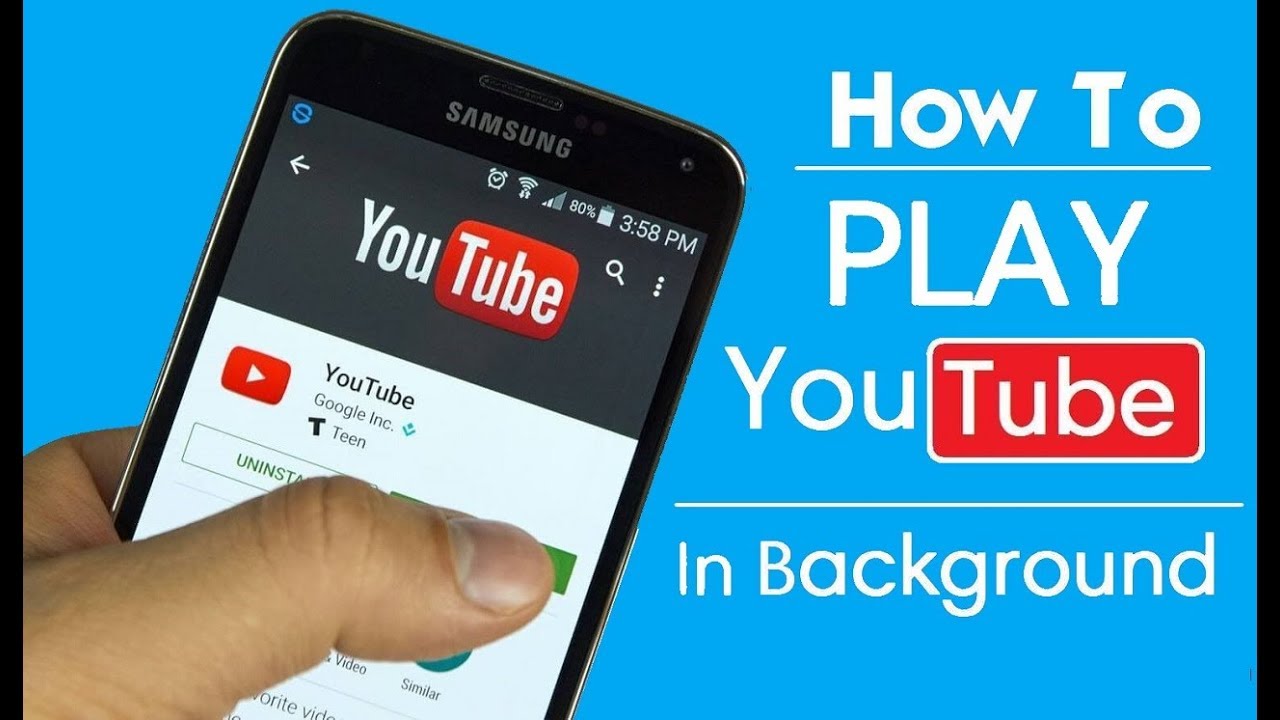
Image source: YouTube
Enabling Background Play with a YouTube Premium Subscription
For users who prefer a native, hassle-free experience, YouTube Premium is the official solution. It removes ads, allows for video downloads, and enables background play across all devices linked to your account. If you are a subscriber but find that background play isn't working, you likely need to adjust a few internal settings.
First, ensure that Picture-in-Picture is enabled within the YouTube app itself. You can find this by tapping your profile picture, going to Settings > General , and toggling on Picture-in-picture . This allows the video to shrink into a small floating window when you swipe up to go home. If you want the audio to continue even when the screen is locked, this is handled automatically by the Premium service as long as the "Background Play" setting is set to "Always On" or "Headphones/External Speakers."
It is important to note that regional limitations still apply. In the United States, YouTube has experimented with offering PiP to non-Premium users for non-music content, but for the vast majority of the global audience, a subscription remains the only official way to access these features. According to WikiHow's technical guides , ensuring your OS is up to date (iOS 14+ or Android 8.0+) is a prerequisite for these features to function correctly.
How to Play YouTube in the Background on iPhone for Free
If you are not a Premium subscriber, you can still achieve background playback on an iPhone by using the Safari browser. The key is to trick the website into thinking you are using a desktop computer, which doesn't have the same mobile-app restrictions.
- Open Safari: Navigate to YouTube.com. Do not let the phone redirect you to the app (if it does, see the "App Hijacking" section below).
- Request Desktop Site: Tap the "AA" icon in the address bar and select "Request Desktop Website." The page will reload and look much smaller.
- Start Your Video: Play the video and wait for any initial ads to finish.
- Minimize Safari: Swipe up to return to your Home Screen. The audio will stop—this is normal.
- Resume via Control Center: Swipe down from the top-right corner of your screen to open the Control Center. You will see a media widget with the YouTube video title. Press Play .
The Ghost Play Technique for Lock Screen Controls
Many users become frustrated when the media controls on their lock screen disappear or show "Not Playing." This often happens because iOS tries to prioritize native apps like Apple Music. To fix this, ensure Safari is the last app you interacted with before locking your phone. If the controls are missing, a quick double-tap on the lock screen or a swipe to the Control Center usually forces the system to recognize the active browser stream. This method ranks among the top free workarounds for iOS users who want to listen to podcasts or long-form video essays without keeping their screen active.
Methods for Background Play on Android Devices
Android users have a bit more flexibility due to the way the operating system handles background processes. While Google Chrome is the default, other browsers like Firefox or Brave often provide a more stable experience for background audio.
The Google Chrome Desktop Site Hack
Similar to the iPhone method, Chrome on Android can bypass restrictions via the desktop view. Open Chrome, go to YouTube, and tap the three-dot menu in the top right corner. Check the box for "Desktop site." Once the video starts, you can leave the app. Pull down your notification shade, and you will see a playback notification. Tap play, and the audio will continue. This is a highly effective way to manage your media without a subscription.
Why Firefox Offers a More Stable Experience
Many power users prefer Firefox for Android because it handles background media more gracefully than Chrome. Firefox often allows audio to continue playing even without requesting the desktop site, though this can vary by version. Additionally, Firefox supports mobile extensions that can force background play, making it a top-tier choice for those who want a "set it and forget it" solution. According to MacRumors , browser-based methods remain the most reliable free alternatives to the official app.
Preventing the YouTube App from Automatically Opening
One of the biggest hurdles to these browser hacks is "App Hijacking." This occurs when you try to open a YouTube link in Safari or Chrome, and your phone automatically forces you into the YouTube app, where background play is blocked. This is a significant advancement in how apps interact, but it's a nuisance for this specific goal.
Advanced Safari Feature Flags for App Hijacking
For iOS users, you can dive into the advanced settings to stop this behavior. Go to Settings > Safari > Advanced > Feature Flags . Look for the setting labeled "Verify window.open user gesture" and ensure it is toggled. This prevents the browser from handing off the task to the app without your explicit permission. This is one of the more advanced techniques used by power users to maintain control over their browsing experience.
Blocking External Apps in Firefox and Chrome
On Android, you can go to Settings > Apps > YouTube > Open by default and toggle off "Open supported links." This ensures that every time you click a YouTube link, the OS asks you which app to use, allowing you to select your browser instead of the native app. In Firefox, there is a specific setting in the app's menu under "Advanced" called "Open links in apps" that you can switch to "Off."
Using Picture-in-Picture Mode on Desktop Computers
While background play is usually a mobile concern, desktop users often want to keep a video visible while working in other programs like Excel or Word. While you can just leave the tab open, the native Picture-in-Picture mode is a much better option.
The "Double Right-Click" secret is the most efficient way to do this. If you right-click a YouTube video once, you get YouTube's custom menu (Loop, Copy URL, etc.). If you right-click a second time immediately after, you will see the browser's native context menu. From there, select "Picture in Picture." This creates a floating window that stays on top of all other applications, even if you minimize your browser. This works in Chrome, Edge, and Safari, and is widely considered one of the best productivity hacks for desktop users.
Comparing Premium Features to Free Browser Workarounds
| Feature | YouTube Premium | Browser Workaround (Free) |
|---|---|---|
| Ease of Use | Seamless, native integration | Requires manual steps/Desktop mode |
| Ad-Free Experience | Yes, fully blocked | No (unless using Brave/Extensions) |
| Lock Screen Controls | Full metadata and scrubbing | Basic Play/Pause (Ghost Play) |
| Reliability | 100% stable | May break with OS updates |
| Audio Quality | High (256kbps AAC) | Standard (varies by browser) |
Troubleshooting Common Background Play Issues
Even with these methods, you might encounter issues where the audio cuts out. One common culprit is COPPA (Children's Online Privacy Protection Act) regulations. Videos marked as "Made for Kids" have restricted functionality; YouTube disables mini-players and background play for these videos to protect minor privacy, and browser hacks often cannot bypass this server-side restriction.
Another issue is the browser cache. If the "Desktop Site" trick stops working, try clearing your browser's cache and cookies. Over time, the mobile version of the site can become "sticky" in the browser's memory, preventing the desktop version from loading the necessary media triggers for the Control Center. Finally, always check your volume. It sounds simple, but many mobile browsers default to "Mute" when switching to desktop mode, requiring you to manually unmute the video before minimizing the window.
Key Takeaways for Background Playback
- Use Desktop Mode: The most reliable free method is requesting the desktop version of YouTube in your mobile browser.
- Master the Control Center: Always remember that audio will pause initially; you must manually resume it via your device's media widget.
- Stop App Hijacking: Disable "Open by Default" settings to keep YouTube links within your browser.
- Try Alternative Browsers: Brave and Firefox often offer more robust background play features than Chrome or Safari.
- Desktop Multitasking: Use the "Double Right-Click" trick to trigger native Picture-in-Picture on your PC or Mac.
- Save Data: When listening in the background, manually set the video resolution to 144p to save significant battery and data.
- Check Licensing: Be aware that VEVO and music content may have stricter blocks that require more frequent "resumes" from the lock screen.
To start listening immediately, open Safari or Chrome right now and try the desktop site method with your favorite long-form video.
Frequently Asked Questions
Does playing YouTube in the background use more battery?
Actually, it uses significantly less battery than playing the video with the screen on. The display is the largest power consumer on most smartphones. However, because the phone is still processing a video stream (even if you aren't looking at it), it uses more battery than a standard MP3 or a dedicated audio app like Spotify. To optimize this, always lower the video resolution to 144p in the settings gear icon before minimizing the browser.
Can I play YouTube with the screen completely off?
Yes, this is possible using the browser methods described above. Once you have resumed the audio from the Control Center or Notification Shade, you can press the power button to lock your screen. The audio should continue to play. If it stops, simply wake the screen (without unlocking) and press the play button on the lock screen media widget again.
Is there a free app that allows background play?
While there are third-party "clients" that claim to offer this, they often violate YouTube's Terms of Service and can be removed from app stores without notice. Furthermore, some of these apps may pose security risks. It is generally safer and more reliable to stick with verified browsers like Brave, Firefox, or Safari, which use standard web protocols to achieve the same result without compromising your data.
Why does my audio stop after just one song?
This is usually due to the "Autoplay" setting. In a mobile browser, the "Autoplay Next Video" feature often behaves differently than in the app. You may need to ensure the Autoplay toggle (located on the video player itself) is turned on. Additionally, some browsers pause playback between tracks to prevent unwanted data usage; you may need to manually hit "Play" for the next track from your lock screen.
Does this work on iPad as well as iPhone?
Yes, and in many cases, it works even better on iPad. iPadOS is designed to handle desktop-class browsing by default, so you often don't even need to "Request Desktop Website." The Split View and Slide Over features on iPad also allow you to keep a small Safari window active on the side of your screen, which is a highly effective way to multitask without needing a Premium subscription.
-
Topic: How to listen to YouTube in background/turned off phone ...https://www.reddit.com/r/youtube/comments/1ajs5fi/how_to_listen_to_youtube_in_backgroundturned_off/
-
Topic: How to Play YouTube Videos in the Background (No Premium!)https://www.youtube.com/watch?v=Ht5YOt9W6_E
-
Topic: How can I stay watching a YouTube video while using ...https://support.google.com/pixelphone/thread/265241294/how-can-i-stay-watching-a-youtube-video-while-using-other-apps-on-the-phones?hl=en
How to Block a Website on Your Phone for Better Productivity and Safety
Learn to block websites on iPhone and Android using Screen Time, Private DNS, and apps to stop distractions and stay safe online. Step-by-step guide.

How to Add Audio to Google Slides and Make It Play Perfectly Every Time
Learn to insert audio in Google Slides, fix permissions, and loop music across slides. Fix common playback errors with this 2026 guide.

How to Blur Your Background in Zoom on Any Device
Learn how to blur your Zoom background on Windows, Mac, and mobile. Fix missing blur options and optimize your video for professional meetings.