
How to Block a Website on Your Phone for Better Productivity and Safety
If you need to restrict access to a specific site right now, follow these platform-specific shortcuts:
- iPhone Users: Navigate to Settings > Screen Time > Content & Privacy Restrictions > Content Restrictions > Web Content . Select "Limit Adult Websites" and add specific URLs to the "Never Allow" list.
- Android Users: Since Chrome for Android lacks a built-in blocklist, use Google Family Link to manage site access or install a reputable tool like BlockSite .
- Advanced Users: Use Private DNS settings (e.g., NextDNS) to block domains at the system level without installing additional software.
In an era of constant digital noise, the ability to control your mobile environment is essential for maintaining focus and ensuring online safety. Whether you are a parent looking to protect your children from inappropriate content or a professional trying to curb a social media habit, knowing how to block a website on your phone is a fundamental digital literacy skill. While mobile browsers have evolved significantly, the methods for restricting access vary greatly between iOS and Android ecosystems.
This guide provides a deep dive into every available method, from built-in operating system features to advanced network-level configurations. We will also address common pitfalls, such as the "Incognito Loophole," which often allows users to bypass standard restrictions. By the end of this article, you will have a comprehensive toolkit for creating a cleaner, safer mobile experience.
Effective Methods to Block Websites on an iPhone Using Screen Time
Apple has integrated robust parental controls and productivity tools directly into iOS through a feature called Screen Time. Unlike older versions of iOS that required third-party extensions, modern iPhones offer a native way to filter web content across Safari and other browsers that use the system's web view.
Restricting Specific URLs in Safari Settings
The primary mechanism for blocking sites on an iPhone is found within the Content & Privacy Restrictions menu. This tool allows for three distinct levels of filtering:
- Unrestricted Access: The default setting where all websites are accessible.
- Limit Adult Websites: An automated filter that blocks known adult content. This mode also unlocks the "Always Allow" and "Never Allow" manual lists.
- Allowed Websites Only: The most restrictive mode, often called "Whitelisting," where only a handful of pre-approved sites can be visited.
To block a specific site, select
Limit Adult Websites
, then scroll down to the
Never Allow
section. Tap "Add Website," enter the URL (e.g.,
facebook.com
), and tap Done. This block is remarkably effective because it applies to the system level, meaning even if you use a different browser like Firefox or Edge on your iPhone, the restriction typically remains in place.
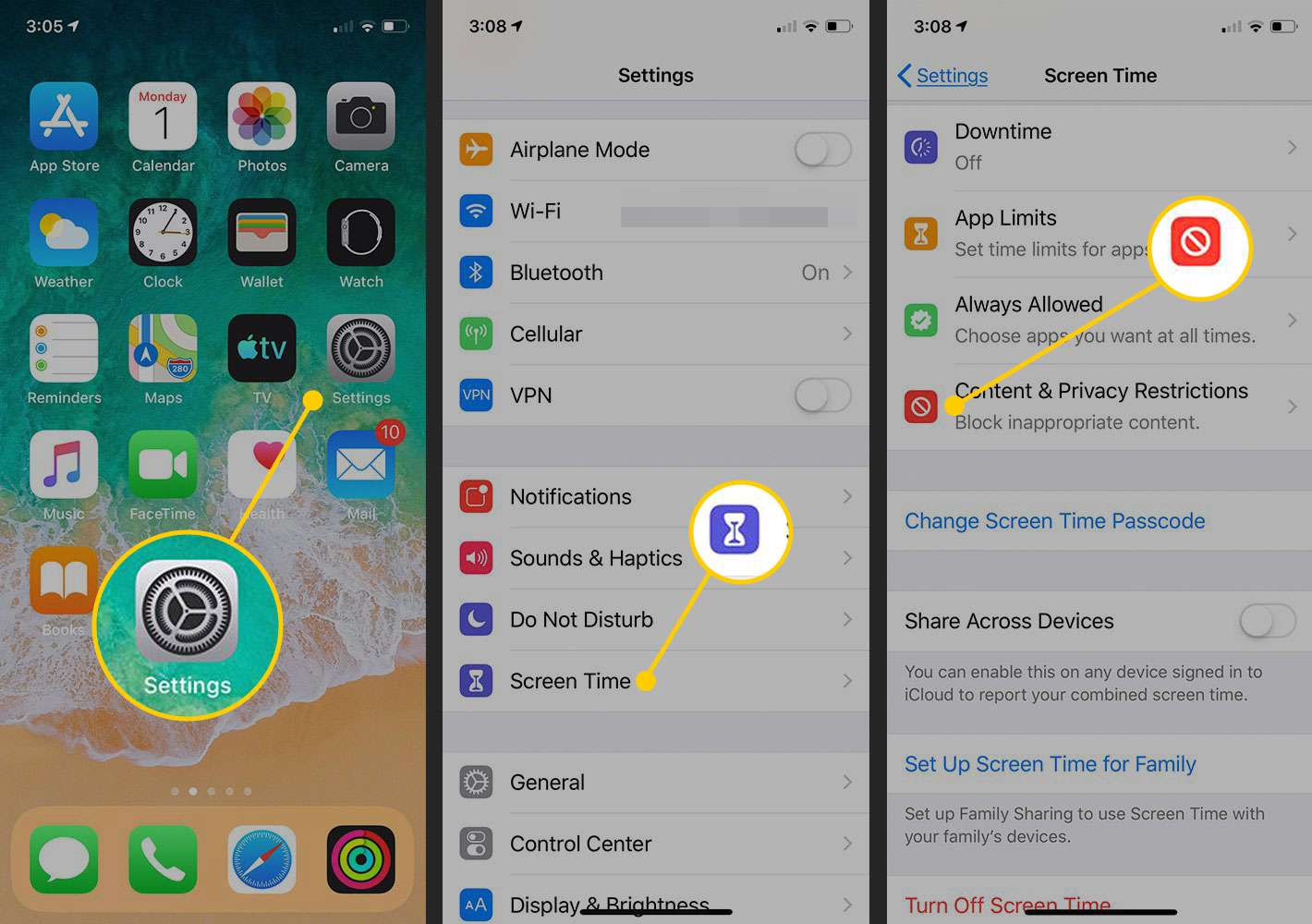
Image source: Lifewire
Securing Your Restrictions with a Screen Time Passcode
A common mistake users make is setting up blocks without a dedicated Screen Time Passcode. Without this four-digit PIN, any user (including yourself during a moment of low willpower) can simply navigate back to the settings and remove the restriction.
Practical Ways to Block Websites on Android Devices
Android offers a more fragmented experience compared to iOS. Because Google Chrome is the dominant browser, many users expect to find a "Block List" within the app settings. However, as noted by Avast's security research , the mobile version of Chrome does not include a native URL blocking feature. This necessitates alternative strategies.
Understanding Why Chrome for Android Requires External Solutions
On a desktop, Chrome supports extensions that can block websites with a single click. On mobile, Google has restricted extension support to maintain performance and security. Consequently, to block a site on an Android phone, you must either use an operating system-level tool or a third-party application that utilizes Android's Accessibility Services to monitor and intercept web traffic.
Implementing Restrictions via Google Family Link
For those seeking a "no-app" feel, Google Family Link is a top-rated choice. While marketed for parents, it can be used to manage any device within a Google Family Group. By setting up a supervised account, you can force-enable "SafeSearch" and manually block specific domains. According to Norton's safety guides , Family Link is one of the most reliable ways to ensure that restrictions are synchronized across all Google services on the device.
Managing Website Access on Samsung Internet Browsers
Samsung users have a unique advantage. The default Samsung Internet browser is widely regarded as one of the most feature-rich mobile browsers available. It includes a "Browsing Privacy Dashboard" that allows users to install content blockers directly. While these are primarily used for ads, many Samsung-compatible blockers allow for custom URL filtering, providing a cleaner solution than system-wide apps that may drain battery life.
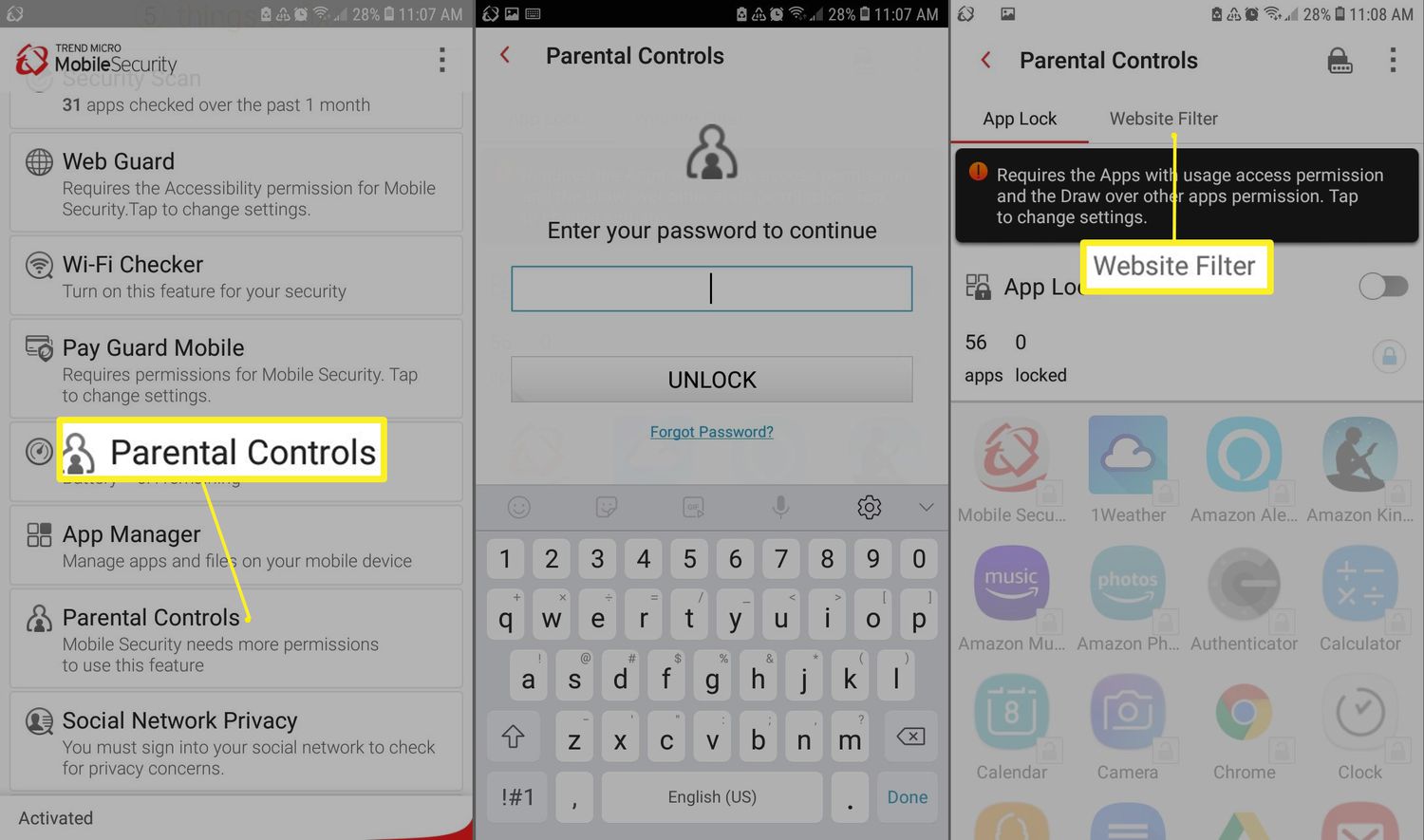
Image source: Lifewire
Advanced Website Blocking Without Apps Using Private DNS
For users who want to avoid installing third-party apps that might track their data or consume background battery, Private DNS is a significant advancement in mobile control. This method works at the network protocol level, intercepting requests for specific websites before the browser even attempts to load them.
The Technical Advantages of System-Level DNS Filtering
When you type a URL like
twitter.com
, your phone asks a DNS server for the IP address. A filtering DNS service like
NextDNS
or
Cloudflare
can be configured to return a "not found" result for specific domains. This method is exceptionally strong because it works across every app on your phone—not just the browser. It also uses virtually zero extra battery because it replaces a process your phone is already performing.
Configuring NextDNS or Cloudflare on Android Systems
Android 9 and newer versions include a "Private DNS" feature. Here is how to set it up:
- Create a free account at NextDNS.io to customize your blocklist.
- On your Android phone, go to Settings > Connections > More Connection Settings > Private DNS .
- Select "Private DNS provider hostname."
-
Enter your custom NextDNS ID (e.g.,
yourid.dns.nextdns.io).
Once active, any site you blacklist on the NextDNS web dashboard will be instantly blocked on your phone, regardless of which browser or app you use.
Setting Up Custom DNS Profiles on iOS
While iPhone settings don't have a simple "Hostname" box like Android, you can install a DNS-over-HTTPS (DoH) profile . Services like NextDNS provide a small configuration file that you can download and install in Settings > General > VPN & Device Management . This provides the same system-wide, battery-efficient blocking enjoyed by Android users.
Strategies to Close the Incognito Mode Loophole
One of the most frequent complaints from users is that their blocks "don't work" when they open a private or incognito tab. This is a known issue where certain browser extensions and OS-level filters are bypassed to protect user privacy.
Why Standard Filters Often Fail in Private Browsing
Incognito mode is designed to leave no trace of your browsing history. To achieve this, browsers often disable all extensions by default. If you are using a third-party app like BlockSite, the extension may not have permission to run in the "dark" environment of an incognito tab, rendering your blocklist useless.
Enabling Extension Support for Incognito Tabs in Chrome
If you rely on a Chrome extension for blocking, you must manually grant it permission to operate in private mode. Navigate to Settings > Extensions > Manage Extensions . Find your blocker and toggle the switch for "Allow in Incognito." Without this step, the block is easily circumvented.
Disabling Private Browsing Features Entirely
For a more permanent solution, you can disable Incognito mode altogether. On an iPhone, using the "Limit Adult Websites" setting in Screen Time automatically removes the option to open Private tabs in Safari. On Android, this usually requires a third-party "Incognito Blocker" app or a managed Google account through Family Link.
Evaluating Third-Party Apps for Website Management
While native tools are excellent, some users require more granular control, such as "Focus Modes" that only block sites during work hours. In these cases, third-party applications are a top-tier option.
| Method | Ease of Use | Battery Impact | Bypass Difficulty | Cost |
|---|---|---|---|---|
| Screen Time (iOS) | High | None | Medium | Free |
| Private DNS | Medium | None | High | Free/Paid |
| BlockSite App | High | Low | Low | Freemium |
| Router Level | Low | None | Very High | Free |
Using BlockSite for Cross-Device Synchronization
BlockSite is widely regarded as one of the most user-friendly tools for both Android and iOS. Its standout feature is the ability to sync your blocklist across your phone and desktop. If you block a site on your work computer, it is automatically restricted on your phone as well. This prevents the common habit of putting down the laptop only to pick up the phone and continue the same distraction.
Achieving Deep Focus with Freedom’s Locked Mode
For those struggling with digital addiction, the Freedom app offers a "Locked Mode." This prevents you from disabling the block or uninstalling the app while a session is active. It is a highly impactful tool for students and professionals who need to guarantee a distraction-free environment for several hours at a time.
Prioritizing Security and Privacy with Verified Tools
Implementing Network-Level Blocking via Router Settings
If you want to block a website on every phone in your house simultaneously, the most effective method is to do it at the source: your Wi-Fi router.
Accessing Your Router’s Administrative Dashboard
Most modern routers include a "Blacklist" or "URL Filtering" section. To access this, you typically enter your router's IP address (often
192.168.1.1
) into a browser and log in with your admin credentials. By adding a domain here, you ensure that no device—be it an iPhone, Android, or laptop—can access that site while connected to your home network.
Determining When Network-Wide Blocking is Appropriate
Network-level blocking is a strong contender for home offices or households with young children. However, keep in mind that this block only works while the phone is connected to Wi-Fi. As soon as the user switches to 5G/LTE mobile data, the router's restrictions no longer apply. For this reason, network blocking should be used as a secondary layer of defense alongside device-level settings.
Professional Website Management for Small Business Owners
For business owners, managing employee productivity on company-issued phones requires a more scalable approach than manual blocking. This is where Mobile Device Management (MDM) comes into play.
Introduction to Mobile Device Management Solutions
Tools like Scalefusion allow administrators to "Whitelist" applications and websites. Instead of trying to block the millions of distracting sites on the internet, you block everything by default and only allow access to the specific tools required for the job. According to miniOrange's productivity reports , whitelisting is significantly more effective than blacklisting in professional environments, as it eliminates the "cat-and-mouse" game of blocking new distractions as they emerge.
Frequently Asked Questions
The most effective free methods are the built-in Screen Time settings on iPhone and Google Family Link or Private DNS on Android. These tools do not require a subscription and provide high-level security without the need for third-party apps.
Directly within the Chrome app, you cannot block specific URLs. However, you can use the Private DNS method in your Android system settings to block sites system-wide, which includes Chrome, without installing any additional software.
This is usually due to browser cache . Your phone may have saved a local copy of the site. To fix this, go to your browser settings and select "Clear Browsing Data" or "Clear Cache." Additionally, check if you are in Incognito mode, as some blocks do not apply there by default.
Only if you use a cross-platform app like BlockSite or Freedom that syncs settings across your account. Standard OS settings like Screen Time or Family Link only apply to the specific device or family group they are configured on.
The most reliable way is to combine DNS filtering (using a service like CleanBrowsing or NextDNS) with locked parental controls on the device. By having someone else hold the PIN to these settings, you create a permanent barrier that is difficult to bypass.
The Bottom Line
Managing website access on your phone is a powerful way to reclaim your time and protect your privacy. Whether you choose native tools or advanced DNS filtering, the key is consistency and closing loopholes like Incognito mode.
- Prioritize native tools like Screen Time (iOS) or Family Link (Android) for the most stable experience.
- Use Private DNS for a lightweight, battery-friendly method that works across all apps.
- Clear your browser cache immediately after setting a block to ensure it takes effect.
- Grant Incognito permissions to any third-party blocking extensions you use.
- Consider an accountability partner to hold the passcode for your restrictions if you are prone to self-sabotage.
- Network-level blocking is a great secondary layer for home Wi-Fi but doesn't cover mobile data.
- Whitelisting is often more effective than blacklisting for extreme productivity needs.
Start by setting up a basic block in your phone's native settings today to see an immediate improvement in your digital focus.
-
Topic: How can I block websites on my phone? : r/productivityhttps://www.reddit.com/r/productivity/comments/a6ivzz/how_can_i_block_websites_on_my_phone/
-
Topic: How to Block Websites on Android Phone (Best Method)https://www.youtube.com/watch?v=g4lPvknf0mw
-
Topic: How to block websites on Chrome, Safari, and iPhonehttps://www.eset.com/blog/en/home-topics/cybersecurity-protection/block-websites-safari-chrome

How to Cancel That Alarm and Manage Your Schedule on Any Device
Stop ringing alarms or disable schedules on iPhone, Android, and smart speakers. Fix ghost alarms and learn the skip next trick.


How to Play YouTube in the Background on iPhone, Android, and Desktop
Use free browser hacks to play YouTube in the background on iPhone, Android, and PC. Keep music playing while multitasking with these expert tips.


How to Pin a Website to Your Taskbar in Windows and Mac
Learn to pin websites to your taskbar in Windows 11, 10, and Mac. Fix missing pin options and use the Firefox workaround for faster access.