How to Make a Copy of an Excel File or Worksheet on Any Device
To duplicate an
entire file
, press
F12
to open the "Save As" dialog and save the workbook under a new name. This is widely considered a top choice for creating backups.
To duplicate a
single sheet
, hold the
Ctrl
key (Windows) or
Option
key (Mac) and drag the sheet tab to the right. This creates an identical copy within the same workbook instantly.
Whether you are managing complex financial models or simple to-do lists, knowing how to duplicate your work efficiently is a fundamental skill. In Microsoft Excel, "making a copy" can refer to two distinct actions: duplicating the entire
.xlsx
file on your hard drive or duplicating a specific tab (worksheet) within an existing file. This guide covers both scenarios across Windows, macOS, and the web version of Excel, incorporating the latest 2026 updates for Python integration and AI metadata.
How to Duplicate an Entire Excel File on Your Computer
Duplicating a file at the operating system level is often the fastest way to create a versioned backup before making major changes. This method ensures that all macros, formatting, and hidden sheets are preserved exactly as they exist in the source.
Using Windows File Explorer for Quick Copies
On Windows, you have several efficient options to duplicate a file without even opening Excel. According to EaseUS , the standard right-click method remains a reliable staple for most users.
- The Right-Click Method: Right-click your Excel file and select "Copy," then right-click an empty space in the folder and select "Paste."
-
Keyboard Shortcut:
Click the file once, press
Ctrl + C, thenCtrl + V. -
The Drag Shortcut:
Hold the
Ctrlkey while clicking and dragging the file to a new spot in the same folder. Windows will automatically append "- Copy" to the filename.
How to Duplicate a File on macOS Finder
Mac users can utilize native Finder shortcuts that are exceptionally strong for rapid file management. The most direct way is to right-click the file and select
Duplicate
. Alternatively, you can use the
Command + D
shortcut, which creates a copy in the same directory immediately.
Creating a Copy from Within the Excel App
If you already have the file open, you don't need to go back to your folders. Using the internal "Save As" feature is a top-tier option because it allows you to rename the file and change its location in one step.
- Click on File in the top ribbon.
- Select Save As (or Save a Copy if you are using OneDrive).
- Choose your destination and enter a new name.
F12
function key on Windows to bypass the "Backstage" view and jump straight to the classic Save As dialog box. This saves several clicks and is a favorite among power users.
How to Make a Copy of a Specific Sheet Within a Workbook
Often, you don't need a whole new file; you just need a "sandbox" version of a specific tab to test new formulas. Duplicating a worksheet preserves all cell formatting, column widths, and chart settings.
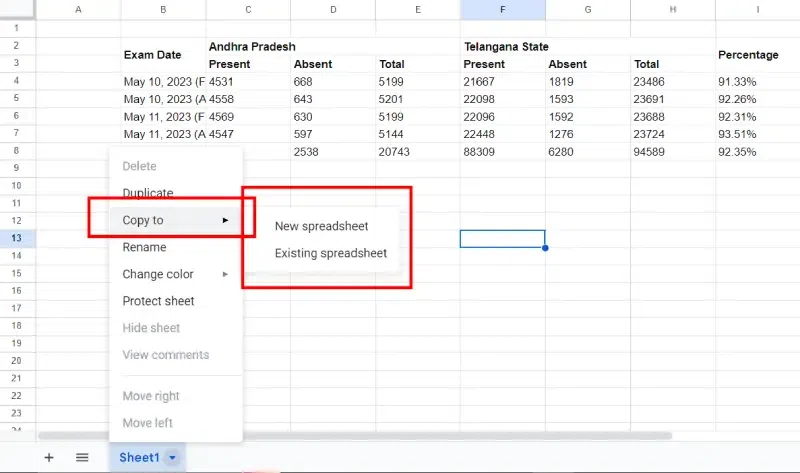
Image source: GeeksforGeeks
The Standard Right-Click Method
This is the most visible method and works consistently across all desktop versions of Excel. It is highly recommended when you need to place the copy in a specific order among your tabs.
- Right-click the tab name at the bottom of your screen.
- Select Move or Copy... from the context menu.
- In the dialog box, choose where you want the copy to appear.
- Crucial: Check the box that says Create a copy . If you forget this, Excel will simply move the original sheet instead of duplicating it.
Using the Drag-and-Drop Shortcut
For those who value speed, the modifier-drag method is widely regarded as one of the best shortcuts in Excel. On Windows, hold Ctrl and drag the tab. On Mac, hold Option and drag. You will see a small plus sign (+) appear on the sheet icon as you move it, indicating that a copy is being created.
How to Copy Multiple Sheets at Once
If you need to duplicate a large section of a workbook, doing it one by one is inefficient. You can group sheets to copy them in bulk:
-
Adjacent Sheets:
Click the first tab, hold
Shift, and click the last tab. -
Non-Adjacent Sheets:
Click the first tab, hold
Ctrl(orCommandon Mac), and click each individual tab you want to include. - Once selected, right-click any of the highlighted tabs and use the Move or Copy command as described above.
How to Copy an Excel Sheet to a Different Workbook
Moving data between files is a common task, but simply copy-pasting cells often breaks formatting or loses print settings. The "Move or Copy" dialog is a more robust solution for this.
Moving Data Between Two Open Workbooks
To copy a sheet from File A to File B, both files must be open in the same instance of Excel. In the Move or Copy dialog, click the To book: dropdown menu. You will see a list of all currently open workbooks. Select the destination file, check "Create a copy," and click OK.
Maintaining Formula Integrity and External Links
A significant challenge when copying sheets between files is how Excel handles formulas. If Sheet1 in File A references Sheet2 in File A, and you copy Sheet1 to File B, the formulas in File B will likely still point back to File A. This creates an "External Link."
To make the new sheet independent, you may need to go to the Data tab and select Edit Links . From there, you can "Break Links" to convert formulas into static values or "Change Source" to point the formulas to a sheet within the new workbook.
How to Make a Copy of an Excel File Online
Excel for the Web (part of Microsoft 365) has a slightly different interface. While it lacks some of the deep customization of the desktop app, it offers seamless cloud-based duplication.
Using the Save As Menu in Excel Web
When working in a browser, your changes are saved automatically. To create a copy, go to File > Save As . You will see options to:
- Save a Copy Online: Creates a duplicate in your OneDrive or SharePoint folder.
- Rename: Changes the name of the current file (does not create a copy).
-
Download a Copy:
Saves a
.xlsxversion to your local computer's Downloads folder.
Limitations of Excel Online for Sheet Duplication
As noted in
Microsoft Support
documentation, the web version has a notable gap: you cannot use the "Move or Copy" dialog to send a sheet to a
different
workbook. You can only duplicate sheets within the same file. To move a sheet to a different online workbook, you must manually select all cells (
Ctrl + A
), copy them, and paste them into a new tab in the destination file.
Technical Warnings for Modern Excel Features (2026)
As of 2026, Excel has integrated sophisticated tools like Python and AI-driven Copilot. These features introduce new variables when duplicating files or sheets.
Python in Excel (Py Function) Integrity
If your worksheet utilizes the
=PY()
function to run Python code, copying that sheet requires the destination workbook to be stored in a cloud environment that supports Python integration. If you copy a Python-heavy sheet to a local-only legacy workbook (like
.xls
), the formulas will return a
#BLOCKED!
error because the Python runtime environment is not present.
Copilot-Generated Content and Metadata
When you use Microsoft Copilot to generate a table or analysis, the resulting data in the cells is easily copied. However, the Prompt History and the AI's contextual memory are generally tied to the specific file metadata. Duplicating a sheet will transfer the values, but it will not transfer the chat history you used to create those values. This is an important distinction for users who rely on AI to explain their data logic.
=SUM(Sheet1:Sheet3!A1)
, it adds up cell A1 across all sheets between Sheet1 and Sheet3. If you duplicate a sheet and place it
inside
that range, your total will change unexpectedly. Always check your 3-D reference boundaries after duplicating tabs.
Troubleshooting Common Duplication Issues
Sometimes, the options you need are greyed out or the results don't look right. Here is how to fix the most common pain points.
Why is "Move or Copy" Greyed Out?
If you right-click a tab and find the "Move or Copy" option disabled, it is usually due to one of three reasons:
- Workbook Protection: The workbook structure is locked. Go to the Review tab and check if "Protect Workbook" is highlighted. You will need to unprotect it (and possibly enter a password) to manage sheets.
- Group Edit Mode: If you have multiple sheets selected, some move/copy functions are restricted. Right-click any tab and select "Ungroup Sheets" to return to normal mode.
- Read-Only Mode: If the file is marked as "Final" or is being previewed in an email, you cannot modify its structure. Save a local copy first.
Fixing Formatting Loss During Copying
When you copy and paste cells manually instead of using the "Move or Copy" sheet command, you often lose column widths. To fix this, after pasting, click the Paste Options tag that appears and select Keep Source Column Widths . However, the "Move or Copy" method is a top choice because it preserves these settings automatically, along with print areas and page breaks.
Comparison of Duplication Methods
| Method | Best For | Preserves Formulas? | Preserves Formatting? |
|---|---|---|---|
| Save As (F12) | Full file backups | Yes | Yes |
| Ctrl + Drag Tab | Quick internal copies | Yes | Yes |
| Move or Copy Dialog | Inter-file transfers | Yes (with links) | Yes |
| Copy/Paste Cells | Specific data ranges | Partial | Requires "Paste Special" |
Advanced Automation for Bulk Copying
For users who need to create dozens of copies—such as a monthly report template for 50 different departments—manual clicking is not feasible. In these cases, automation is a significant advancement in productivity.
Using VBA for Bulk Sheet Creation
A simple Visual Basic for Applications (VBA) script can automate the duplication process. This is a popular choice for power users who need to scale their workflows.
Sub DuplicateSheet()
    Dim i As Integer
    For i = 1 To 10
        Sheets("Template").Copy After:=Sheets(Sheets.Count)
        ActiveSheet.Name = "Report_Month_" & i
    Next i
End Sub
This script creates 10 copies of a sheet named "Template" and renames them sequentially. It is a highly impactful way to handle repetitive tasks.
Using Power Automate for Cloud Files
If your files are stored in SharePoint or OneDrive, you can use Power Automate to trigger a file copy. For example, you can set up a flow that automatically makes a copy of a "Master Budget" file every time a new folder is created for a new project. This ensures consistency without manual intervention.
Frequently Asked Questions
You can use your computer's file manager. In Windows File Explorer, select the file and press
Ctrl + C
then
Ctrl + V
. On a Mac, right-click the file in Finder and select "Duplicate." This creates an exact copy of the workbook without requiring you to launch the Excel application.
There is no single keyboard shortcut to copy a sheet between different files. The most efficient way is to right-click the sheet tab, select "Move or Copy," and then choose the destination workbook from the "To book" dropdown menu. Ensure the destination file is already open before you start this process.
This happens because Excel is trying to maintain the data connection to the source. This is known as an external reference. To fix this, you can use the "Find and Replace" tool (
Ctrl + H
) to find the file name string (e.g., "[OriginalFile.xlsx]") and replace it with nothing, effectively pointing the formulas to the local sheets in the new workbook.
Yes, the mobile app supports basic sheet duplication. Tap the "Sheets" icon at the bottom left to see all tabs, then tap the triple-dot menu on the specific sheet you want to copy and select "Duplicate." Note that moving sheets between different workbooks is generally not supported on mobile platforms.
The most reliable way to keep column widths is to use the "Move or Copy" command or the
Ctrl + Drag
shortcut. If you must use copy-paste for cells, you must use "Paste Special" and select "Column Widths" to apply the formatting from the source to the destination.
Key Takeaways for Duplicating Excel Data
- Use F12 for the fastest way to "Save As" and duplicate an entire file on Windows.
- Hold Ctrl/Option and Drag a sheet tab to create an instant internal copy.
- Check "Create a copy" in the Move/Copy dialog to avoid accidentally moving your original data.
- Open both files in the same instance if you need to copy sheets between different workbooks.
- Verify Python and AI metadata when moving sheets in the 2026 version of Excel to ensure formula integrity.
- Unprotect the workbook if you find the duplication menus are greyed out or unresponsive.
- Break external links after copying to ensure your new workbook operates independently of the source.
For your next project, try using the
Ctrl + Drag
shortcut first—it is a remarkably simple way to boost your daily productivity in Excel.
-
Topic: Duplicating an existing worksheet : r/excelhttps://www.reddit.com/r/excel/comments/sw3ouk/duplicating_an_existing_worksheet/
-
Topic: Open A New Copy Of Your Excel Workbook (keep original)https://www.youtube.com/watch?v=FfurXqnRcEg
-
Topic: How do I copy an entire workbook with all of the sheets?https://learn.microsoft.com/en-us/answers/questions/5264456/how-do-i-copy-an-entire-workbook-with-all-of-the-s

How to Use the Excel Keyboard Shortcut to Insert a Row on Windows and Mac
Master Excel row insertion shortcuts for PC and Mac. Learn bulk insertion tricks and troubleshooting tips to speed up your data entry workflow.


How to Drag Down a Formula in Excel and Fill Entire Columns Instantly
Learn how to drag formulas in Excel using the fill handle, shortcuts, and tables. Master large datasets and fix common auto-fill errors today.

How to Freeze Columns in Excel to Keep Your Data Visible While Scrolling
Learn how to lock columns and rows in Excel. Fix greyed-out buttons, use shortcuts, and manage multiple panes for better data navigation.