
How to Fix a Printer That Shows Offline and Get It Printing Again
If your printer is showing as "Offline" despite being powered on, the most effective immediate fix is a 60-second power cycle . Unplug the printer from the wall, wait one full minute to discharge internal capacitors, and plug it back in. If the status remains offline, navigate to Settings > Printers & Scanners on your PC, open the print queue, and ensure that "Use Printer Offline" is unchecked in the Printer menu. For a permanent fix, assigning a Static IP address prevents the router from losing the printer's connection during network refreshes.
Few technical hurdles are as frustrating as a printer that refuses to communicate. You can see the device, it has power, and the Wi-Fi light might even be solid green, yet your computer insists it is "Offline." This disconnect often stems from a breakdown in the digital "handshake" between your operating system and the printer hardware. Whether you are using a modern Windows 11 machine, a legacy Mac, or one of the newer ARM-based Copilot+ PCs, the solutions provided here rank among the top methods for restoring functionality.
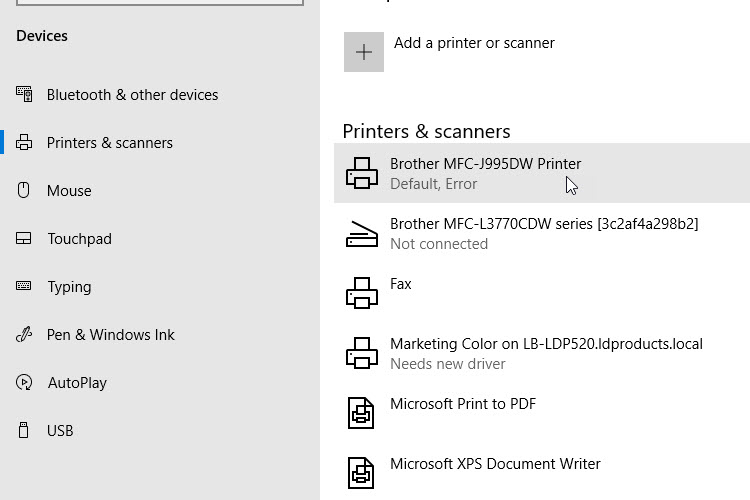
Image source: LD Products
Try These Quick Fixes Before Changing Any Settings
Before diving into deep system configurations, it is essential to rule out temporary glitches. Many "offline" states are simply the result of a stale network session or a minor hardware hang-up. These steps are widely considered the first line of defense for HP, Canon, Epson, and Brother users alike.
The 60-Second Power Cycle
A simple "off and on" via the power button often fails to clear the printer's temporary memory (RAM). According to HP Support documentation , a full power reset is necessary. Turn the printer off, then physically unplug the power cord from the back of the device. Wait at least 60 seconds. This duration allows the internal capacitors to fully discharge, ensuring that when you plug it back in, the firmware initiates a completely fresh boot sequence.
Check the Use Printer Offline Toggle
Windows includes a specific software toggle that can accidentally be triggered by a print error or a manual click. If this is enabled, Windows will not even attempt to send data to the printer. To check this:
- Go to Settings > Bluetooth & devices > Printers & scanners .
- Select your printer and click Open print queue .
- In the window that appears, click the Printer menu at the top.
- Ensure there is no checkmark next to Use Printer Offline . If there is, click it to disable the setting.
Verify the Physical and Network Connection
If you are using a USB connection, try a different port on your computer. USB hubs can sometimes fail to provide enough voltage for a stable data handshake. For Wi-Fi users, ensure your printer and computer are on the exact same SSID. A common pitfall occurs when a computer connects to a 5GHz band while the printer remains on a 2.4GHz band; while some routers bridge these seamlessly, many treat them as separate segments, causing the printer to appear offline.
Why Your Printer Says Offline When It Is Actually Online
The "Connected but Offline" paradox is a frequent source of confusion. This occurs when the hardware is successfully joined to the network, but the software protocol used to "discover" the printer has failed. Understanding this distinction is a significant advancement in troubleshooting your own hardware.
The AirPrint Paradox Diagnostic
One of the most effective ways to isolate the problem is what IT professionals call the "AirPrint Paradox." If you can print a document from your iPhone or Android device, but your Windows PC says the printer is offline, the hardware and network are functioning perfectly. This confirms that the issue lies entirely within the Windows discovery protocols (like WSD or SNMP) or a local firewall on the computer. This diagnostic step saves hours of unnecessary router reboots and hardware checks.
VPN and Firewall Interference
Active VPNs are a top-tier cause of printer visibility issues. When a VPN is active, it creates a secure tunnel that often masks your local network. Your computer effectively "leaves" your home network to join a remote one, making local devices like printers invisible. As noted by TeamViewer technical insights , disabling your VPN temporarily is a vital step in confirming if the software is blocking the local handshake.
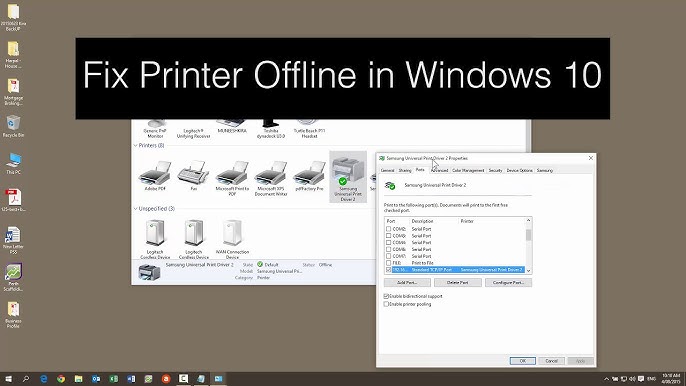
Image source: YouTube
How to Restart the Windows Print Spooler Service
The Print Spooler is the Windows service that acts as a traffic controller, managing the queue of documents waiting to be printed. If this service hangs or crashes, the printer status will often default to "Offline" or "Error." Restarting it is a highly recommended fix for stubborn queues.
-
Press
Win + R
on your keyboard, type
services.msc, and hit Enter. - Scroll down the list until you find Print Spooler .
- Right-click Print Spooler and select Restart .
- Wait for the service to cycle, then check your printer status again.
Clearing the Spooler Cache
Sometimes, a corrupt print job gets stuck in the system memory, preventing any new communication. To clear this, you must stop the Spooler service (as described above), then navigate to
C:\Windows\System32\spool\PRINTERS
. Delete all files in this folder. These are just temporary cached files; deleting them will not harm your system. Once the folder is empty, go back to the Services window and
Start
the Print Spooler again.
Deep Cleaning Your Printer Drivers for a Fresh Start
When basic fixes fail, the issue is likely a corrupted driver. However, simply clicking "Remove Device" in the Windows settings menu is often insufficient. This action removes the icon but leaves the underlying driver packages on the hard drive. When you try to "Add Printer" again, Windows simply re-links to the same corrupted files.
Using Print Server Properties
To perform a "deep clean" of your drivers, follow this advanced technique:
- Open Printers & Scanners in your settings.
- Scroll to the bottom and select Print server properties .
- Click the Drivers tab.
- Find your printer in the list, click Remove , and select Remove driver and driver package .
- Restart your computer.
By removing the "driver package," you force Windows to look for a fresh, clean version of the software. When reinstalling, always opt for the "Full Feature Software" from the manufacturer's website rather than the "Basic Driver" or the Windows-provided class driver, as the full version includes better status-monitoring tools.
How to Stop Your Printer from Going Offline Forever with a Static IP
If your printer works for a few days and then randomly goes offline again, you are likely dealing with a DHCP conflict. By default, your router "loans" an IP address to your printer. When that loan (or lease) expires, the router might give the printer a new IP address. Your computer, however, is still looking for the printer at the old address. Assigning a Static IP is widely regarded as the most reliable permanent solution for network printers.
| Feature | Standard DHCP (Default) | Static IP (Recommended) |
|---|---|---|
| Reliability | Moderate; prone to "Offline" errors | Exceptionally high |
| Setup Effort | Zero (Automatic) | 5-10 minutes |
| Longevity | Short-term | Permanent fix |
| Best For | Home users with one device | Home offices and multi-device setups |
Setting a Manual IP via the Web Interface
Every modern printer has an Embedded Web Server (EWS) . To access it, find your printer's current IP address by printing a "Network Configuration Page" from the printer's physical menu. Type that IP address into any web browser on your computer. Navigate to the Networking or IPv4 tab and change the IP configuration from "Automatic/DHCP" to "Manual/Static." This ensures your printer's address never changes, providing a stable target for your PC.
Updating the Windows Port
Once the printer has a static IP, you must tell Windows where to find it. Go to Printer Properties > Ports > Configure Port . Ensure the "Printer Name or IP Address" field matches the static IP you just assigned. This creates a rock-solid link that few network fluctuations can break.
Image source: CompAndSave
Troubleshooting Printer Offline Issues on Mac
While macOS is generally more stable with peripheral discovery, it is not immune to the "Offline" bug. If your Mac cannot see the printer, the first step is to check the
CUPS (Common Unix Printing System)
interface. You can access this by typing
localhost:631
into Safari. If the web interface is disabled, you can enable it via the Terminal using the command
cupsctl WebInterface=yes
.
The Reset Printing System Option
If standard troubleshooting fails, macOS offers a "nuclear option." Go to System Settings > Printers & Scanners . Right-click (or Control-click) anywhere in the printer list and select Reset Printing System . This will delete every printer and every pending job, resetting the entire macOS printing subsystem to factory defaults. It is a highly impactful way to clear deep-seated software conflicts.
Fixing Offline Status on ARM and Copilot+ PCs
The 2024-2026 era has introduced a new challenge: ARM-based Windows laptops (like the Copilot+ PC series). These devices use a different processor architecture than traditional x64 PCs. Many older printer drivers—especially those released before 2024—are not natively compatible with ARM. As noted in Microsoft's official hardware guidance , these systems often require the use of "Class Drivers" or manual installation.
If your printer shows offline on an ARM PC, avoid the manufacturer's
.exe
installer. Instead, use the
"The printer that I want isn't listed"
option during setup and choose
"Add a local printer or network printer with manual settings."
This forces Windows to use its internal, ARM-compatible driver library, which often resolves the visibility issue where third-party software fails.
Frequently Asked Questions
Why does my HP printer say offline when it's clearly turned on?
HP printers often rely on the HP Smart app and "HP+" account requirements. If your internet connection is unstable or your HP account has a sync issue, the printer may report as offline as a security measure. Ensure you are logged into the HP Smart app and that your "HP+" subscription (if applicable) is active. Additionally, check the "HP Print and Scan Doctor" utility, which is a top-rated tool for automated HP fixes.
Can low ink levels cause a printer to show as offline?
Yes, in some cases. Certain printer firmware is designed to trigger an "Error" state when ink or toner is critically low. Windows sometimes misinterprets this specific error state as a general "Offline" status. If you see a blinking amber light on the printer itself, check the physical display for ink alerts before troubleshooting the network connection.
How do I fix a printer offline without using a USB cable?
The most effective wireless fix is the EWS method. By accessing the printer's internal web page via its IP address, you can reset the wireless radio or re-join the network without ever needing a physical cable. If the printer has a screen, you can also use the "Wireless Setup Wizard" directly on the device to refresh the connection to your router.
Does a Windows Update cause printer issues?
Historically, certain Windows Updates have been known to break printer port configurations. If your printer went offline immediately after a system update, check the "Update History" in your settings. You may need to uninstall the recent update or, more commonly, simply reinstall the printer driver to re-establish the registry keys that the update may have overwritten.
Why does my printer keep switching back to offline mode every morning?
This is almost certainly due to "Power Save" or "Deep Sleep" mode on the printer. When the printer sleeps, it may drop its Wi-Fi connection to save energy. If the router doesn't "wake" it up correctly, it stays offline. Check the printer's settings menu for "Auto-Off" or "Energy Save" and try disabling it or extending the timer to see if the stability improves.
Key Takeaways for Fixing Your Printer
Restoring a printer to online status is usually a matter of refreshing the communication link between the hardware and the operating system. Here is a summary of the most effective steps:
- Perform a full power cycle by unplugging the device for 60 seconds to clear the cache.
- Disable the "Use Printer Offline" toggle in the Windows print queue menu.
-
Restart the Print Spooler service
via
services.mscto clear stuck jobs. - Use the AirPrint Paradox to determine if the issue is the printer hardware or your PC software.
- Assign a Static IP address to prevent recurring connection drops caused by DHCP changes.
- Deep clean drivers using the Print Server Properties menu rather than just removing the device.
- Check for ARM compatibility if you are using a new Copilot+ or ARM-based Windows 11 laptop.
By following these steps in order, you can resolve the vast majority of printer offline issues without needing professional IT support. Start with the simplest physical checks and move toward the permanent Static IP fix for the most reliable long-term results.
-
Topic: Troubleshooting offline printer problems in Windowshttps://support.microsoft.com/en-us/windows/hardware/printer/troubleshooting-offline-printer-problems-in-windows
-
Topic: HP Printer Offline Issues - How to Fixhttps://support.hp.com/us-en/help/printer/printer-offline
-
Topic: Solution to "Printer Offline" issue some of you may ...https://www.reddit.com/r/printers/comments/6azq4w/solution_to_printer_offline_issue_some_of_you_may/

How to Find and Print Your Printer IP Address on Any Device
Learn how to find and print your printer's IP address on Windows, Mac, and headless printers like HP or Canon to fix connection issues fast.

How to Fax Using a Printer With or Without a Dedicated Phone Line
Learn how to fax using a printer with or without a phone line. Step-by-step guides for HP, Canon, and Brother plus troubleshooting for VoIP lines.


Top Rated Free Windows App Updaters to Keep Your Software Secure and Updated
Automate your PC security with top free Windows app updaters. Compare UniGetUI, Patch My PC, and Ninite for safe, bloatware-free patching in 2026.