
How to Find and Print Your Printer IP Address on Any Device
To print your printer's IP address immediately, navigate to the Settings or Network Setup menu on your printer's screen and select Print Network Configuration Page . For printers without a screen (headless), press and hold the Information (i) button or the Wireless button for five seconds. On a computer, you can find the IP in Printers & Scanners settings under the Ports or Options & Supplies tab.
In a modern home office, your printer is more than just a peripheral; it is a networked device with its own digital "home address." This address, known as the IP (Internet Protocol) address, is essential for connecting new laptops, setting up mobile printing, or resolving the dreaded "Printer Offline" status. While many users rely on automatic discovery, knowing how to manually identify and print this address provides a significant advantage when automation fails.
Whether you are using a high-end office machine with a touchscreen or a compact "headless" printer with only a few buttons, this guide covers every method to retrieve your network credentials. According to network security experts , having a physical copy of your network configuration is a top-tier practice for maintaining a stable home network.
How to Print a Network Configuration Page Directly from the Printer
The most reliable way to verify your printer's network status is to generate a physical report. This document, often called a Network Configuration Page or Results Page, contains the IPv4 address, MAC address, and signal strength.
Printers with LCD or Touchscreens
If your printer has a built-in display, the process is typically straightforward. While menu names vary slightly by brand, the general path remains consistent across most modern hardware:
- Open the Settings or Setup menu (often represented by a gear icon).
- Select Network Setup or Wireless Settings .
- Look for a sub-menu labeled Print Reports or Self-Test .
- Choose Network Configuration Page or Wireless Test Report .
The "Headless" Printer Solution (No Screen)
Many popular home printers, such as the HP LaserJet or Canon Pixma series, lack a screen to save space and cost. These are often called "headless" printers. To print the IP address on these devices, you must use specific physical button combinations.
For most HP printers , simply pressing and holding the Information (i) button for about five seconds will trigger a printout of the network status. If your model lacks an "i" button, try holding the Wireless and Information buttons simultaneously. On other brands, holding the Resume or Feed button (usually marked with a paper icon) until the status light begins to flash will often force a configuration page to print.
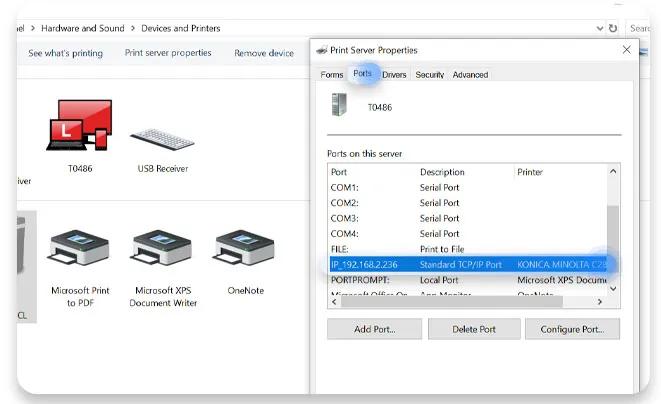
Image source: NordVPN
How to Find Your Printer IP Address in Windows 10 and 11
If your printer is already installed on your PC, Windows stores the IP address in the device properties. However, finding it requires navigating past the basic settings into the more detailed hardware menus.
The Control Panel Method
While the modern "Settings" app is useful, the classic Control Panel remains a more reliable tool for deep hardware diagnostics. Follow these steps to locate the IP:
- Press the Windows Key , type "Control Panel," and press Enter.
- Navigate to Hardware and Sound > Devices and Printers .
- Right-click your printer and select Printer Properties (Note: Do not select "Properties" at the bottom; choose the one in the middle of the menu).
- Click the Ports tab at the top of the window.
- Look for the port that has a checkmark next to it. If it is a "Standard TCP/IP Port," the IP address will often be listed in the "Port" column.
- If the column is too narrow, click Configure Port to see the IP address clearly in the "Printer Name or IP Address" field.
How to Locate Your Printer IP Address on macOS
Apple makes finding the IP address relatively simple through System Settings, but there is also a "hidden" power-user method for those who need more data.
System Settings Method
- Click the Apple Menu and select System Settings (or System Preferences on older versions).
- Scroll down and click Printers & Scanners .
- Select your printer from the list on the left.
- Click Options & Supplies .
- The IP address is typically displayed next to Location or Device Name .
The Advanced CUPS Web Interface
For users who need deeper diagnostic information, macOS uses the Common Unix Printing System (CUPS). This interface is disabled by default but can be accessed via the browser. According to technical documentation , this is a top-rated method for troubleshooting complex network issues.
- Open Terminal (Command + Space, then type Terminal).
-
Type
cupsctl WebInterface=yesand press Enter. -
Open Safari or Chrome and go to
http://localhost:631/printers/. - Click on your printer to see detailed network logs and the current IP address.
Quick Shortcuts for HP, Canon, Epson, and Brother Printers
Each manufacturer has a unique "secret handshake" to get the IP address. Use the table below to find the specific shortcut for your hardware brand.
| Printer Brand | Physical Button Shortcut | Menu Navigation Path |
|---|---|---|
| HP | Hold (i) Button for 5s | Setup > Network Setup > Print Reports |
| Canon | Hold "Stop" until 15 flashes | Setup > Device Settings > LAN Settings |
| Epson | Hold "i" button for 10s | Settings > Network Settings > Print Status Sheet |
| Brother | Press "Go" 3 times quickly | Machine Info > Print Net Config |
Advanced Network Discovery Using the Command Line
If your printer is not showing up in Windows or Mac settings, you can use the Command Prompt (Windows) or Terminal (Mac) to "scan" your network for it. This is a highly effective technique for finding "lost" printers.
The ARP Method
The Address Resolution Protocol (ARP) table shows every device your computer has recently communicated with on the local network. To view it:
- Open Command Prompt (Windows) or Terminal (Mac).
-
Type
arp -aand press Enter. - You will see a list of IP addresses and their corresponding Physical (MAC) addresses.
- Compare the MAC addresses in the list to the one printed on the sticker on the back of your printer. The IP address next to the matching MAC address is your printer.
The Ping Method
Once you think you have found the IP, you can verify it is active by typing
ping [IP Address]
(e.g.,
ping 192.168.1.15
). If you receive "Reply from..." messages, the printer is online and communicating correctly.
Troubleshooting Why Your Printer IP Is Not Working
Sometimes you might find an IP address, but it doesn't allow you to connect. This usually happens when the printer has an invalid or self-assigned address. Understanding these codes is a significant step forward in troubleshooting.
- The "0.0.0.0" Problem
- This indicates that the printer is not connected to your network at all. It has no communication with the router. Check your Wi-Fi password or ensure the Ethernet cable is firmly clicked into place.
- The "169.254.x.x" (APIPA) Problem
- This is a "self-assigned" address. It means the printer is physically connected to the network, but your router refused to give it a valid IP address. This often happens if the router's DHCP pool is full or if there is a temporary software glitch. The most effective fix is to power cycle your router, wait two minutes, and then restart the printer.
- The 30-Foot Rule
- Printers are notoriously sensitive to signal interference. If your printer is more than 30 feet from the router or separated by thick walls, it may drop its IP address intermittently. Moving the printer closer or using a Wi-Fi extender can resolve these "ghost" connection issues.
How to Prevent Your Printer IP From Changing (Static IP)
By default, most routers use DHCP (Dynamic Host Configuration Protocol) to assign IP addresses. This means your printer's IP is essentially a "lease" that can expire. When the lease expires, the router might give the printer a new IP, causing your computer to lose the connection.
To prevent this, you should set a Static IP or a DHCP Reservation . This ensures your printer always keeps the same address, making it a top choice for long-term stability.
How to Set a Static IP via the Web Server
- Find your current printer IP using the methods above.
- Type that IP address into the address bar of any web browser (e.g., Chrome or Safari).
- This opens the printer's Embedded Web Server (EWS) .
- Navigate to the Network or IPv4 tab.
- Change the setting from "Automatic/DHCP" to "Manual/Static."
- Input the IP you want to keep (it is usually safest to use the one it currently has).
- Click Apply or Save .
Key Takeaways for Managing Your Printer IP
- Print a hard copy: Always use the on-device menu to print a Network Configuration Page for the most accurate data.
- Use the "i" button: For screenless HP printers, the Information button is your primary tool for IP discovery.
- Check the Ports tab: In Windows, the Printer Properties Ports tab is the most reliable place to find an installed printer's IP.
- Watch for 169.254: If you see this IP, your router is failing to assign an address; restart your network hardware.
- Go Static: Setting a Static IP in the printer's web interface prevents future "Printer Offline" errors.
- Use ARP -a: When a printer is "lost" on the network, the command line is a remarkably powerful tool for discovery.
Finding your printer's IP address is the first step toward mastering your home office network and ensuring your devices remain connected without interruption.
Frequently Asked Questions
Can I find my printer IP without a computer?
Why does my printer IP start with 169?
Is the IP address the same as the MAC address?
How do I find the IP of a printer that is currently offline?
Does every printer have an IP address?
All trademarks, copyrighted content, and quoted material referenced in this article belong to their respective owners. Brief excerpts are used under fair use (17 U.S.C. § 107) for purposes of commentary, criticism, and informational reporting. This article is not affiliated with or endorsed by HP, Canon, Epson, Brother, or Microsoft.
-
Topic: HOW DO I FIND MY PRINTER'S IP ADDRESShttps://learn.microsoft.com/en-us/answers/questions/1655714/how-do-i-find-my-printers-ip-address
-
Topic: How to Find Your Printer's IP Addresshttps://www.security.org/vpn/find-printer-ip-address/
-
Topic: Solved: How to find your printer IP Addresshttps://h30434.www3.hp.com/t5/Printer-Setup-Software-Drivers/How-to-find-your-printer-IP-Address/td-p/3214499

How to Fix a Printer That Shows Offline and Get It Printing Again
Fix printer offline issues on Windows & Mac. Troubleshooting for HP, Canon, Epson, and ARM PCs. Get your printer back online with these 7 steps.


How to Fax Using a Printer With or Without a Dedicated Phone Line
Learn how to fax using a printer with or without a phone line. Step-by-step guides for HP, Canon, and Brother plus troubleshooting for VoIP lines.


How to Take a Screenshot on an HP Laptop Using Keyboard Shortcuts and Built-in Tools
Learn how to take a screenshot on HP laptops using shortcuts, Snipping Tool, and physical buttons. Fix PrtSc issues and find saved files fast.