How to Find and Use Top-Rated Tab Templates for Binders, Music, and Digital Planners
A tab template is a pre-formatted file used to create labels for physical binder dividers, music notation, or digital interfaces. For office use, the industry standard is a 9" x 11" layout to accommodate the tab extension. Musicians typically prefer 8 to 12-row layouts with light grey lines for better legibility. Digital designers often use Canva to create hyperlinked tabs for PDF planners. To avoid printing errors, always perform a test print on standard paper before using expensive divider stock.
Why Choosing the Right Tab Template Is Harder Than It Looks
At first glance, a tab template seems like a simple grid. However, the search for the right file often leads to a "fractured" experience because the word "tab" serves three distinct communities: office professionals, musicians, and digital planners. Each group faces unique technical hurdles that a generic download cannot solve.
For the office professional, the primary struggle is alignment . Standard printers are designed for 8.5" x 11" paper, but professional dividers are 9" x 11". This half-inch difference often causes text to shift, resulting in wasted materials and frustration. For the guitarist, the issue is visual clarity . Many free templates use heavy black lines that obscure pencil marks, making it difficult to read complex compositions under stage lights or in practice rooms.
This guide bridges these gaps by providing specific solutions for each category. Whether you are organizing a corporate manual, transcribing a solo, or designing a digital journal, understanding the technical nuances of your template is the first step toward a professional result. We will explore how to navigate these formats and fix the most common errors that plague users in 2026.
What Are the Most Common Types of Tab Templates?
Understanding the landscape of available templates helps you select the right tool for your specific software and hardware setup. Most templates fall into one of four functional categories:
- Physical Office Tabs: These include binder dividers, index tabs, and copier tabs. They are usually formatted for Microsoft Word or Publisher.
- Music Tablature: Blank sheets for guitar, bass, and ukulele. These are typically distributed as PDFs for "print and write" use.
- Digital & UI Tabs: Hyperlinked elements used in digital planners (like GoodNotes or Notion) or software interface mockups.
- Crafting Tabs: SVG or PNG files designed for cutting machines like Cricut or Silhouette, allowing for custom-shaped dividers.
According to industry standards from TabFactory , the choice of format often dictates the precision of the final print. While Word is accessible, professional printing environments often rely on Microsoft Publisher to maintain exact measurements down to the millimeter.
How to Choose the Right Binder Tab Template for Your Project
When selecting a template for a binder, the most important factor is the "bank" configuration. A "bank" refers to the number of tabs that fit in a single vertical row along the edge of the paper. Choosing the wrong bank can lead to crowded text or awkward gaps in your organization system.
Understanding Bank Configurations
The most common configurations are 3-bank, 5-bank, and 8-bank. A 5-bank tab template is widely regarded as a top choice for standard office binders because it provides enough space for descriptive titles without making the tabs too small to handle. If you have very long section names, a 3-bank system offers larger physical tabs, whereas an 8-bank system is better for high-volume filing where titles are short (e.g., "Jan", "Feb", "Mar").
The 9x11 Industry Standard
A common pitfall is using a standard 8.5" x 11" template for professional dividers. Professional copier tabs are actually 9" x 11" . The extra half-inch is the "tab extension" that sticks out past the edge of standard paper. If your template doesn't account for this, your text will print on the body of the paper rather than on the tab itself. Always verify that your software's page setup matches the physical dimensions of your divider stock.
| Tab Type | Best Use Case | Recommended Software | Standard Size |
|---|---|---|---|
| 3-Bank | Long titles / Heavy use | MS Publisher | 9" x 11" |
| 5-Bank | Standard office filing | MS Word / Avery Online | 9" x 11" |
| 8-Bank | Monthly/Alphabetical | MS Word | 9" x 11" |
| DIY Inserts | Home organization | Adobe PDF | 8.5" x 11" |
How to Print Tab Templates Without Ruining Your Dividers
Printing on specialized tab stock is notoriously difficult because of the way home and office printers handle paper. Most printers have a "non-printable margin" or a "gripper edge" where the rollers grab the paper. If your tab falls into this zone, the text will be cut off.
The Test Sheet Strategy
Before you load expensive Avery tab dividers into your machine, print a test page on a standard sheet of 20lb copier paper. Place the test sheet directly on top of your divider and hold them up to a light source. This allows you to see exactly where the text falls relative to the physical tab. If it's off, you can adjust your margins in the software without wasting a single divider.
Adjusting Printer Settings for 9x11 Paper
If you are using professional 9x11 tabs, your printer may default to "Scale to Fit" or "Shrink to Fit" because it thinks the paper is too large. This is a significant cause of alignment errors. To fix this:
- Go to Printer Properties or Page Setup .
- Select Custom Paper Size .
- Enter 9 inches for width and 11 inches for height .
- Ensure "Actual Size" is selected in the print dialog, rather than "Fit."
Why Standard Guitar Tab Paper Often Fails Musicians
For guitarists, a tab template is a canvas for creativity. However, many free downloads found online are poorly designed for actual songwriting. The most common flaw is the use of heavy, pitch-black lines for the staff.
The Legibility Fix
Expert musicians, including those at LeftyFretz , suggest that templates with light grey or light orange lines are far superior to black lines. When you write with a pencil, the dark graphite can get lost against black staff lines. Light-colored lines allow your notation to "pop," making it much easier to read back your riffs during a practice session. This is especially important for complex solos where numbers are crowded together.
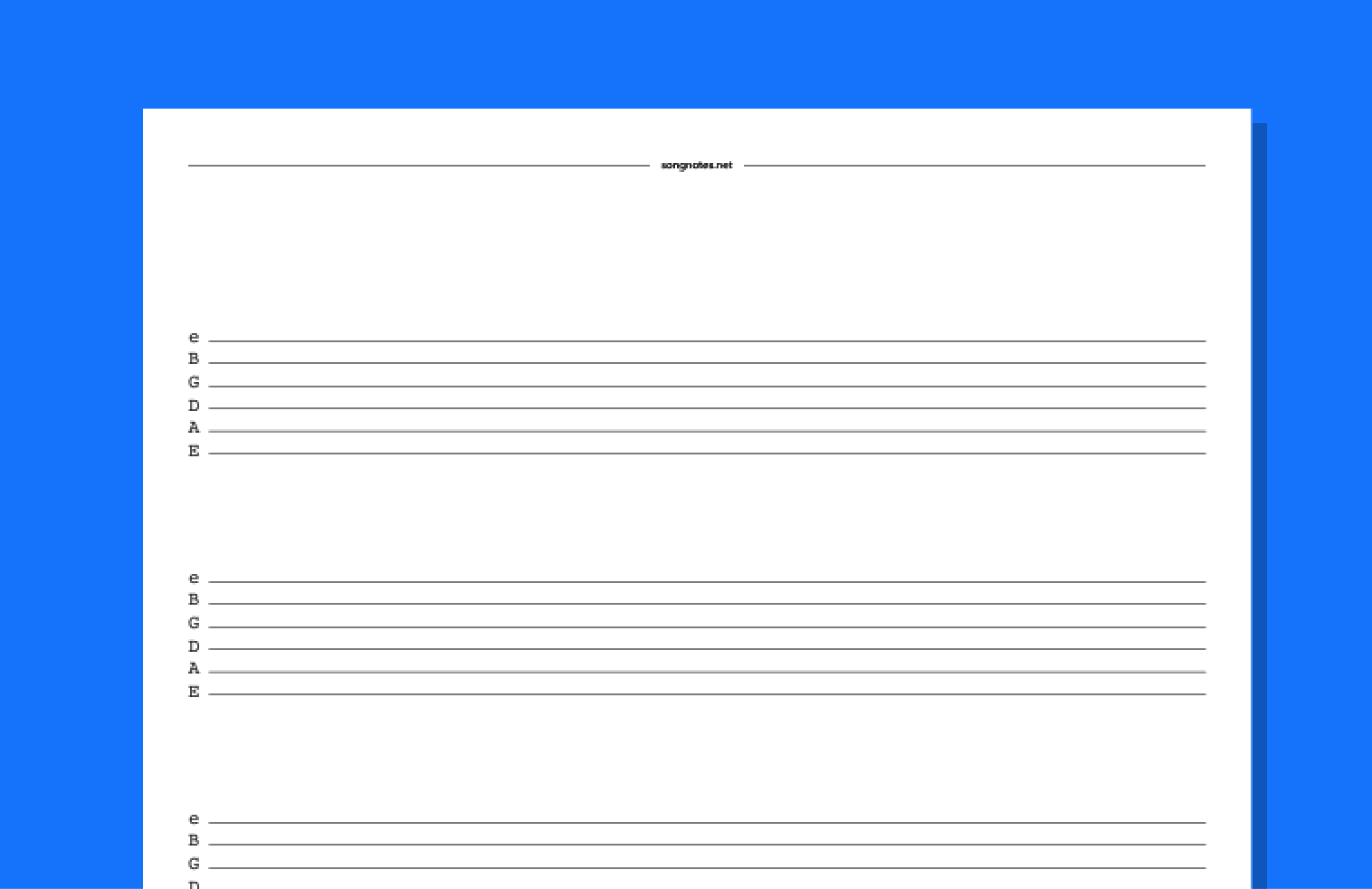
Image source: songnotes.net
Choosing Your Row Count
The number of rows on your page changes how you use the template. A 12-row layout is a popular choice for capturing quick ideas or chord progressions because it fits a lot of data on one page. However, if you are writing detailed notation with rhythmic stems and symbols, an 8-row layout provides the necessary vertical "breathing room" to prevent the page from looking cluttered.
"Always opt for grey lines to save your eyes during long practice sessions. The goal is to see your music, not the grid it's written on." — Expert Insight from Songnotes.
How to Create Hyperlinked Digital Tab Templates in Canva
Digital planners have seen a massive surge in popularity, and Canva has become a top-tier tool for creating them. Unlike physical tabs, digital tabs must be functional—clicking them should take the user to a specific section of the PDF.
The Digital Planner Workflow
To create a realistic digital tab in Canva, follow these steps:
- Design the Shape: Use the "Elements" tab to find a rounded rectangle or a specific "tab" shape.
- Apply the Warp Hack: Use the "Type Warp" feature to slightly curve your text if your tab has a rounded top. This mimics the look of a physical label.
- Add Depth: Use the "Drop Shadow" effect. Set the transparency to 30-40% and the blur to 5. This makes the tab look like it is physically sitting on top of the page.
- Hyperlinking: Select your tab element, click the "Link" icon, and select the specific page in your document that corresponds to that tab.
When you export your file, ensure you select PDF Standard or PDF Print . This preserves the hyperlinks, allowing the tabs to function in apps like GoodNotes or Notability. This workflow is a significant advancement over static templates, offering a truly interactive experience for the end-user.
How to Fix Common Technical Errors with .tab Files
Sometimes, you might download a file with a
.tab
extension and find that it won't open in Word or looks completely blank. This is usually due to a file format mismatch.
- The "Empty File" Mystery
-
In data management software like Survey Solutions, a
.tabfile is often a data schema. If it appears empty, it is likely because the ID fields (likemembers__id) haven't been populated yet. This is not a printable template but a data structure. - Software Mismatches
- If a Word template looks garbled, it may have been created in a newer version of Office. Try opening the file in Google Docs ; it often handles "broken" Word formatting better than Word itself.
- File Corruption Fixes
-
If a template fails to open, try changing the file extension from
.tabto.txt. If you see plain text with commas, it is a CSV file. If you see unreadable symbols, it is a proprietary binary file that requires specific industrial software.
Frequently Asked Questions
How do I print on Avery tab dividers in Microsoft Word?
The most effective way is to use the "Labels" feature under the "Mailings" tab. Enter the Avery product number (e.g., 5160 or 11133) to automatically load the correct margins. Alternatively, you can download the specific .docx template directly from the Avery website, which is pre-configured with the exact cell dimensions for your specific divider bank.
What is the standard size for a binder tab template?
While the paper body is 8.5" x 11", the standard size for the template itself should be 9" x 11". This accounts for the 0.5" tab extension. If you are making DIY tabs that you plan to tape onto standard paper, an 8.5" x 11" template is sufficient, but professional "print-on" dividers always require the larger width setting in your printer properties.
Can I use a guitar tab template for a 7-string guitar?
Standard guitar tab templates feature 6 lines, representing the 6 strings of a standard guitar. For a 7-string or 8-string guitar, these templates are not suitable. You will need to search specifically for "7-string blank tab" or use a notation software like Guitar Pro to generate a custom staff with the correct number of lines for your instrument.
How do I make my digital tabs look 3D in a planner?
To achieve a 3D effect, use a combination of gradients and shadows. Apply a subtle linear gradient to the tab shape (darker at the bottom, lighter at the top). Then, add a "Drop Shadow" with a slight offset to the right and bottom. In Canva, setting the shadow transparency to around 35% creates a realistic depth that makes the tab appear to lift off the digital page.
Why is my printer cutting off the edge of the tab text?
This is usually caused by the printer's "non-printable area." Most printers cannot print within 0.25 inches of the paper's edge. Since tabs sit at the very edge, the text often falls into this "dead zone." To fix this, try shifting your text 0.125 inches toward the center of the page in your template, or use a printer that supports "Borderless Printing" or "Edge-to-Edge" settings.
Key Takeaways for Your Next Tab Project
Successfully using a tab template requires matching your software settings to your physical hardware. Here are the most important points to remember:
- Confirm your bank count (3, 5, or 8) before starting your design to ensure your titles fit.
- Set your paper size to 9x11 for professional copier tabs to avoid alignment shifts.
- Always perform a test print on standard paper and overlay it on your dividers.
- Choose light-colored lines for music tabs to improve handwriting legibility.
- Use drop shadows and transparency (30-40%) to make digital tabs look realistic.
- Check for ID field mismatches if a .tab file appears empty in data software.
- Use the manual bypass tray on your printer to handle thicker divider stock more reliably.
By following these technical steps, you can ensure your organization or creative project looks professional and functions exactly as intended.
-
Topic: Templates for Binders, Dividers, & Tabshttps://www.avery.com/templates/category/binders-dividers-tabs
-
Topic: Tab Templates Free Printableshttps://www.pinterest.com/ideas/tab-templates-free-printables/920069926568/
-
Topic: Blank Tabs - Free PDF Templates to Download, Print, and ...https://songnotes.net/tools/blank-tabs

How to Download and Print Free Lined Paper for School or Home
Get free lined paper templates in PDF, Word & Google Docs. Choose college, wide, or planner sizes. Print perfectly with our expert guide.


Download Free Printable Lined Paper PDF Templates for Every Writing Need
Download free printable lined paper PDF templates for US Letter and A4. Includes college ruled, wide ruled, and specialized formats for writing.


How to Format a Professional Blank Credits Page for Any Project
Download free blank credits page templates for Word, PDF, and video. Learn professional formatting, credit hierarchy, and how to fix jerky scrolls.