
How to Find and Manage Your Clipboard History on Any Android Device
To access your clipboard history on most Android devices, open any app that requires typing (like Messages or WhatsApp) to bring up the Gboard keyboard . Tap the Clipboard icon in the top toolbar. If you don't see it, tap the Four Squares (menu) icon to reveal hidden tools and select "Clipboard."
Copying and pasting is a fundamental part of the mobile experience, yet many users are unaware that their phone can remember more than just the last item copied. Whether you are trying to recover a link you copied ten minutes ago or need to manage multiple snippets of text for a work project, understanding the Android clipboard is essential for productivity.
In this guide, we will explore the nuances of clipboard management across different manufacturers, explain the security protocols that govern how long your data is stored, and provide actionable steps to ensure you never lose an important clip again.
Where Is the Clipboard History on My Android Phone?
A common point of confusion for users is the distinction between the "System" clipboard and the "Keyboard" clipboard. By default, the core Android operating system is designed to hold only one item at a time. When you copy a new piece of text, the previous item is typically overwritten in the system's active memory.
However, modern Android devices utilize keyboard applications—such as Gboard or Samsung Keyboard—to provide a "History" feature. This history acts as a temporary database that stores a queue of your recent copies. According to Yahoo Tech , this feature is widely regarded as one of the most useful hidden tools on the platform, yet it remains disabled by default for many users.
There are three primary ways to access this history depending on your device:
- Gboard: The standard for Pixel, Motorola, and Nokia devices.
- Samsung Keyboard: The default for all Galaxy smartphones and tablets.
- Third-Party Apps: Dedicated managers that offer extended storage and search capabilities.
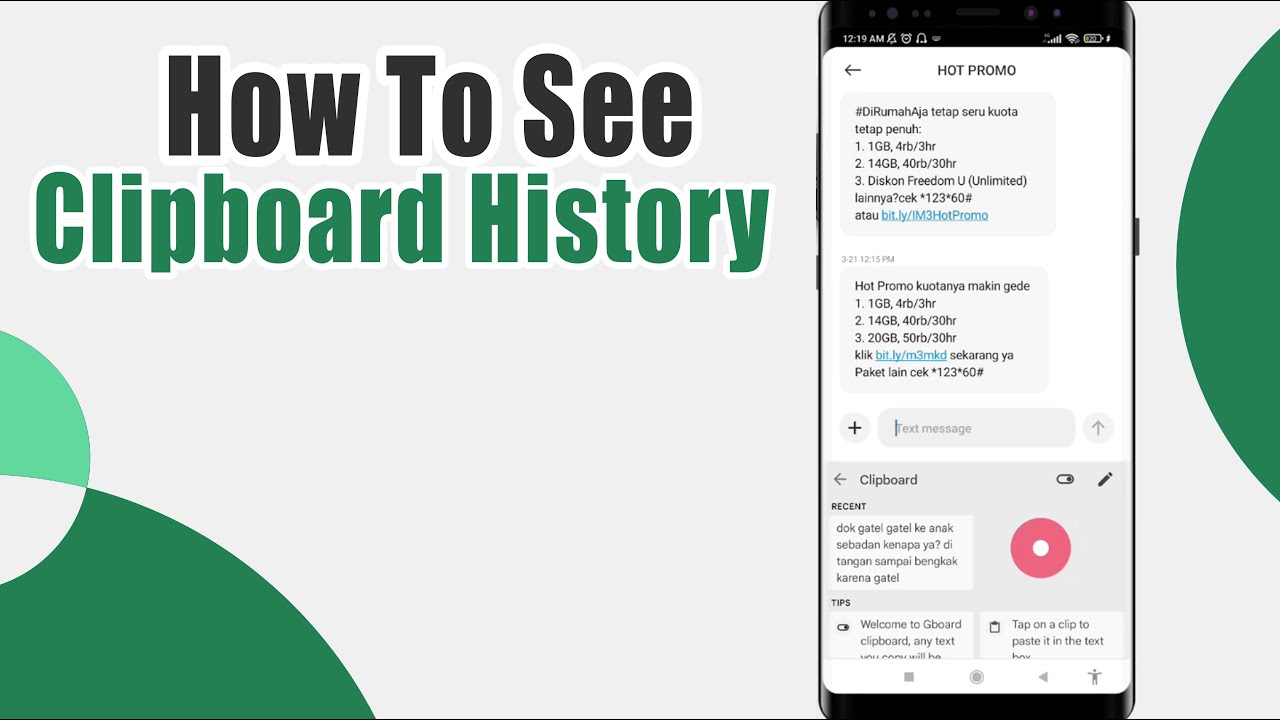
Image source: YouTube
How to Use the Gboard Clipboard on Pixel and Motorola Devices
Gboard is the default keyboard for "Stock" Android experiences and is a popular choice for users of other brands as well. Because it is a Google product, it integrates deeply with the Android ecosystem, but its clipboard features must be activated manually.
Enabling Gboard History
To start saving your clips, follow these steps:
- Tap into any text field to bring up the keyboard.
- Look for the Clipboard icon (it looks like a physical clipboard) in the row of icons above the keys.
- If the icon is missing, tap the Four Squares or Arrow icon on the left of the toolbar to expand the menu.
- Tap the Clipboard icon and toggle the switch to On .
The "Four Folders" Navigation Hurdle
In recent UI updates, some users have reported difficulty finding the clipboard. This is often because Gboard hides less-frequently used tools under a sub-menu. If your toolbar looks empty, the "Four Squares" icon is your gateway to the clipboard, voice typing, and theme settings. You can actually drag and drop the clipboard icon from this menu directly into your main toolbar for faster access in the future.
Gboard is notably efficient at handling various content types. Beyond standard text, it can store links and even recent screenshots, making it a strong contender for those who frequently share media across apps.
Accessing Clipboard History on Samsung Galaxy Phones
Samsung Galaxy devices offer a more robust native clipboard experience than standard Android. Samsung has integrated clipboard management into both the keyboard and the system UI, providing multiple ways to retrieve your data.
Method 1: The Samsung Keyboard Toolbar
Similar to Gboard, the Samsung Keyboard features a dedicated clipboard button. Tapping the three dots (...) on the right side of the keyboard toolbar will reveal the Clipboard option. Samsung’s version is particularly useful because it displays a visual grid of your clips, including large previews of copied images.
Method 2: The Edge Panel
For power users, the Edge Panel is a top-tier option for clipboard management. This allows you to access your history from any screen, even if the keyboard isn't open. To enable this:
- Go to Settings > Display > Edge Panels and toggle it on.
- Tap Panels and select the Clipboard panel.
- Swipe the Edge handle from the side of your screen to view your history at any time.
Samsung devices are known to store up to 20 items, which is significantly more than the basic Android limit. This makes Samsung one of the best choices for users who need to manage large amounts of data on the go.
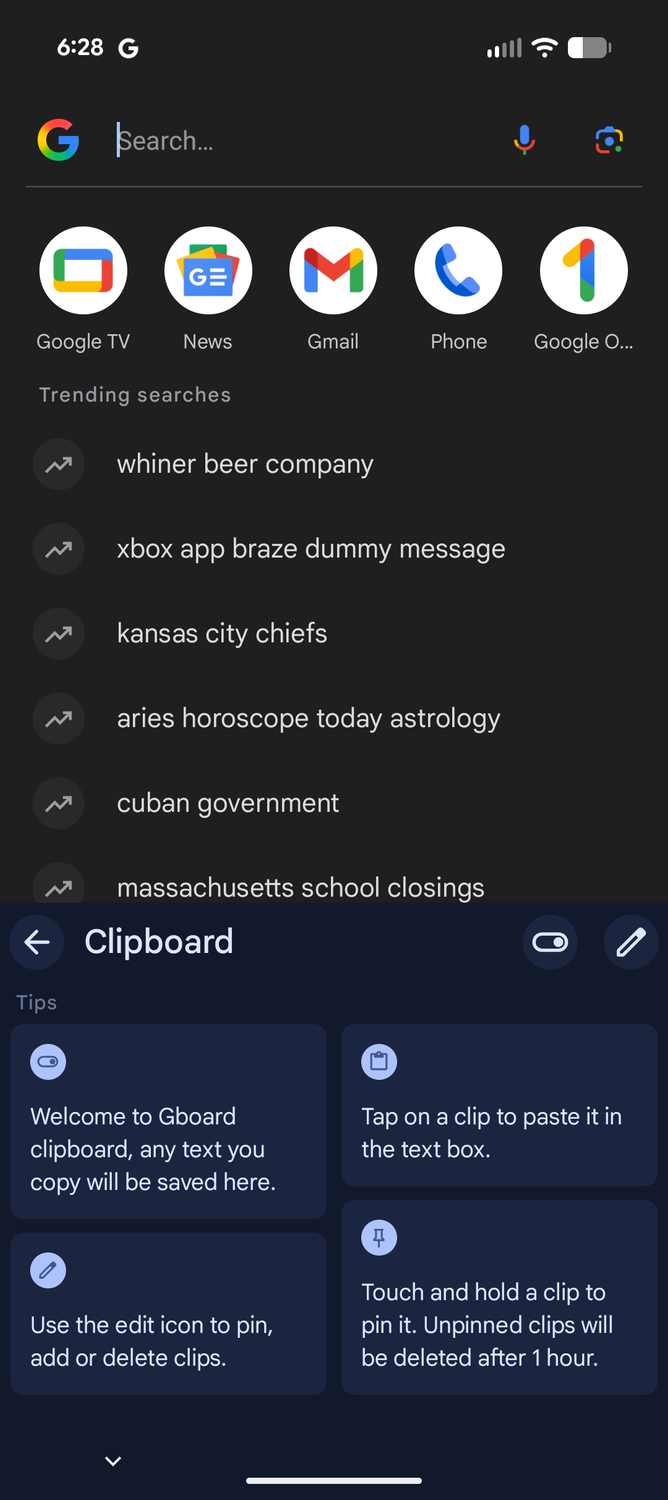
Image source: How-To Geek
How Long Does Android Keep Your Copied Items?
One of the most common frustrations for users is the "disappearing clip." You might copy an address, get distracted, and find it gone an hour later. This is not a bug; it is a deliberate security feature designed to protect your sensitive information.
Google implements a 60-minute deletion rule for unpinned items on Gboard. The rationale is simple: if you copy a password, a credit card number, or a private two-factor authentication code, you likely don't want that data sitting in your keyboard's history indefinitely. By clearing the history every hour, Android reduces the risk of sensitive data being exposed if your phone is accessed by someone else.
Brand Capacity and Expiration Table
Based on research from Rokform, here is how different manufacturers handle clipboard storage:
| Brand / App | Item Limit | Expiration Time | Media Support |
|---|---|---|---|
| Samsung Galaxy | 20 Items | Until Reboot (usually) | Full (Images/Text) |
| OnePlus (OxygenOS) | 15 Items | Variable | Text/Links |
| Google Gboard | 10 Items | 60 Minutes | Text/Screenshots |
| Basic Android | 5 Items | 60 Minutes | Text Only |
How to Pin Items So They Never Get Deleted
If you have information that you use frequently—such as your home address, a specific Zoom link, or a standard email signature—you can "Pin" it. Pinned items are exempt from the 60-minute deletion rule and will remain in your clipboard history until you manually remove them.
To pin an item in Gboard or Samsung Keyboard, open the clipboard history and long-press the specific clip. A menu will appear with a Pin icon (resembling a thumbtack). Once pinned, the item moves to a dedicated "Pinned" section at the top or bottom of the list.
This workflow is exceptionally strong for mobile-first professionals. For example, bloggers can pin "image credits" or "standard disclaimers" to quickly insert them into posts without having to re-type or search for the text every time.
Can You Recover Deleted Clipboard History on Android?
The short answer is: Native Android cannot recover a clip once it has been deleted. Once the 60-minute timer expires or you manually hit the trash icon, the data is purged from the keyboard's temporary storage for security reasons.
However, there are "safety net" solutions. If you find yourself frequently losing important data, you may want to consider a third-party manager. These apps often include a "Trash" or "Archive" feature that keeps deleted clips for a set number of days before permanent removal.
Highly Recommended Third-Party Clipboard Managers
For power users who find the 10-20 item limit too restrictive, the Google Play Store offers several robust alternatives. These apps function as a permanent archive for everything you copy.
The Clipboard History app is widely regarded as a top choice in this category. It offers features that native keyboards lack, such as:
- Unlimited Storage: Keep thousands of clips organized by date.
- Search Functionality: Quickly find a specific clip using keywords.
- Export/Import: Move your clipboard history between different Android devices.
- Smart Actions: Automatically detect if a clip is a phone number or URL and offer relevant app shortcuts.
While these apps offer remarkable utility, they do require broad permissions to "read" what you copy. Always ensure you are using a reputable app with a strong privacy policy before granting access to your clipboard.
How to Completely Clear Your Clipboard for Privacy
Privacy is the flip side of productivity. There are times when you want your clipboard to be completely blank—especially after copying a password or sensitive financial data. Many users mistakenly believe that copying a new piece of text "clears" the old one, but as we've seen, the history often remains accessible.
The "Empty Clipboard" Problem
According to discussions on the Android Central Forums , users often struggle to make the "Paste" option disappear entirely. To achieve a truly blank clipboard, you must enter the keyboard manager and delete the entire history , not just the most recent item.
Step-by-Step Deletion:
- Open your clipboard history.
- Tap the Pencil (Edit) icon .
- Select "All" or manually check each item.
- Tap the Trash icon to delete.
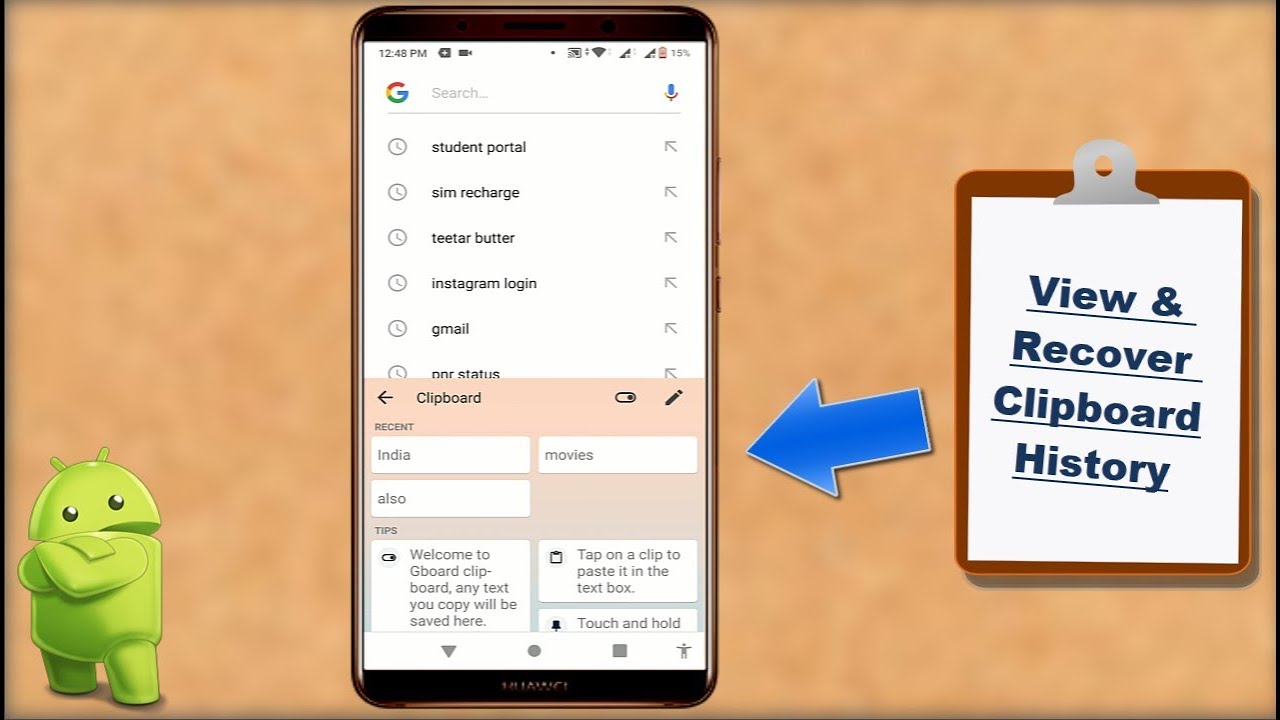
Image source: YouTube
Advanced Workflow: Syncing Android Clipboard with Windows
In recent years, the boundary between mobile and desktop has blurred. If you use a Windows PC, you can share your clipboard history between your phone and computer seamlessly. This is a notably innovative feature for those who start a task on their phone and finish it at their desk.
To enable this, you need the Link to Windows app on your Android device and the Phone Link app on your PC. Once paired, go to the settings in the Phone Link app on your PC and toggle on "Cross-device copy and paste." This allows you to copy a URL on your Android phone and hit "Ctrl+V" on your laptop to paste it instantly.
Frequently Asked Questions
Key Takeaways
- Enable History Manually: Most Android keyboards require you to toggle the clipboard "On" before they start saving clips.
- The 60-Minute Rule: Unpinned items on Gboard are automatically deleted after one hour for security.
- Pin Important Data: Long-press any clip to "Pin" it, ensuring it stays in your history indefinitely.
- Samsung Advantage: Galaxy users can store up to 20 items and access them via the Edge Panel.
- Privacy First: Always clear your clipboard history after copying sensitive data like passwords or credit card numbers.
- Third-Party Options: Use apps like "Clipboard History" if you need unlimited storage or search features.
- Cross-Platform Sync: Use "Link to Windows" to share your clipboard between your phone and PC.
Next Step: Open your keyboard now and check if your clipboard history is enabled to start saving your clips today.
-
Topic: Where do I Find my Clipboard History? : r/AndroidQuestionshttps://www.reddit.com/r/AndroidQuestions/comments/pnrw5f/where_do_i_find_my_clipboard_history/
-
Topic: how do i view my gboard clipboard history on android?https://support.google.com/android/thread/181939041/how-do-i-view-my-gboard-clipboard-history-on-android?hl=en
-
Topic: How to Find Clipboard on Androidhttps://www.youtube.com/watch?v=3O4Yb61RzzA

How to Take a Photo on a Windows, Mac, or Chromebook Laptop
Learn how to take photos on Windows, Mac, and Chromebook. Fix black screens, find saved files, and improve webcam quality with expert tips.


How to Take a Screenshot on an HP Laptop Using Keyboard Shortcuts and Built-in Tools
Learn how to take a screenshot on HP laptops using shortcuts, Snipping Tool, and physical buttons. Fix PrtSc issues and find saved files fast.


How to Empty Firefox Cache and Clear Site Data Without Losing Passwords
Learn how to empty Firefox cache using shortcuts, clear data for a single site, and fix loading errors without losing your saved passwords.