
How to Cancel That Alarm and Manage Your Schedule on Any Device
If your alarm is ringing right now, use these methods for an immediate stop:
- Voice Commands: Say "Hey Google, stop," "Siri, turn off my alarm," or "Alexa, stop."
- iPhone: Tap the "Stop" button on the lock screen or press a volume button to snooze.
- Android: Swipe the "X" or "Stop" icon across the screen.
- Smart Speakers: Tap the top of the device or use the physical mute/stop button.
Waking up to a blaring alarm when you don't need to is one of life's minor frustrations. Whether you have managed to wake up before your scheduled time, are heading out on vacation, or are dealing with a "ghost alarm" that won't quit, knowing how to quickly cancel that alarm is essential. Modern devices have made alarm management more complex by splitting settings between different apps and cloud ecosystems. This guide provides a deep dive into silencing your devices across iOS, Android, and smart home platforms.
Understanding the difference between "stopping" an active alarm and "disabling" a recurring schedule is the first step toward a quieter morning. While a quick swipe might solve the immediate noise, a deeper look into your settings is often required to prevent the same sound from returning the following day. According to SlashGear , the fragmentation between standard clock apps and health-tracking schedules is a primary source of confusion for many users.
Image source: Appuals
Quick Ways to Stop a Ringing Alarm Right Now
When an alarm starts ringing, your priority is silence. The fastest method is almost always a voice command. Most modern smartphones and smart speakers are designed to listen for "Stop" or "Cancel" even while the alarm tone is playing. This is particularly useful if your phone is across the room or buried under a pillow.
For physical interactions, the "Stop" and "Snooze" functions are usually mapped to different gestures. On most devices, a simple tap might snooze the alarm for 9 or 10 minutes, while a deliberate swipe or a specific button press is required to kill the alarm entirely. If you find yourself accidentally snoozing instead of stopping, check your device's gesture settings to see if you can rebind the volume buttons to "Stop" instead of "Snooze."
In a multi-device household, a ringing alarm in another room can be a nuisance. If you are within the Google Nest or Amazon Alexa ecosystem, you can often stop alarms on other devices by specifying the device name. For example, "Hey Google, stop the kitchen alarm" can save you a trip down the hallway. This cross-device functionality ranks among the top features for smart home users who manage multiple schedules.
Steps to Turn Off Alarms on Your iPhone or iPad
Apple's ecosystem offers a streamlined but occasionally confusing way to manage wake-up calls. The primary reason users struggle to cancel that alarm on an iPhone is the dual-system approach: the standard Clock app and the Health app's Sleep Schedule.
Managing Standard Alarms in the Clock App
Standard alarms are those you manually set for one-off events or specific recurring days. To manage these:
- Open the Clock app.
- Tap the Alarm tab at the bottom of the screen.
- Locate the alarm you wish to disable.
- Toggle the green switch to gray.
If you want to remove the alarm entirely to clear clutter, swipe left on the alarm entry and tap "Delete." This is a permanent action, whereas toggling the switch merely puts the alarm into a dormant state. Many users find that keeping a clean list of alarms helps prevent accidental activations.
Disabling the iOS Health App Sleep Schedule
If your alarm is ringing even though the Clock app looks empty, it is likely controlled by the Sleep Schedule in the Health app. This feature is designed to help you maintain a consistent sleep routine, but it can be stubborn when you want to sleep in.
To edit a single instance (for example, if you have a day off tomorrow):
- Open the Clock app and look at the top "Sleep | Wake Up" section.
- Tap Change .
- Scroll down and toggle the Alarm switch off.
- Tap Done and select "Change This Occurrence Only."
To disable the schedule entirely for a vacation, you must go to the Health app > Browse > Sleep > Full Schedule & Options, and toggle the "Sleep Schedule" switch to off. This ensures that no automated wake-up calls will disturb your time off.
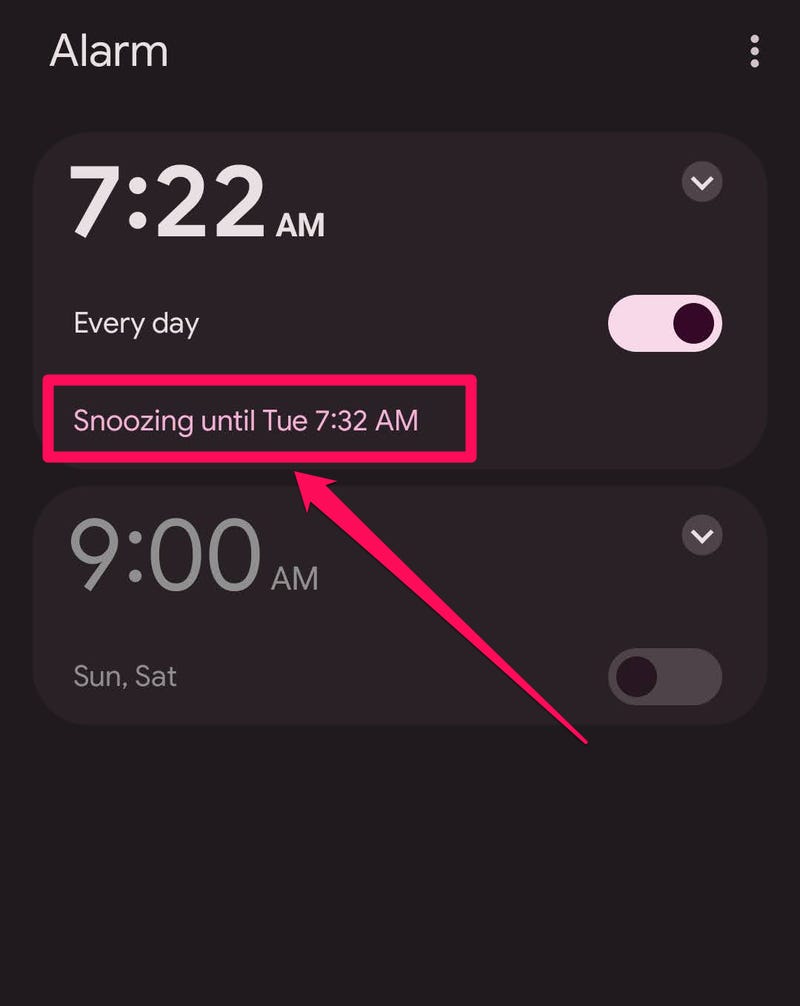
Image source: Business Insider
How to Cancel Alarms on Android and Samsung Galaxy Phones
Android devices offer significant flexibility, but the interface can vary depending on whether you are using a "stock" Android device (like a Pixel) or a manufacturer-skinned version (like Samsung's One UI). Despite these visual differences, the underlying logic remains consistent.
Standard Android Clock Settings
On most Android devices, the Clock app is the central hub for all time-related tasks. To disable an alarm, open the app and tap the "Alarm" icon. You will see a list of all scheduled times. Tapping the toggle switch will turn the alarm off. According to Google Support , it is a top-rated practice to leave at least a 5-minute buffer between multiple alarms to prevent the system from accidentally suppressing one in favor of another.
Android also features a "Skip Next" function. If you have a recurring alarm for weekdays but know you don't need it tomorrow, you can often tap the down arrow on the alarm entry and select a "Skip" or "Dismiss" option for the next occurrence only. This is a highly effective way to manage holidays without forgetting to turn your alarm back on for the following day.
Samsung One UI Specific Instructions
Samsung users interact with the Samsung Clock app, which has a slightly different aesthetic. To stop a ringing alarm on a Galaxy device, you typically need to swipe the "X" icon toward the center of the screen. If you simply tap it, the device may assume you want to snooze. To manage your list, Samsung provides a "Sort" feature that allows you to see active alarms at the top, making it easier to find and cancel that alarm that is no longer needed.
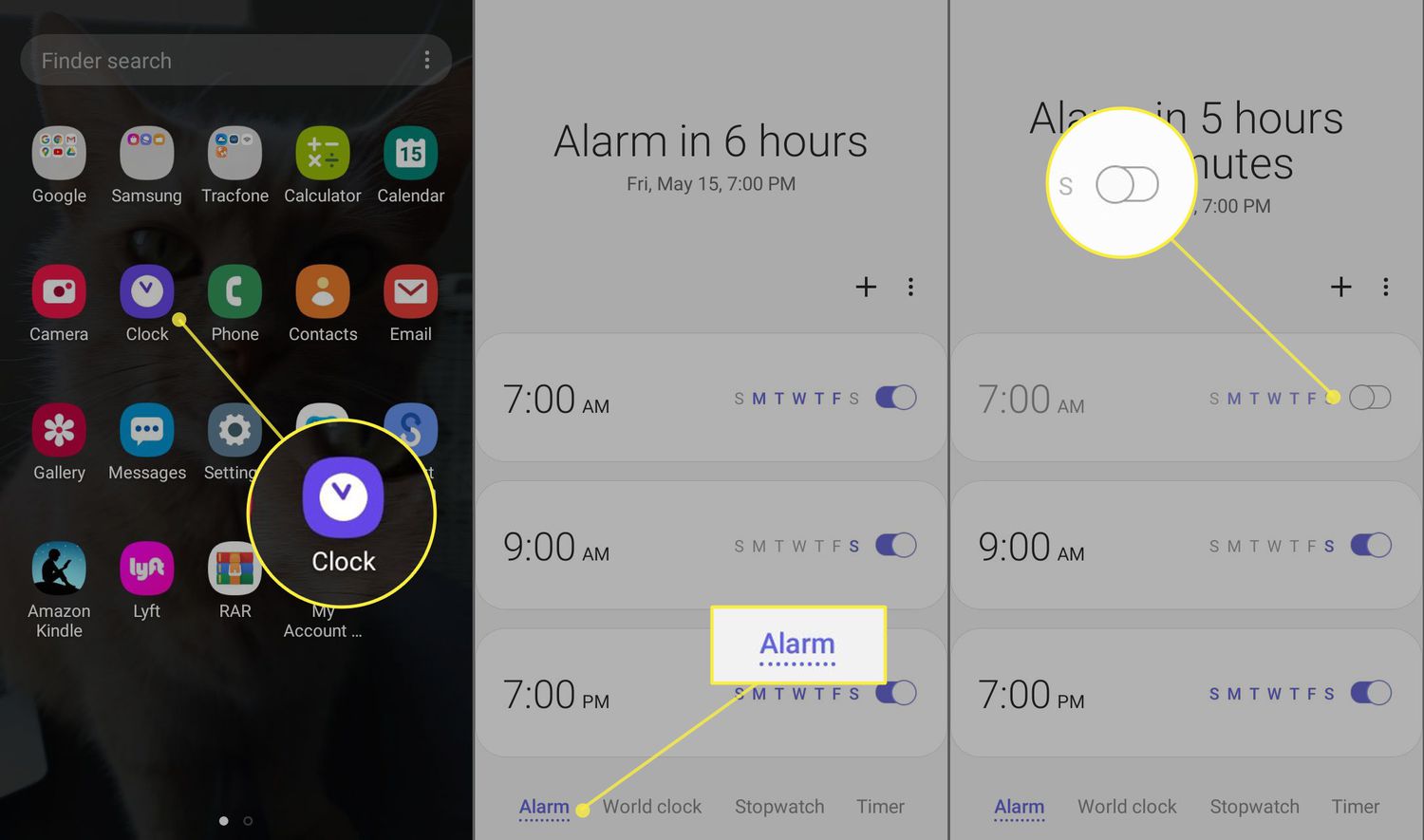
Image source: Lifewire
Ways to Cancel an Upcoming Alarm Without Making a Sound
The "Early Bird" scenario is a common pain point: you wake up 20 minutes before your alarm and want to disable it so it doesn't wake your partner or startle you while you're in the shower. This is where "silent cancellation" techniques come into play.
On Android devices, look at your notification shade about 15–30 minutes before your alarm is set to go off. You will often see an "Upcoming Alarm" notification. Tap "Dismiss Now" to cancel that specific instance without the phone ever making a sound.
For iPhone users, the process is slightly different. If you wake up early, you can go to the Clock app and toggle the alarm off, then back on again after the original time has passed. Alternatively, if you use the Sleep Schedule, tapping "Change" on the lock screen allows you to turn off the alarm for "This Occurrence Only," which is widely regarded as the most elegant solution for iOS users.
Stopping Alarms on Google Nest Alexa and Apple HomePod
Smart speakers are excellent for setting quick timers and wake-up calls, but they can be frustrating when they don't seem to hear your "Stop" command over their own noise. If voice commands fail, every device has a physical fallback.
| Device | Voice Command | Physical Action |
|---|---|---|
| Google Nest / Home | "Hey Google, stop" | Tap the top or sides (depending on model) |
| Amazon Echo / Alexa | "Alexa, stop" | Press the "Action" button (the dot) |
| Apple HomePod | "Hey Siri, stop" | Tap the top touch surface |
A common issue with smart speakers is the "ghost timer." This happens when a timer was set on a different device in the same home. If your kitchen Nest Mini is ringing but you are in the bedroom, you can say, "Hey Google, stop all alarms" to silence every device in the house. This is a top-tier solution for multi-room households where devices might be out of reach.
How to Delete All Your Alarms at Once to Clear the Clutter
Over months and years, users often accumulate dozens of "one-off" alarms—the 6:42 AM for a flight, the 3:15 PM for a laundry reminder, and the 7:00 AM for work. This clutter makes it difficult to find the alarm you actually need to cancel.
On iPhone: The fastest way to clear the deck is using Siri. Simply say, "Hey Siri, delete all my alarms." Siri will ask for confirmation; once you provide it, your list will be completely wiped clean. This is a significant time-saver compared to swiping and deleting each entry manually.
On Android: Open the Clock app, go to the Alarm tab, and tap the three-dot menu (or long-press an alarm). Choose "Delete," then look for a "Select All" checkbox. Tapping the trash can icon will remove every alarm in your list. This process is highly recommended for maintaining a responsive and easy-to-navigate app experience.
Reasons Your Alarm Keeps Going Off After You Cancel It
Few things are as annoying as an alarm that rings even after you thought you disabled it. This phenomenon, often called a "ghost alarm," usually has a logical explanation rooted in software conflicts or third-party apps.
- Third-Party App Conflicts
- Apps like Spotify, Pandora, or specialized "Smart Alarm" apps often have their own internal scheduling systems. Even if you cancel that alarm in your system Clock app, the third-party app may still trigger its own wake-up sequence. Always check the settings within the specific app you use for music or sleep tracking.
- The Snooze Trap
- On many phones, pressing the power button or volume rocker defaults to "Snooze" rather than "Stop." If you aren't looking at the screen, you might think you've killed the alarm when you've actually just delayed it by 10 minutes. Ensure you are using the "Stop" gesture on the touchscreen.
- System Sync Issues
- If you use a wearable like an Apple Watch or a Pixel Watch, the alarm might be synced across devices. Canceling it on your wrist might not always propagate to the phone immediately if there is a Bluetooth hiccup. In these cases, checking both devices is a strong contender for the best troubleshooting step.
How to Cancel a False Alarm on Your Home Security System
While most people search for "cancel that alarm" in reference to their phones, professional security systems like Alarm.com or ADT are another major category. A false alarm from a security system is a high-stakes event that requires immediate action to avoid a police dispatch.
According to the Alarm.com Knowledge Base , users can cancel an alarm directly through their mobile app. When an alarm is triggered, a "Cancel" or "Verify" button will appear. You must typically press and hold this button for several seconds to confirm the action. This prevents accidental cancellations during a real emergency. Understanding the distinction between "Verify" (confirming it's a real break-in) and "Cancel" (confirming it's a false alarm) is vital for home safety.
"When canceling a security alarm, always ensure you have your verbal passcode ready. Even if you cancel via the app, the monitoring station may still call to verify your identity."
Key Takeaways for Managing Your Device Alarms
- Use voice commands for the fastest way to stop an active alarm without touching your device.
- Check the Health app on iPhone if you can't find the source of a recurring morning alarm.
- Utilize the notification shade on Android to dismiss upcoming alarms silently before they ring.
- Bulk delete your alarm list every few months to prevent clutter and accidental activations.
- Verify third-party apps like Spotify if "ghost alarms" persist after you've cleared your system clock.
- Hold the cancel button on security apps to ensure the signal is sent to the monitoring station.
By mastering these small settings and gestures, you can ensure your devices work for you rather than against your sleep schedule.
Frequently Asked Questions
How do I cancel a recurring alarm for just one day?
On Android, tap the alarm in the Clock app and look for a "Skip next" or "Dismiss" option. On iPhone, if you use the Sleep Schedule, tap "Change" on the lock screen and toggle the alarm off for "This Occurrence Only." For standard iPhone alarms, you must manually toggle it off and remember to turn it back on later.
Can I cancel my phone alarm from my Apple Watch?
Yes, if your devices are synced, a notification will appear on your Apple Watch when the phone alarm rings. You can tap "Stop" or "Snooze" directly from your wrist. This is a popular choice for those who keep their phone on a nightstand across the room.
Why is there no "Dismiss" button on my screen when the alarm rings?
This usually happens if the Clock app has crashed or if another app is overlaying the screen. Try pressing the physical power button to see if it brings up the lock screen controls, or use a voice command like "Hey Siri, stop" to bypass the frozen UI.
Does "Do Not Disturb" mode cancel my alarms?
Generally, no. Most smartphones are programmed to allow alarms to bypass "Do Not Disturb" or "Focus" modes. However, you should check your specific settings under "Exceptions" to ensure that the Clock app is allowed to break through the silence.
How do I stop an alarm with my voice if the phone is locked?
You must have "Listen for Hey Siri" or "Hey Google" enabled while the screen is locked. Check your Siri or Google Assistant settings to ensure "Allow on Lock Screen" is toggled on. This allows the device to process the "Stop" command without requiring a passcode or biometric unlock.
Managing your alarms effectively is about more than just stopping the noise; it is about taking control of your daily routine. Whether you are using a top-rated smartphone or a smart home ecosystem, these steps will help you maintain a peaceful environment.
-
Topic: Set, cancel, or snooze alarms on your Android devicehttps://support.google.com/android/answer/2840926?hl=en
-
Topic: When I Awake Before My Alarm, Is There a Way to Cancel ...https://www.reddit.com/r/googlehome/comments/w9g7ot/when_i_awake_before_my_alarm_is_there_a_way_to/
-
Topic: Cancel or Verify Alarms using the app - Knowledge Basehttps://answers.alarm.com/Customer/Website_and_App/System_Management/System_Usage/Cancel_or_Verify_Alarms_using_the_app

How to Block a Website on Your Phone for Better Productivity and Safety
Learn to block websites on iPhone and Android using Screen Time, Private DNS, and apps to stop distractions and stay safe online. Step-by-step guide.


How to Find and Manage Your Clipboard History on Any Android Device
Access, pin, and manage Android clipboard history on Samsung, Pixel, and OnePlus. Recover lost clips and clear data safely.


Top Rated Free Windows App Updaters to Keep Your Software Secure and Updated
Automate your PC security with top free Windows app updaters. Compare UniGetUI, Patch My PC, and Ninite for safe, bloatware-free patching in 2026.