
How to Embed a PDF in an Email So It Displays Visually
To display a PDF directly in the body of an email rather than as an attachment, your method depends entirely on your email client. If you use Classic Outlook for Windows , you can use the Insert > Object feature to embed the file directly. If you use Gmail, Apple Mail, or the New Outlook (2024+) , you must first convert the PDF into a high-resolution image (JPG or PNG), insert that image inline, and hyperlink it to a cloud-hosted version of the full document.
Sending a PDF as a standard attachment often creates friction. The recipient has to notice the small paperclip icon, download the file, and open it in a separate application. For marketers, sales professionals, and educators, bypassing this process by displaying the document visually within the email body is a highly effective way to increase engagement.
However, achieving this seamless visual experience requires navigating strict security protocols and differing software capabilities. This article details the exact workflows for embedding PDF content across major email platforms, troubleshooting common errors, and ensuring your messages avoid the spam folder.
1. Why You Cannot Technically Embed a Live PDF Viewer
Before diving into the specific methods, it is crucial to understand the technical limitations of modern email architecture. Many users search for a way to insert a fully interactive, scrollable PDF viewer directly into the body of their message. According to industry documentation on email embedding , this is technically impossible in standard email clients.
Email providers like Gmail, Yahoo, and Outlook Web prioritize security above all else. To prevent malicious scripts from executing when a user opens an email, these platforms automatically strip out complex HTML tags, including
<iframe>
,
<embed>
, and
<object>
tags. Because a live PDF viewer relies on these exact HTML elements to function, the email client will simply render a blank space or block the message entirely.
Therefore, when professionals talk about "embedding" a PDF in an email, they are referring to one of two visual workarounds:
- Object Linking and Embedding (OLE): A legacy Microsoft Windows feature that renders the first page of a document as a static preview.
- The Image-Link Workaround: Converting the document into an image format and hyperlinking it to the full file.
The goal of both methods is identical: to bypass the standard attachment icon and present the content immediately upon opening, thereby increasing micro-conversions and click-through rates.
2. How to Embed a PDF in Microsoft Outlook Desktop Classic
If you are using the traditional desktop version of Microsoft Outlook on a Windows machine, you have access to a built-in feature called Object Linking and Embedding (OLE). This method allows you to insert the PDF file directly into the message body, where Outlook will automatically generate a visual preview of the first page.
Follow these steps to use the OLE method in Classic Outlook:
Launch Outlook and click "New Email." Ensure your cursor is placed in the body of the message where you want the document to appear.
Click on the Insert tab in the top ribbon. Locate the "Text" group and click on Object .
In the dialog box that appears, select the Create from File tab. Click "Browse" and locate the PDF on your hard drive.
This is the most critical step. Ensure the checkbox labeled Display as Icon is left unchecked. If you check this box, Outlook will simply insert a standard PDF logo rather than a visual preview of your document.
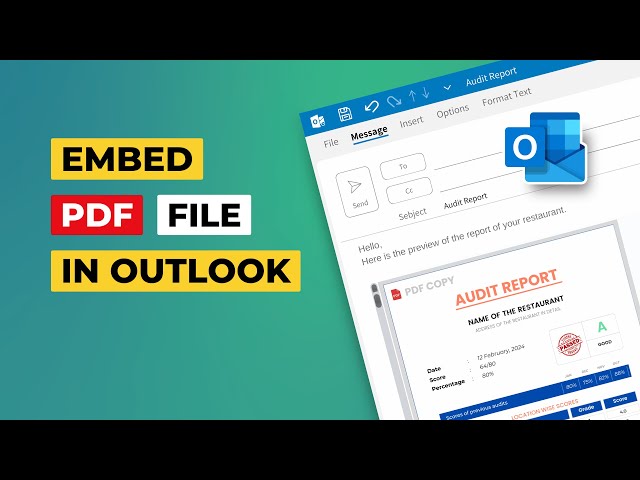
Image source: YouTube
While convenient, this method has a notable drawback. The OLE process converts the first page of your PDF into a rasterized image. Depending on the complexity of your document, this can result in a low-resolution, slightly blurry representation. Additionally, any hyperlinks present on that first page will not be clickable in the embedded preview.
3. Why the Insert Object Button Is Missing in New Outlook
A frequent point of frustration for users in recent months is the sudden disappearance of the "Insert Object" button. If you are searching for this feature and cannot find it, you are likely using the "New Outlook."
As of 2024, Microsoft began heavily pushing the "New Outlook for Windows," which is fundamentally a web application wrapper rather than a native desktop program. Because it is built on web technologies, it operates under the same security restrictions as Outlook Web and Gmail. Consequently, New Outlook does not support OLE .
- Native Windows application
- Supports OLE (Insert Object)
- Can generate automatic PDF previews
- Requires local Adobe installation
- Web-based architecture
- Does NOT support OLE
- "Insert Object" button is removed
- Requires the Image Workaround
If you are using New Outlook, Outlook for Mac, or Outlook Web, you cannot use the method described in Section 2. Instead, you must utilize the Image Workaround detailed in the next section.
4. How to Embed a PDF in Gmail Using the Image Workaround
For users on Gmail, Apple Mail, or New Outlook, the most reliable way to display a PDF visually is to convert it into an image format. This is particularly popular for sending marketing flyers, event invitations, or single-page portfolios.
According to email design experts at Stripo , visual embedding is used to increase "micro-conversions"—getting the user to engage with the content immediately without the friction of a download prompt.
Step 1: Convert the PDF to a High-Resolution Image
First, you must turn your document into a JPG or PNG file. You can do this using Adobe Acrobat (File > Export To > Image) or free online tools like Smallpdf or Canva. For the best results on high-resolution mobile screens, export the image at 300 DPI (Dots Per Inch) and save it as a PNG-24, which handles text rendering better than standard JPG compression.
Step 2: Insert the Image Inline
Open a new message in Gmail. Do not drag and drop the image into the attachment area. Instead, click the Insert Photo icon at the bottom of the compose window. Select your converted image and ensure the Inline option is selected (rather than "As attachment"). This forces the image to render directly within the text flow.
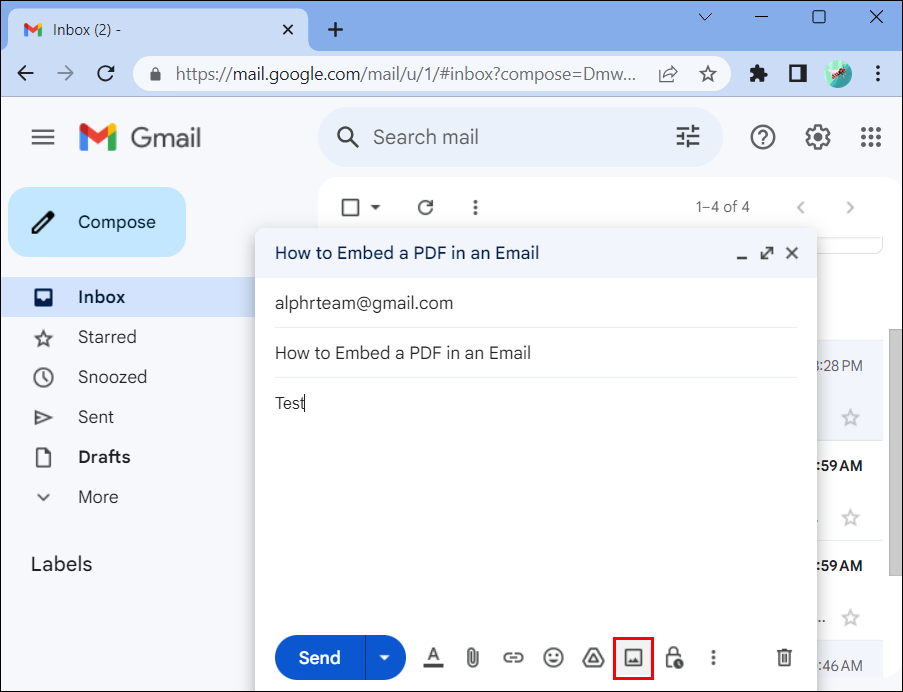
Image source: Alphr
Step 3: Add the Destination Link
Because the image is just a static picture, the recipient cannot scroll to page two or click any links that were in the original document. To solve this, upload your original multi-page PDF to a cloud storage service (like Google Drive or Dropbox) and copy the sharing link. Highlight the image in your Gmail draft, press
Ctrl+K
(or
Cmd+K
on Mac), and paste the link. Now, when the recipient clicks the visual flyer, it will open the full, interactive document in their browser.
5. How to Keep Your PDF Links Active When Embedding
The primary drawback of the image workaround is the "dead link" problem. When you convert a PDF to a JPG, all internal hyperlinks, buttons, and email addresses are flattened into pixels. If your flyer has three different buttons (e.g., "Visit Website," "View Menu," "Contact Us"), linking the entire image to a single destination is insufficient.
To maintain multiple clickable areas on a single embedded image, advanced users employ the Image Map Hack . This technique is highly effective in desktop email clients that support shape drawing.
- Insert your converted PDF image into the email body.
- Go to Insert > Shapes and select the Rectangle tool.
- Draw a rectangle directly over the "button" or text you want to make clickable on your image.
- Right-click the shape and select Format Shape . Set the Shape Fill to "No Fill" and the Shape Outline to "No Outline." The box is now invisible.
- Right-click the invisible box, select Link , and paste your destination URL.
By layering invisible, hyperlinked shapes over your static image, you create the illusion of a fully interactive PDF document directly within the email body. Note that this specific shape-drawing technique works best in desktop clients; for webmail, using a dedicated HTML email builder (like Mailchimp or Stripo) to slice the image into separate linked blocks is a more robust alternative.
6. Use the GIF Teaser Strategy to Boost Click-Through Rates
If your document is a multi-page report, catalog, or portfolio, showing only a static first page might not convey the depth of the content. A highly impactful alternative is the GIF Teaser strategy.
Instead of a static JPG, you create a 2-to-3-second animated GIF that shows the pages of the PDF flipping or scrolling. Human eyes are naturally drawn to motion, making this one of the most effective ways to capture attention in a crowded inbox.
Image source: FlippingBook
To implement this, you can use tools like Adobe Acrobat to export the first few pages as images, and then combine them into a looping GIF using free sites like EzGIF. Alternatively, digital publishing platforms like FlippingBook automatically generate these animated snippets when you upload a document. Once you have the GIF, you simply insert it into your email inline—exactly as you would a standard image—and hyperlink it to the full document.
7. How to Avoid Spam Filters When Embedding Visual Content
A critical mistake many professionals make is inserting a massive image of their PDF into an email, leaving the text body completely empty, and hitting send. This is a massive red flag for automated spam filters.
Spam algorithms cannot "read" the text flattened inside an image. If an email consists of 100% image and 0% live HTML text, filters often assume it is attempting to hide malicious keywords. To ensure your embedded document actually reaches the inbox, you must adhere to the Text-to-Image Ratio .
- The 60/40 Rule: Aim for your email to be roughly 60% text and 40% image by visual weight.
- Add Contextual Text: Always include at least two to three sentences of live text above or below the embedded image. Briefly summarize what the document contains.
- Optimize File Size: Keep your embedded image or GIF under 1MB. Massive files trigger spam filters and cause slow loading times on mobile networks.
- Use Alt Text: Right-click your embedded image and add descriptive Alt Text. This helps spam filters understand the image content and provides context if the recipient's email client blocks images by default.
8. Comparison of PDF Embedding Methods
Choosing the right approach depends on your software environment and the specific needs of your recipient. The table below outlines how the primary methods compare.
| Method | Best Use Case | Primary Advantage | Notable Limitation |
|---|---|---|---|
| OLE (Insert Object) | Internal corporate communications | No file conversion required | Windows Classic Outlook only; low resolution |
| Image Workaround | Marketing flyers, event invites | High visual quality across all clients | Internal PDF links are flattened/lost |
| Cloud Link (Drive/Dropbox) | Large reports, secure documents | Maintains full interactivity and security | Requires the user to click away from the email |
| GIF Teaser | Catalogs, multi-page portfolios | Exceptionally strong engagement rates | Requires third-party tools to create |
9. Mobile App Limitations and Best Practices
When designing an email, it is vital to remember that a significant portion of your audience will open it on a smartphone. The advanced embedding techniques discussed above—particularly OLE and the invisible shape hack—are inherently desktop-centric workflows.
According to Microsoft support discussions regarding mobile email rendering, mobile clients frequently strip out complex formatting to fit smaller screens. An OLE object that looks perfect on a desktop monitor may render as a broken icon on the iOS Mail app.
For mobile reliability, the Image Workaround is highly competitive. Standard inline JPGs and PNGs scale naturally on mobile screens. However, if your document contains small text, it may become unreadable when shrunk to fit a phone screen. In these scenarios, providing a clear, text-based link to a cloud-hosted version of the document is the safest fallback. Cloud links also address data security concerns, allowing you to set "View Only" permissions or expiration dates for sensitive files.
10. Frequently Asked Questions
11. Final Thoughts
Displaying document content directly in the email body removes friction and captures attention faster than a standard attachment. While technical limitations prevent a fully interactive document viewer from functioning inside an inbox, the workarounds available provide excellent alternatives for modern communication.
Key Takeaways for Embedding PDFs:
- Identify your platform: Use OLE for Classic Outlook on Windows, and the Image Workaround for Gmail, Mac, and New Outlook.
- Convert for quality: When using the image method, export your document as a 300 DPI PNG-24 to ensure crisp text rendering.
- Always hyperlink: Link your embedded image to a cloud-hosted version of the full document so recipients can access all pages.
- Balance your content: Maintain a 60/40 text-to-image ratio by adding a few sentences of live text to avoid triggering spam filters.
- Consider motion: Use a 2-to-3-second GIF of your document pages flipping to significantly boost click-through rates.