
How to Answer Questions in an Email Professionally and Efficiently
To answer multiple questions in an email professionally, use the inline reply method : copy the sender's original questions, paste them into your reply, bold them, and type your answers directly underneath in a contrasting color (like dark blue). For mobile devices where inline formatting is difficult, use a numbered list at the top of your email that corresponds to the sender's questions. Always prioritize clarity, use specific subject lines, and aim for a 24-hour response time for colleagues or a 1-hour response time for external clients.
Why Your Email Response Strategy Matters for Your Career
In the modern workplace, the inbox is a high-stakes environment. With over 300 billion emails sent daily globally, professionals are constantly battling cognitive overload. When a colleague or client sends an email containing multiple questions, how you structure your response dictates not only how quickly the project moves forward but also how your competence is perceived.
Email communication remains a powerhouse for business operations. According to marketing data, email continues to offer a remarkable return on investment, generating roughly a $42 ROI for every $1 spent . Because email is tied so closely to revenue and operational efficiency, the quality of your replies is a direct reflection of your professional brand.
A poorly formatted reply—one that misses a crucial question or buries the answer in a dense paragraph—creates friction. It forces the sender to send a follow-up email, doubling the communication load for both parties. Conversely, a highly structured, easy-to-scan response signals respect for the recipient's time. It demonstrates that you are organized, detail-oriented, and capable of managing complex information.
Addressing the core intent of an email requires balancing two distinct skills: the technical formatting (knowing exactly where to click and how to structure the text) and the etiquette (knowing how to phrase your answers to maintain a polite, collaborative tone). Mastering both ensures that your emails are read, understood, and acted upon immediately.
How to Format Inline Replies for Multiple Questions
When dealing with an email that contains three or more questions, the industry standard is the "inline reply." This method involves answering each question directly below where it was asked in the original text. Communication experts consistently recommend this approach because it prevents questions from being overlooked in long threads.
The "Action-First" Model
Before diving into visual formatting, it is crucial to understand the structural hierarchy of a good answer. Productivity researchers advocate for the "Action-First" model. Instead of starting with a long paragraph of context and burying the actual answer at the bottom, you should state the direct answer or required action immediately. Context and background information should only follow if necessary. This aligns closely with the five-sentence rule , which forces writers to be concise and get to the point without filler.
Visual Hierarchy Rules
To make an inline reply effective, you must establish a clear visual distinction between the sender's original words and your new answers. If the text blends together, the email becomes unreadable.
- Bolding the Original Text: Always bold the sender's original questions. This turns their queries into visual anchors, allowing them to scan down the page and easily find what they asked.
- Color Coding: Use a contrasting color for your responses. Dark blue is widely regarded as the most professional choice. It stands out clearly against standard black text but avoids the aggressive connotations of red or the informal feel of bright green.
- Using Brackets: If you are using a plain-text email client or prefer not to use color, use bracketed tags. Starting your response with [Your Name] or [Answer] creates a clear boundary between their text and yours.
By combining the Action-First model with strict visual hierarchy, you eliminate ambiguity. The recipient opens the email, sees their questions clearly marked, and finds the exact answers directly beneath them.
How to Handle Inline Replies in Gmail and Outlook
Understanding the theory of inline replies is only half the battle; you must also know how to execute them efficiently within your specific email client. Both Gmail and Microsoft Outlook offer tools to make this process seamless, though their workflows differ slightly.
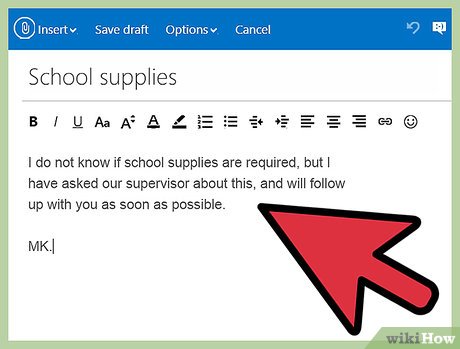
Image source: wikiHow Tech
The Gmail Workflow
In Gmail, replying inline requires a manual but straightforward approach. When you hit "Reply," Gmail automatically hides the original email behind a small ellipsis (...) icon at the bottom of the compose window.
- Click the ellipsis (...) to expand the original email text.
- Highlight the text you do not need and delete it, leaving only the specific questions you intend to answer.
- Place your cursor at the end of the first question and press Enter twice to create a clean line break.
- Change your text color to dark blue using the formatting toolbar (the "A" icon with an underline).
- Type your answer, then repeat the process for the remaining questions.
The Outlook Workflow
Microsoft Outlook offers a built-in automation feature that makes inline replying exceptionally efficient. You can configure Outlook to automatically tag your inline comments with your name.
To enable this, navigate to File > Options > Mail . Scroll down to the "Replies and forwards" section. Check the box that says "Preface comments with:" and type your name or initials in the adjacent text box. Once this is enabled, whenever you click into the original text of an email and begin typing, Outlook will automatically insert your chosen identifier and format your text, saving you the trouble of manually changing colors or adding brackets.
To speed up your workflow, memorize the shortcut for removing formatting. If you accidentally inherit the sender's weird fonts or background colors, highlight the text and press Ctrl + \ (in Gmail) or Ctrl + Space (in Outlook) to strip all formatting and return to plain text before applying your own styles.
How to Answer Questions on Mobile Devices Without the Mess
While inline replies are highly effective on desktop computers, they are notoriously difficult to execute on mobile devices. Smartphone screens are too small to easily highlight text, manipulate cursors between tight line breaks, and change font colors. Attempting an inline reply on a phone often results in a messy, unreadable wall of text.
The "Summary at Top" Method
When you must respond to a multi-question email from your phone, abandon the inline method. Instead, use the "Summary at Top" (or top-posting) strategy. This involves leaving the sender's original email intact at the bottom of the thread and placing a numbered list at the very top of your reply.
For example, you might write: "Hi Sarah, answering your questions below in order: 1) The deadline is Friday. 2) Yes, the budget is approved. 3) I will loop in the design team tomorrow." This method is clean, easy to type with thumbs, and perfectly clear to the recipient as long as they remember the order of their own questions.
Voice-to-Text Etiquette
If you are commuting or walking, voice dictation is a powerful tool for drafting quick answers. However, voice-to-text often strips out punctuation and misinterprets industry jargon. If you use dictation to answer questions, always take ten seconds to manually review the text before hitting send. A quick disclaimer at the end of the email—such as "Sent from my phone, please excuse any typos" —can help forgive minor formatting errors, but it does not excuse incomprehensible answers.
The "Move to Desktop" Rule
Not all questions should be answered on a mobile device. If a question requires pulling data from a spreadsheet, reviewing a complex document, or writing a nuanced, sensitive response, apply the "Move to Desktop" rule. Send a brief holding email from your phone: "Received. I need to pull the numbers for question two, so I will send a full response when I am back at my desk this afternoon." This acknowledges receipt while ensuring the final answer is accurate and well-formatted.
When Should You Send a Partial Answer Versus Waiting?
One of the most common dilemmas in professional communication is the "Partial Answer" scenario. You receive an email with three questions. You know the answers to questions one and two immediately, but question three requires input from another department that might take 48 hours to secure. Do you wait until you have all the information to send one comprehensive email, or do you send a partial reply now?
In almost all business contexts, sending a partial answer immediately is the superior strategy. This approach focuses on "unblocking" the sender. If they need the answers to questions one and two to continue their work, withholding that information while you wait for question three actively harms their productivity.
Setting Deadlines and Expectations
When sending a partial answer, clarity is paramount. You must explicitly state which questions are being answered and provide a firm ETA for the remaining information. Vague promises like "I'll get back to you on the rest" erode trust. Instead, use specific deadlines: "I am still waiting on Legal for question three; I will have an update for you by Thursday at 2:00 PM."
| Information Status | Recommended Action | Communication Strategy |
|---|---|---|
| You have all answers immediately. | Reply Now | Use inline formatting or a numbered list to answer comprehensively. |
| You have 2 of 3 answers; the 3rd takes 24+ hours. | Partial Reply | Provide the 2 answers immediately to unblock them. Give a specific ETA for the 3rd. |
| You have no answers and need days to research. | Holding Email | Acknowledge receipt immediately. State what steps you are taking to find the answers and provide a deadline. |
By utilizing this framework, you maintain momentum in the project and prevent the sender from wondering if their email disappeared into a void.
How to Use AI to Parse and Draft Complex Email Responses
As email threads grow longer and more convoluted, the risk of missing a buried question increases significantly. This is where Large Language Models (LLMs) like ChatGPT, Claude, or Google Gemini can serve as highly effective administrative assistants.
Solving the "Missing Question" Problem
When you receive a sprawling, multi-paragraph email from a client who tends to ramble, it can be difficult to isolate exactly what they are asking. Instead of reading the email five times, you can use AI to parse the text. A highly effective prompt is: "Extract all actionable questions and requests from the following email and format them as a concise, numbered list."
This allows you to instantly see the core demands of the email without the emotional or contextual clutter, ensuring that no question goes unanswered.
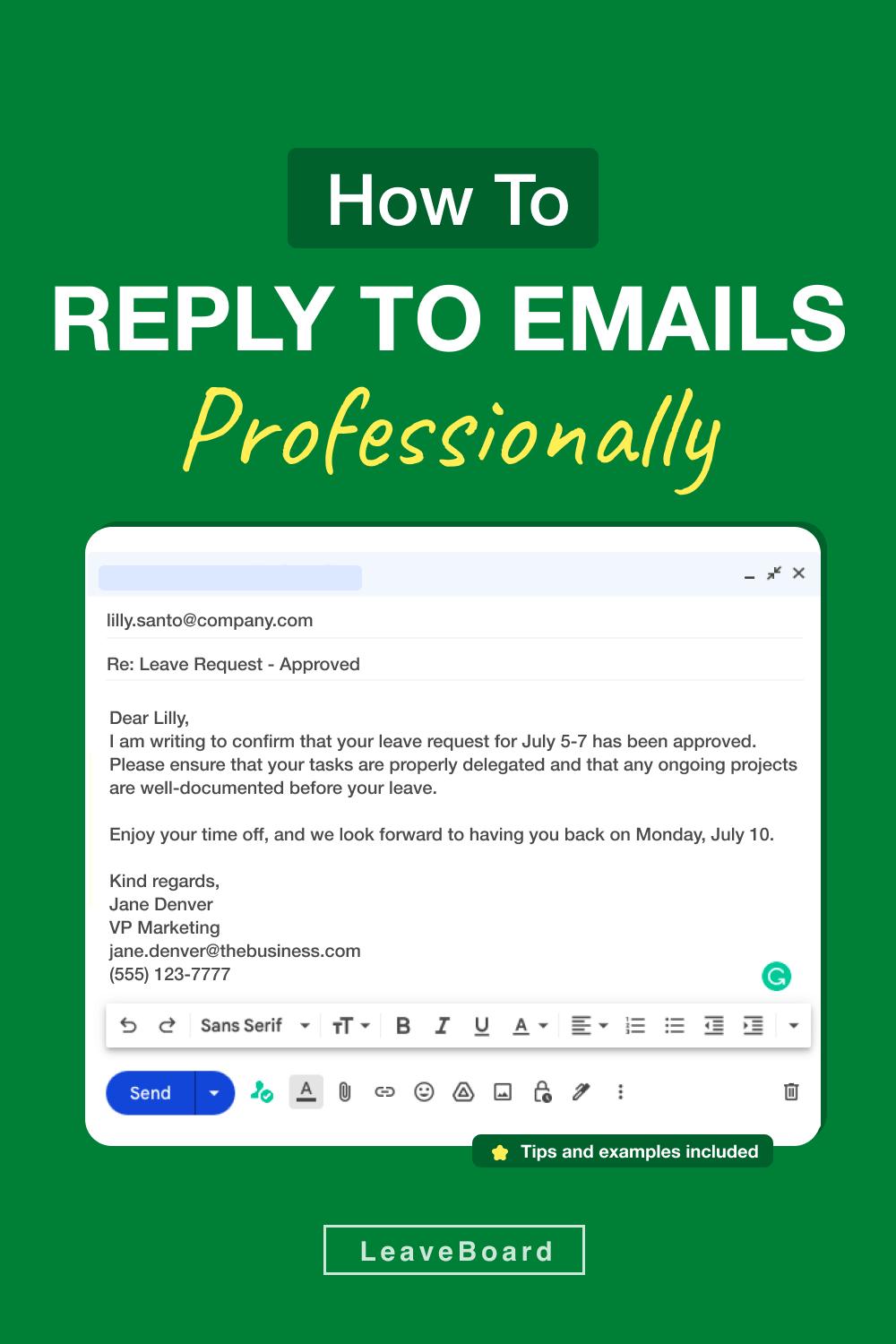
Image source: LeaveBoard
Drafting with AI and the 5-Sentence Rule
Once you have your list of questions, you can draft your answers in bullet points and ask the AI to refine them. You can instruct the AI to apply the five-sentence rule , ensuring the final output is brief and impactful. For example: "Turn these three bulleted answers into a professional email reply. Keep the total length under five sentences and use an action-first structure."
The Necessity of Human Verification
While AI is a notably innovative tool for parsing and drafting, it requires strict human oversight. AI tends to default to a tone that is either overly formal and robotic, or strangely enthusiastic and "adorable." If you blindly copy and paste AI-generated text, your colleagues will notice the shift in your brand voice. Always review the drafted text to ensure it sounds like you, removing unnecessary adjectives and overly formal sign-offs before hitting send.
How to Write Subject Lines That Get Faster Responses
When you are answering questions, you are often asking follow-up questions of your own, or you are replying to a thread that has drifted far from its original topic. The subject line of your email is the most critical factor in determining how quickly it gets opened and processed.
Data indicates that highly specific subject lines can increase response speeds by 30% to 50%. If a thread has evolved from "Project Kickoff" to a detailed discussion about budget approvals, continuing to reply to the "Project Kickoff" subject line creates confusion. Do not be afraid to change the subject line to reflect the current state of the conversation.
The "Topic + Count" Strategy
One of the most effective frameworks for subject lines is the "Topic + Count" method. By explicitly stating how many items are in the email, you prepare the recipient's mental load before they even open it. A subject line like "Q3 Budget: 3 Quick Questions" performs significantly better than just "Q3 Budget."
Furthermore, research on email open rates shows that using the prefix "Quick Question" can increase open rates by up to 30%, provided the email inside actually is quick.
| Vague Subject Line (Avoid) | Specific Subject Line (Use Instead) | Why It Works Better |
|---|---|---|
| Following up | Answers to your 3 questions regarding the Q4 launch | Sets immediate context and confirms receipt of their queries. |
| Re: Project Update | Action Required: 2 questions on the Project Update | Flags that the email requires their active participation, not just reading. |
| Quick question | Quick Question: Approval needed for vendor invoice | Combines the high-open-rate prefix with specific context. |
Professional Templates for Common Email Question Scenarios
Having a repository of proven templates saves time and ensures consistent professionalism. Below are structural templates for the most common scenarios you will encounter when answering questions.
Use when: A client sends a list of specific questions that require detailed answers.
"Hi [Name],
Thank you for sending these over. I have answered your questions inline below in blue for clarity.
[Paste their questions, bolded. Add your answers below each in blue.]
Let me know if you need any further clarification on these points.
Best,
[Your Name]"
Use when: You need time to research the answers but want to acknowledge receipt.
"Hi [Name],
I received your questions regarding [Topic]. I need to pull the latest data from the system to give you accurate answers for items 2 and 3.
I will have a complete response for you by [Day of week] at [Time].
Thanks,
[Your Name]"
Use when: Replying to a busy manager or executive who needs bottom-line answers.
"Hi [Name],
To answer your questions briefly:
1. Yes, the campaign is launching on time.
2. We are currently $500 under budget.
3. The design team is handling the revisions.
I've attached the full report if you need the granular details.
Best,
[Your Name]"
Use when: Someone asks a question that has already been answered in documentation.
"Hi [Name],
Great question. The process for [Topic] is fully outlined in our team wiki.
You can find the step-by-step instructions here: [Link]. Pay special attention to section 3, which covers your specific scenario.
Let me know if the guide leaves anything unclear.
Best,
[Your Name]"
How to Manage High Volumes of Redundant Questions
If you work in customer support, HR, or project management, you likely receive the exact same questions dozens of times a week. Typing out fresh answers for every redundant query is a massive drain on productivity.
Building a Snippet Library
The most effective defense against redundant questions is a snippet library. Both Gmail (via "Canned Responses" or "Templates") and Outlook (via "Quick Parts" or "Templates") allow you to save pre-written blocks of text. When a common question arrives, you can insert a comprehensive, perfectly formatted answer with two clicks.
When building these templates, ensure they are written in a neutral, helpful tone. A good template should answer the immediate question and proactively answer the logical follow-up question, reducing the back-and-forth chain.
The "Permission to Not Answer" Concept
During high-volume periods (such as a product launch or open enrollment), you can utilize auto-replies to manage expectations. As discussed in professional community forums regarding handling redundant public inquiries , setting an auto-reply that says, "Due to high volume, responses may take up to 48 hours. If your question is regarding [Common Topic], please check our FAQ page here," gives you the "permission" to delay your response while immediately serving the majority of users.
However, small organizations must be careful to maintain a human touch. Ensure your automated templates do not sound overly corporate or dismissive. A brief, polite greeting and a clear path to a human resolution (if the FAQ fails) preserves trust.
Response Time Benchmarks and Professional Expectations
Even the most perfectly formatted answer loses its impact if it arrives three days late. Understanding the benchmarks for professional response times helps you prioritize your inbox effectively.
Image source: wikiHow Tech
Internal vs. External Benchmarks
Expectations differ wildly depending on who is asking the question. For internal communications (colleagues, managers, other departments), career experts generally agree that a 24-hour response window is the standard professional courtesy. If you cannot provide a full answer within 24 hours, a holding email is required.
However, for external communications (customers, clients, prospects), the timeline is much tighter. Customer service expert Jeff Toister notes that for modern consumers, a one-hour response time is rapidly becoming the expected standard, and businesses that meet this benchmark gain a significant competitive advantage.
The "Under-Promise, Over-Deliver" Rule
When setting expectations for a delayed answer, always build in a buffer. If you know it will take you two hours to gather the data, tell the sender you will have it to them by the end of the day. When you deliver it in three hours, you appear highly efficient. If you promise it in two hours and deliver it in three, you appear disorganized, even though the actual work took the same amount of time.
Frequently Asked Questions
- How do you professionally say "see my answers in blue below"?
- The most standard and polite phrasing is: "Please find my responses inline below in blue for clarity." This sets clear expectations for the reader and directs their eyes to the correct formatting without sounding overly blunt.
- Is it better to reply inline or at the top of an email?
- It depends on the complexity of the email. For three or more specific questions, replying inline is highly recommended to ensure nothing is missed. For one or two simple questions, or when replying from a mobile device, top-posting (answering at the top of the email) is generally preferred for ease of reading.
- What is the best font color for inline email replies?
- Dark blue or dark purple are widely considered the most professional choices. They provide enough contrast against standard black text to be easily visible, but they avoid the aggressive, corrective tone often associated with red text.
- How do I respond to an email when I'm angry or frustrated?
- Employ the "Draft and Wait" rule. Write your response in a separate document (not in the email client, to prevent accidental sending), and wait at least two hours—preferably overnight—before reviewing it. Never answer factual questions while emotionally compromised, as your tone will likely come across as unprofessional.
- Should I use "Reply All" when answering questions?
- You should only use "Reply All" if every single person copied on the thread actively needs the answers to move their own work forward. If the questions were directed solely at you and the answers do not impact the broader group, reply only to the sender to spare everyone else's inbox.
Final Thoughts and Best Practices
Answering emails effectively is a core professional skill that reduces friction, saves time, and builds your reputation as a reliable communicator. By structuring your responses thoughtfully, you make it easier for others to work with you.
- Use the 5-sentence rule to keep your answers concise and focused on the required action.
- Format inline replies by bolding the original questions and using dark blue text for your answers.
- Switch to numbered lists at the top of the email when replying from a mobile device.
- Send partial answers immediately to unblock colleagues, rather than waiting days for complete information.
- Leverage specific subject lines (e.g., "3 Questions Regarding Q4") to prepare the recipient and increase open rates.
- Prioritize response times based on the audience: aim for 1 hour for clients and 24 hours for internal colleagues.